
You are here:
Transform Fields in a Recipe
Data is not always consistent, especially when you combine data from different sources. In a recipe, you can transform fields to ensure that values are consistent in your target dataset. Change case, split values to get just the parts you need, and replace incorrect values.

When you transform a field, a new field is added with the new values to the right of the original field. You can choose to keep or remove the original field.
To transform a field, click  in the column header (1), and then click the transformation that you want to
use. Alternatively, select a transformation from the Suggestions bar at the bottom of the
recipe.
in the column header (1), and then click the transformation that you want to
use. Alternatively, select a transformation from the Suggestions bar at the bottom of the
recipe.
Transformation settings appear in the Add Transformation panel below the preview data.
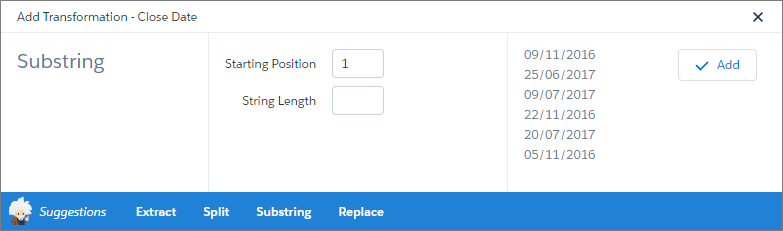
You can apply these field transforms.
| Transform | Description | Example |
|---|---|---|
| Extract | Extract the selected component from a date field into a new field. | Extract the hour component from the case created date to analyze case creation by hour of the day. |
| Lowercase | Convert values in selected field to lowercase. | Correct lead email addresses captured at a trade show. JSMITH@FORRESTER.COM becomes jsmith@forrester.com. |
| Replace | Find a specific value in a field and replace it with a new value. A new field is created containing both replaced and unchanged values. You can also replace nulls with a value. For example, to allow users to group transactions that don’t have a product, replace all nulls in the Product field with “N/A”. |
Make country values consistent. Find all instances of US and Replace them with USA. |
| Split | Divide values into multiple parts at the delimiter and create a field for each part. | Divide phone numbers into area code and number. Select the - delimiter to split 925-900 2123 into two new values 925 and 900 2123. |
| Substring | Starting at the character Position in a value, extract the number of characters in Length into a new field. | Extract the month from date values. Enter a Position of 4 and a Length of 2 to extract the month value 10 from the month value 2016-10-23. |
| Trim | Remove leading and trailing whitespaces. | Remove whitespaces to ensure that values from one source are consistent with values from another source. “ CA “ becomes “CA”. |
| Uppercase | Convert values in selected field to uppercase. | Correct US state values. ca becomes CA. |

