To use joins, aggregates, and sentiment detection in Data Prep, convert your dataflows
to recipes. However, if your dataflow achieves your desired outcome, there’s no need to convert
it, and you can continue using it. But consider using recipes for new Data Prep jobs because
they offer more features.
Required Editions
Available in: Salesforce Classic and Lightning Experience
Available for an additional cost in: Enterprise, Performance, and
Unlimited Editions
Permission Sets
Needed
To convert a dataflow to a recipe:
Edit CRM Analytics Dataflows
OR
Edit Dataset Recipes
Before you convert a dataflow, keep these considerations in mind.
Warning The conversion tool doesn’t guarantee a fully automated conversion. After
conversion, identify and address issues and validate the business logic.
Recipes don’t support some dataflow parameters or have implementation differences that require
review or modification. See Dataflow Conversion Mapping.
Conversion creates one recipe per dataflow. You can convert a dataflow multiple times.
Each conversion replaces the previous recipe. If you want to keep a converted recipe, save
it as a new recipe to avoid overwriting it.
The original dataflow and its sync schedule are unchanged.
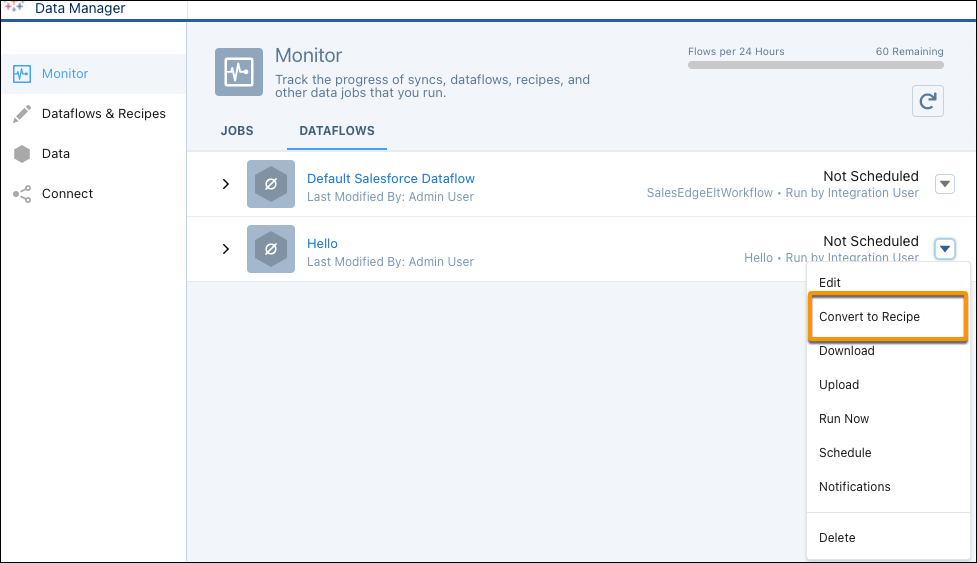
In Data Manager (Legacy), select Convert to Recipe from the
dataflow’s dropdown menu.
Conversion requires a valid dataflow with available input data sources. Only convert
dataflows that have run successfully recently. Don’t convert an invalid dataflow.
View the new recipe.
Review and address any warnings and errors, as indicated by the and icons against nodes and in the recipe editor header.
Save and run the recipe.
Compare the converted recipe’s output datasets, which have “_df2R3” appended to their
names, to the dataflow’s datasets.
Replace the dataflow with the recipe.
To have your dashboards and references use the recipe’s datasets, change the
recipe’s output dataset API names to match the dataflow’s dataset API names.
Alternatively, update your dashboards and other references to use the recipe dataset
names.
Unschedule the dataflow and schedule the recipe.
Consider deleting the dataflow’s datasets.
Dataflow Conversion Mapping During conversion, dataflow functionality is mapped to similar recipe functionality. Consider the mapping specifications when evaluating the conversion of your dataflows to recipes.
Did this article solve your issue?
Let us know so we can improve!
Loading
Salesforce Help | Article
Cookie Consent Manager
General Information
Required Cookies
Functional Cookies
Advertising Cookies
General Information
We use three kinds of cookies on our websites: required, functional, and advertising. You can choose whether functional and advertising cookies apply. Click on the different cookie categories to find out more about each category and to change the default settings.
Privacy Statement
Required Cookies
Always Active
Required cookies are necessary for basic website functionality. Some examples include: session cookies needed to transmit the website, authentication cookies, and security cookies.
Functional Cookies
Functional cookies enhance functions, performance, and services on the website. Some examples include: cookies used to analyze site traffic, cookies used for market research, and cookies used to display advertising that is not directed to a particular individual.
Advertising Cookies
Advertising cookies track activity across websites in order to understand a viewer’s interests, and direct them specific marketing. Some examples include: cookies used for remarketing, or interest-based advertising.