
You are here:
Run a Dataflow Manually
Run a dataflow for the first time to create the datasets it defines. Run it again to update the dataset with the latest synced data.
Required Editions
| Available in Salesforce Classic and Lightning Experience. |
| Available with CRM Analytics, which is available for an extra cost in Enterprise, Performance, and Unlimited Editions. Also available in Developer Edition. |
| User Permissions Needed | |
|---|---|
| To run a dataflow: | Edit CRM Analytics Dataflows |
- In CRM Analytics, click Data Manager in the left pane to open
Data Manager.Data Manager opens to the Monitor tab with the Jobs view selected.
- Click the Dataflows & Recipes tab.
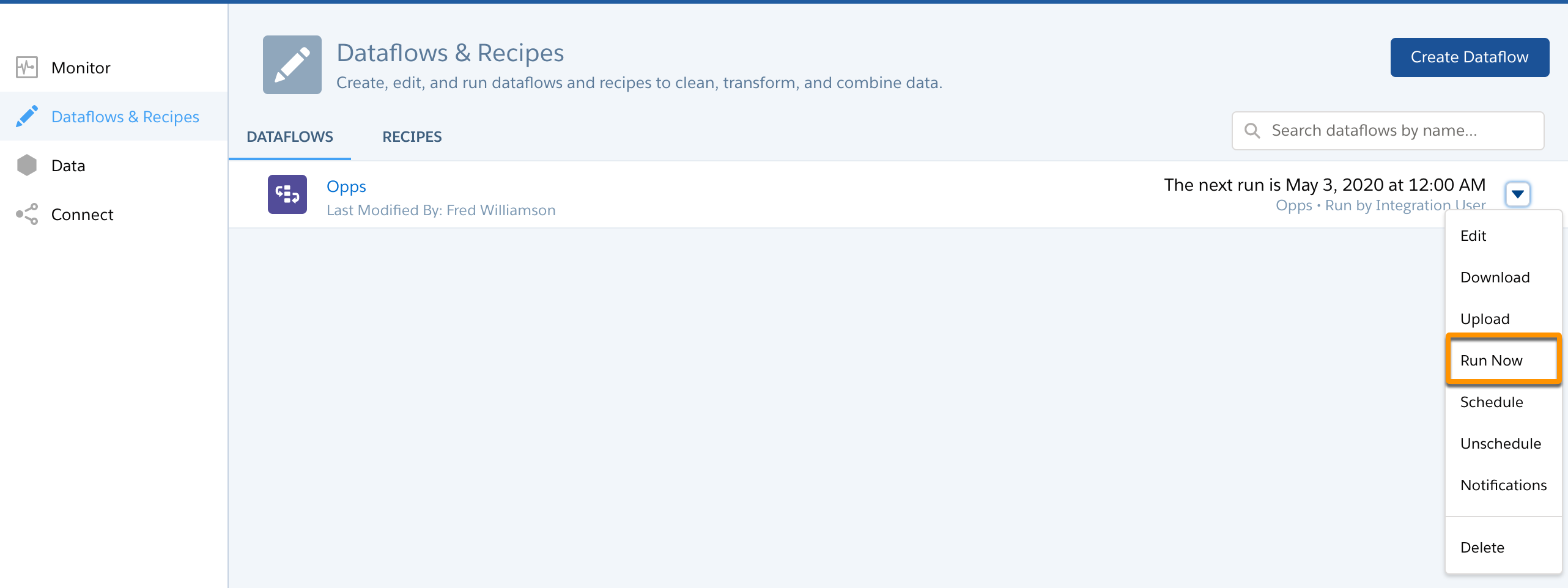
- Click the triangle
 to
the right of the dataflow you want to run, and select Run
Now.The dataflow job is added to the job queue. The Start action is grayed out while the dataflow job runs.
to
the right of the dataflow you want to run, and select Run
Now.The dataflow job is added to the job queue. The Start action is grayed out while the dataflow job runs. - After the job completes, CRM Analytics sends an email notification to the user who
created the dataflow.The email notification indicates whether the job completed successfully. It also shows job details like start time, end time, duration, and number of processed rows. If the job failed, the notification shows the reason for the failure.
 Note If the dataflow creator is not an active user, the notification is sent to the user who last modified the dataflow schedule or definition file.
 - To stop a dataflow job that is
currently running, click
 next to the
job status.If you click Start to restart a stopped dataflow, the job starts over—the dataflow job does not resume from the point at which it was stopped.Note A dataflow automatically restarts if it is forcibly terminated by an external process like patches to the OS or Maestro, specifically bifrost.
next to the
job status.If you click Start to restart a stopped dataflow, the job starts over—the dataflow job does not resume from the point at which it was stopped.Note A dataflow automatically restarts if it is forcibly terminated by an external process like patches to the OS or Maestro, specifically bifrost.
You can monitor the dataflow job on the Monitor tab to determine when the dataflow completes. After the dataflow completes successfully, refresh the CRM Analytics home page to view the registered dataset.
Did this article solve your issue?
Let us know so we can improve!
