
You are here:
Schedule a Dataflow to Run Automatically
You can schedule a dataflow to run after an event, such as when a sync job completes. Or you can schedule it to run hourly, weekly, monthly, or on specific days of the week or dates.
Required Editions
| Available in: Salesforce Classic and Lightning Experience. |
| Available for an extra cost in Enterprise, Performance, and Unlimited Editions. Also available in Developer Edition |
| User Permissions Needed | |
|---|---|
| To schedule a dataflow job: | Edit CRM Analytics Dataflows |
Use event-based scheduling to run a dataflow after the sync runs to ensure that datasets include up-to-the-minute data. Use time-based scheduling to ensure that fresh data is available by a particular time, or to run the job during non-business hours.
- From the App Launcher, find and select Data Manager.
- In the left pane, click Manage Dataflows.The legacy Data Manager opens to the Monitor tab with the Jobs view selected.
- Click the Dataflows & Recipes tab.
- Click the triangle
 to the right of the dataflow you want to run, and select
Schedule.
to the right of the dataflow you want to run, and select
Schedule.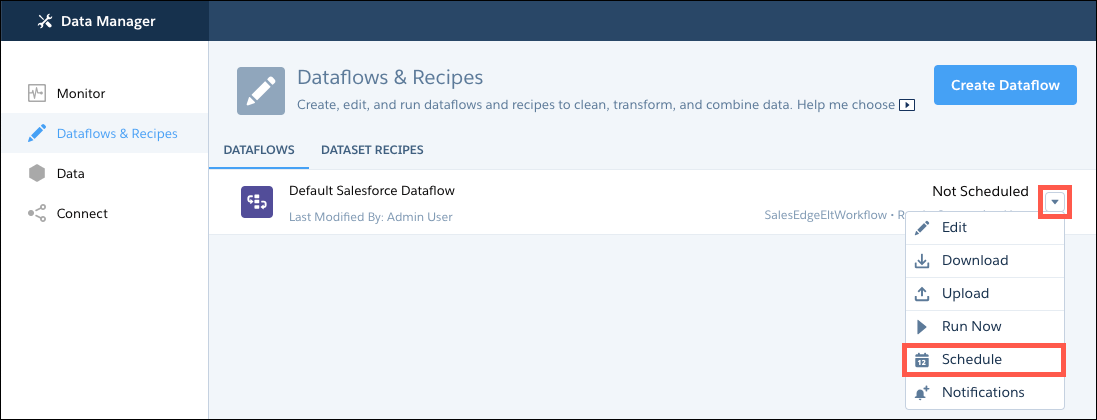 The scheduler appears.
 - To schedule the dataflow to run after its related data sync, recipe, or dataflow
finishes, choose Event-based under Schedule Mode.
- Select the event-based scheduling mode that includes all sources of data that contribute to your dataflow. For example, if the dataflow pulls data from the Salesforce Accounts and Opportunities objects, and uses data generated by another dataflow, select The Salesforce local connections sync and the selected recipes or dataflows runs
- If you selected an event-based scheduling mode that waits on recipes or dataflows to run, select up to 5 from the list. Use this option to await fresh data or coordinate running another preceding recipe or dataflow first. Only runs that were successful or completed with warnings trigger this run. To increase the number of prerequisite recipes or dataflows you can choose, contact Salesforce Customer Support.
 Note Event-based schedules are triggered only by completed data sync of local objects in the dataflow’s sfdcDigest nodes through a scheduled run, manual run, or another successful dataflow run. Data syncs from remote connections, including Salesforce remote orgs, don’t trigger event-based schedules. When you use data from multiple local connections in a recipe or dataflow, event-based scheduling will run only after all local connections are synced. For example, if one local connection is scheduled to sync hourly and another syncs daily, an event-based scheduled recipe using data from both runs one time daily.
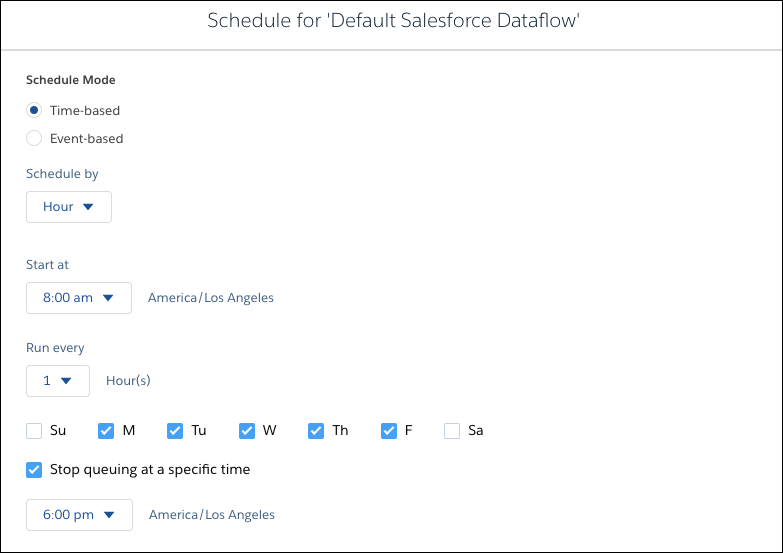
 - To run the dataflow at a specific time, select Time-based under
Schedule Mode. Select the time to run the dataflow. You can schedule the dataflow to run
by minute, hour, week, or month. CRM Analytics runs the dataflow according to the time zone of the user who set the schedule.
- If you schedule the dataflow to run by minute or hour, optionally select Stop queuing at a specific time to stop the schedule from adding more dataflow runs to the queue after a certain time. For example, to restrict runs to office hours, set a job to start at 8:00 AM, run every hour, and stop at 5:00 PM.
- Click Save.

Schedules for data sync, dataflow, and recipes are removed 30 days after the last save in Sandbox and Developer edition orgs, and 10 days after the last save in Trial orgs. Users subscribed to notifications receive an email when a schedule is removed. Set the schedule again at any time.
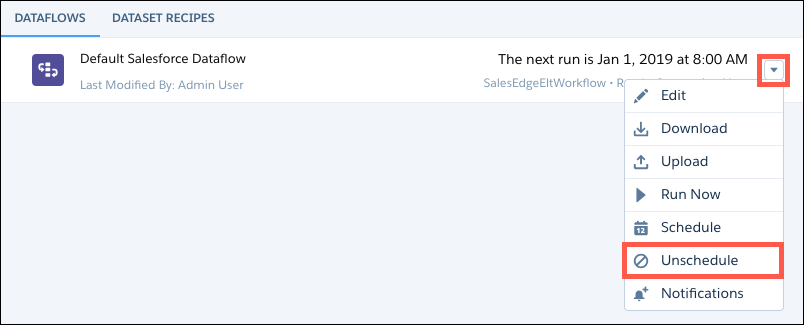
To cancel the scheduled dataflow, select Unschedule from the dataflow’s menu.
When you deactivate a user who scheduled a dataflow, the dataflow schedule is deleted and the dataflow is unscheduled.
