
You are here:
Data Prep Date Configuration
Use Data Prep’s date configuration to analyze your CRM Analytics data according to a custom year. Date configurations are automatically applied to Data Prep recipe data. Date configurations are ideal for orgs that want to analyze by a custom week start, or by a fiscal year without manually configuring the fiscal month offset or applying a fiscal year to the entire org.
Required Editions
| Available in Salesforce Lightning Experience. |
| Available with CRM Analytics, which is available for an extra cost in Enterprise, Performance, and Unlimited Editions. Also available in Developer Edition. |
This feature isn’t available for orgs with:
- An org-wide custom fiscal year is defined in the company profile.
- The Custom Fiscal Year Support in CRM Analytics enabled in Analytics settings.
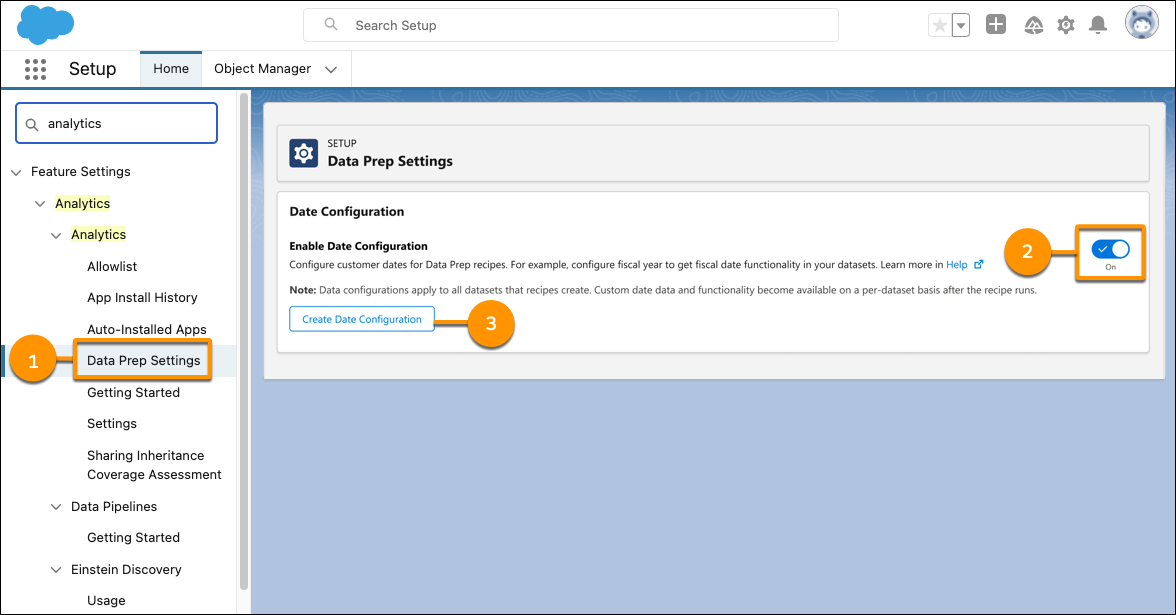
- From Setup, in the Quick Find box, enter Analytics, then select Data Prep Settings (1).
- Turn on date configurations (2).
-
To create a date configuration, click Create Date Configuration (3).
-
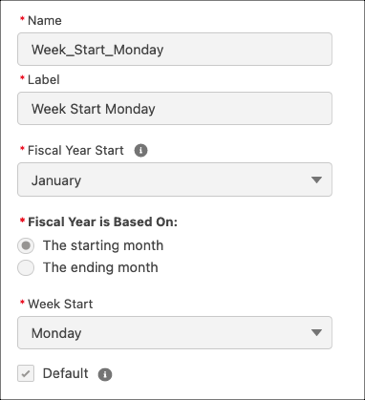
Define your calendar settings, and click Save.
- Label: Enter a name for your fiscal year configuration.
- Fiscal Year Start: Select the month your fiscal year starts.
- Fiscal Year is Based On: Select how to base your fiscal year. For example, if your fiscal year starts in April 2020 and ends in March 2021, select to base your fiscal year on The starting month for your fiscal year to be 2020. Or, select to base your fiscal year on The ending month for your fiscal year to be 2021.
- Week Start: Select the day your week starts.
- Default: Select whether this configuration is the default to automatically apply to
all datasets created by recipes.
The Default checkbox isn’t available upon creation. The first date configuration is automatically set as the default. If multiple date configurations, mark the default by editing the date configuration.
-
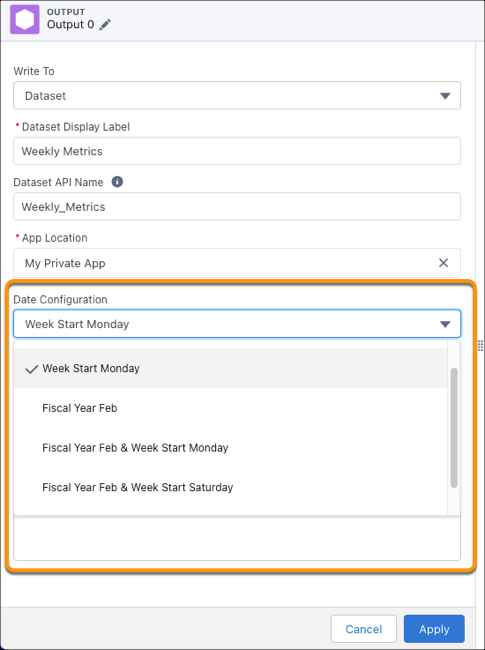
Optionally, if there are multiple date configurations you can manually change the date
configuration to apply. To change the recipe’s date configuration, use Date
Configuration in an Output node or in the date extract function in a Transform
node, and click Apply.
- Save the recipe.
CRM Analytics applies the date configuration to your CRM Analytics data only. Custom
fiscal year data and functionality, including fields suffixed _Fiscal, become available on a per-dataset basis after each Data Prep recipe
runs. In addition, CRM Analytics users can work with fiscal data in SAQL queries, fiscal
filters, and fiscal group options in dashboards and exploration, like “Fiscal Year” and
“Fiscal Quarter”.
The default date configuration automatically applies only to datasets run by Data Prep recipes. To apply the fiscal year configuration to datasets from dataflows, csv uploads, or connected data, add the dataset to a Data Prep recipe.
- Inherit Custom Fiscal Years from Salesforce
If your company uses a custom fiscal year, and has defined the custom fiscal year in Salesforce, then CRM Analytics can inherit the custom fiscal year definition from Salesforce. Once inherited, the custom fiscal year is available for use throughout CRM Analytics. For example, a dashboard filter can return opportunities from this fiscal quarter.
