
You are here:
Schedule a Recipe to Run Automatically
You can schedule a CRM Analytics recipe to run at a specific time or after an event. Use time-based scheduling to ensure that fresh data is available by a particular time or to run the job during non-business hours. You can schedule a recipe to run hourly, weekly, monthly, or on specific days of the week or dates. Use event-based scheduling to run a recipe after the sync runs to ensure that datasets include the latest data. If you split data prep across multiple recipes, use event-based scheduling to chain these recipes together to obtain the desired outcome automatically.
Required Editions
| Available in Salesforce Classic and Lightning Experience. |
| Available with CRM Analytics, which is available for an extra cost in Enterprise, Performance, and Unlimited Editions. Also available in Developer Edition. |
| User Permissions Needed | |
|---|---|
| To run a recipe: | Edit Dataset Recipes OR Edit CRM Analytics Dataflows |
- In Data Manager, on the Recipes tab, click the triangle
 next to the recipe name, and select Schedule.
 - To run the recipe at a specific time, under Schedule Mode, select
Time-based.
- Select the time to run the recipe. CRM Analytics runs the recipe
according to the time zone of the user who set the schedule.
If you have a CRM Analytics Plus license, you can set the schedule to run every 5, 15, 20, or 30 minutes. This feature isn’t available in sandbox orgs.
- If you schedule the recipe to run by minute or hour, select Stop schedule at a specific time to stop the schedule from adding more recipe runs to the queue after a certain time. For example, to restrict runs to office hours, set a job to start at 8:00 AM, run every hour, and stop at 5:00 PM.
- Select the time to run the recipe. CRM Analytics runs the recipe
according to the time zone of the user who set the schedule.
- To schedule the recipe to run after its related data sync, external connection sync, CSV
upload, or another recipe finishes, under Schedule Mode, select
Event-based.
- Select the events to run the recipe schedule after. You can select one or more
events. For example, if the recipe pulls data from the Salesforce Accounts and
Opportunities objects and uses data from an external connection, select both
The Salesforce local syncs and The Salesforce
external connection syncs.
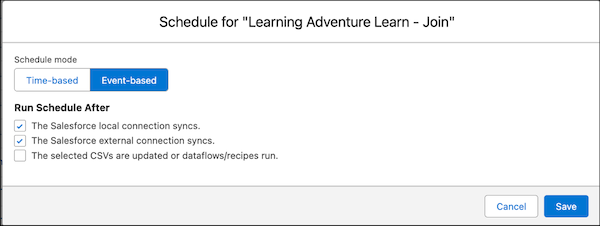
- If you select The selected CSVs are updated or dataflow/recipes run, choose the CSVs, recipes, or dataflows from the list to trigger this schedule. Use this option to wait for fresh data or to run another preceding recipe or dataflow first. You can make multiple selections of different types, but each selection increases the complexity of the schedule. Only recipe runs that were successful or completed with warnings trigger this schedule. Only CSVs that have been uploaded in the last 30 days are available in the list. If you don’t see a CSV you need, upload it again. The maximum dependent jobs for an event-based schedule is 5.
- An event-based schedule is triggered after a sync on objects from local Salesforce
orgs, a sync on objects from external connections, and uploads from CSVs. When you use data from multiple connections in a
recipe or dataflow, event-based scheduling runs after all the connected objects are
synced. For example, if a local connection is scheduled to sync hourly and an
external connection syncs daily, an event-based scheduled recipe using data from
both runs daily.
When using a single local connection, the job only waits for the objects used in the recipe to sync before it triggers the recipe to run. It doesn't wait for any unrelated objects to complete their data sync.
- Select the events to run the recipe schedule after. You can select one or more
events. For example, if the recipe pulls data from the Salesforce Accounts and
Opportunities objects and uses data from an external connection, select both
The Salesforce local syncs and The Salesforce
external connection syncs.
- Click Save.
Schedules for data sync, dataflow, and recipes are removed 30 days after the last save in Sandbox and Developer edition orgs, and 10 days after the last save in Trial orgs. Users subscribed to notifications receive an email when a schedule is removed. Set the schedule again at any time.
The scheduler provides details on who created or modified the schedule and when the schedule was created or last modified.
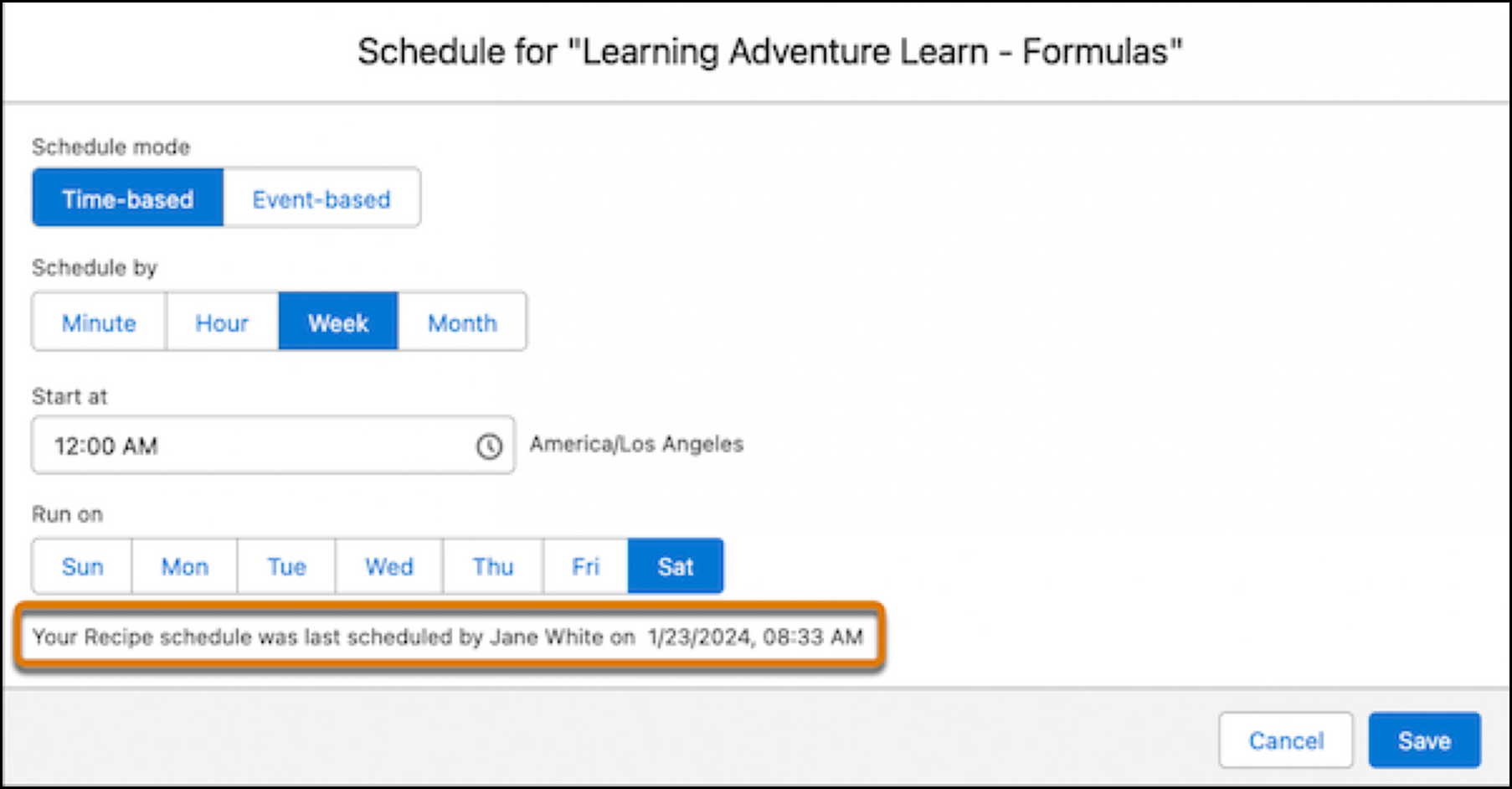
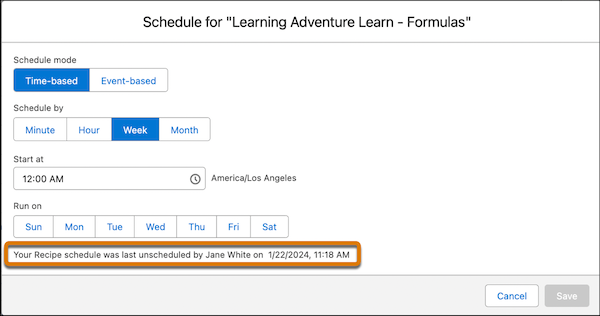
If the schedule is deleted, the scheduler shows who unscheduled it and when. When you deactivate a user who scheduled a recipe, the recipe schedule is deleted and the recipe is unscheduled.

- Use connected objects in a recipe.
- Edit security predicates in existing recipes, which allows you to grant others, including yourself, access to more rows in the dataset.
- Run or schedule recipes that pull data from existing datasets with security predicates.
Users with the Edit Dataset Recipes permission but without the Edit CRM Analytics Dataflows permission can:
- Create a recipe that outputs datasets to their private app only.
- Run and schedule recipes that write to datasets that don’t have security predicates.
- Use a recipe to extract data from a dataset with a security predicate, but can’t change the predicate on the resulting dataset.
