
You are here:
Connect to a Data Source or Target
Connect to data in your local Salesforce org, external orgs, and other sources, such as apps, data warehouses, and database services. Use an input connector to extract data from a data source. Use an output connector to load the recipe results into a target.
To use an output connector, the org admin must first enable it in Setup.
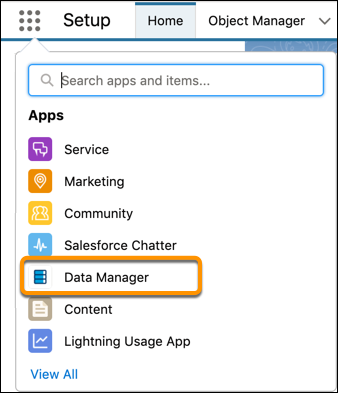
- From the App Launcher, open Data Manager.
- In the left panel, select Connections.
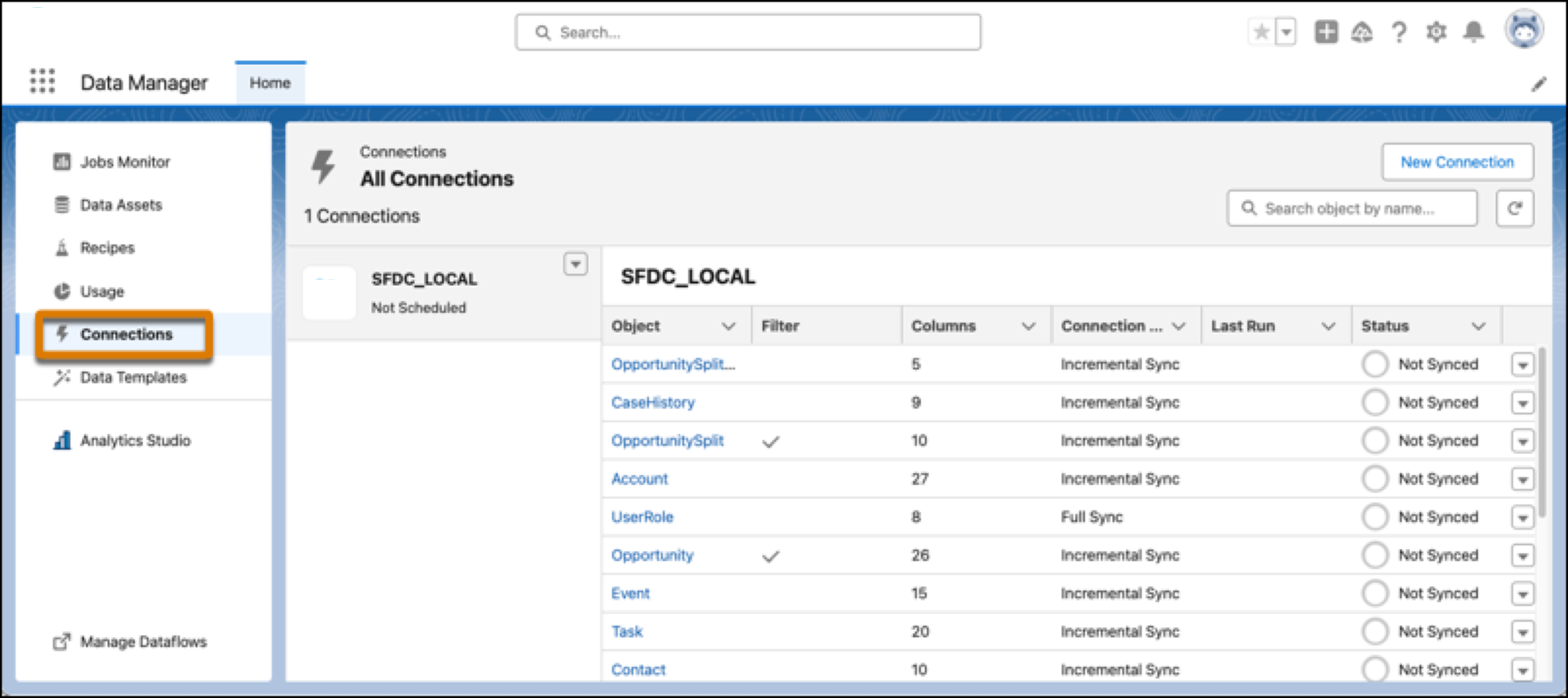 By default, you have a connection to your local Salesforce org.
 - To connect to a different data source or create another connection to the same data source, click New Connection.
- Select the connection type.For example, select Salesforce External Connector to connect to another Salesforce org.
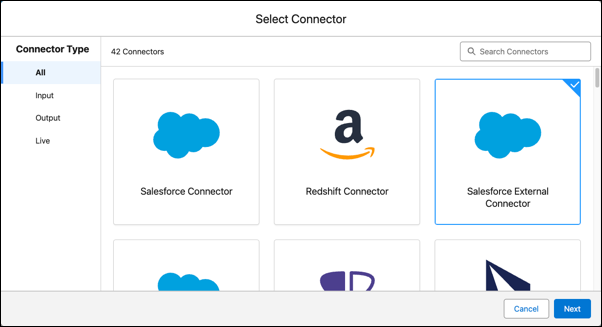
- Enter and save the connection details.The connector help pages in this section provide information on the details needed for each connector.
- In the Edit objects dialog box, for each object you want to extract data from.
- Select the object.
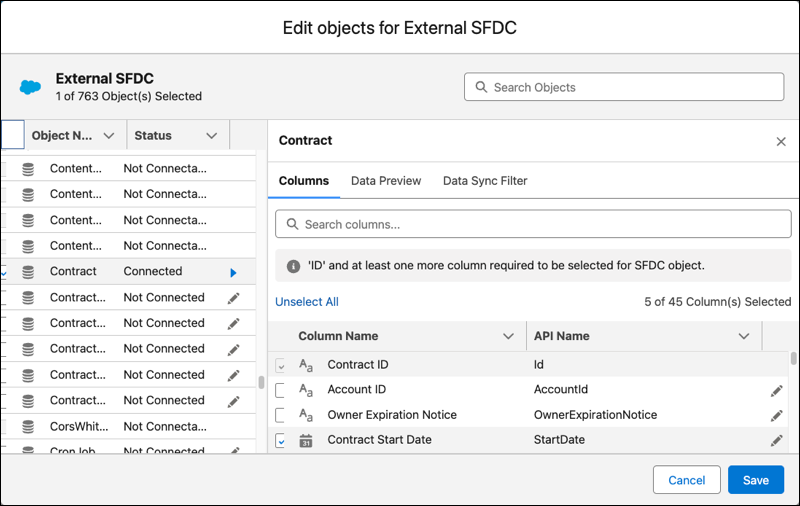
- On the Columns tab, select the object’s fields that you want to extract data
from.A field name can only include letters, numbers, periods, underscores, or dashes. The data sync fails if the field name contains other characters, such as brackets.
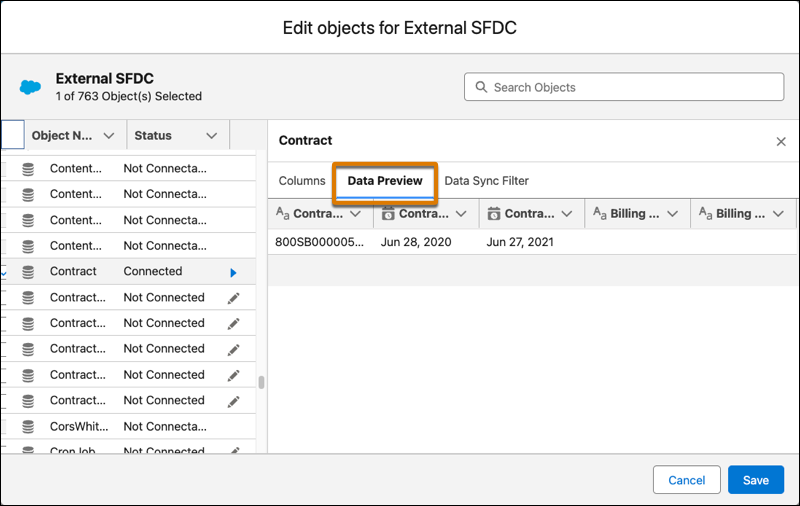
- On the Data Preview tab, review the sample records to ensure that you’re pulling
the correct fields and that the fields have the expected data.
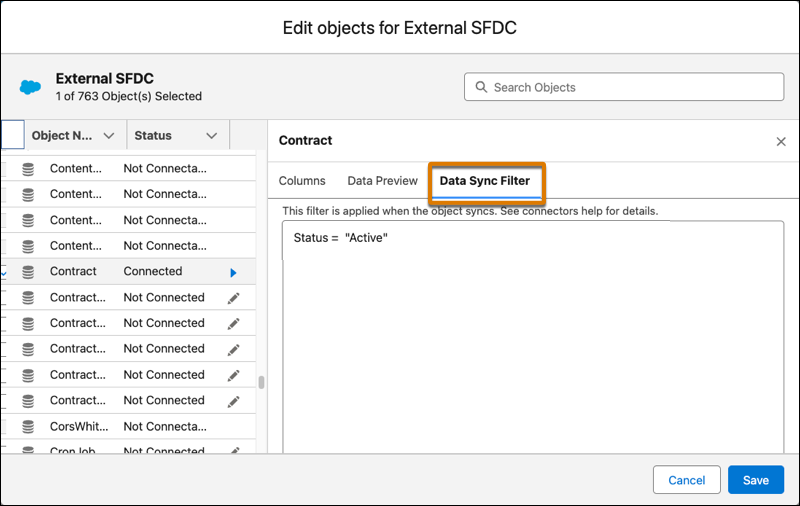
- On the Data Sync Filter tab, add filters if you want to extract a subset of records
from the object.
- Select the object.
- When you’ve added all the objects you want to sync, click Save.
The connection and its objects appear in the connections list.
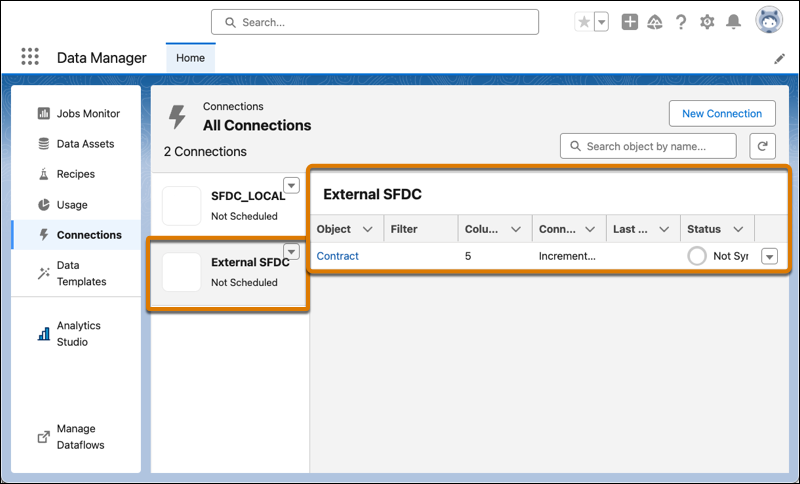
- To change the field selections, attributes, or filter for an object, click the object name.
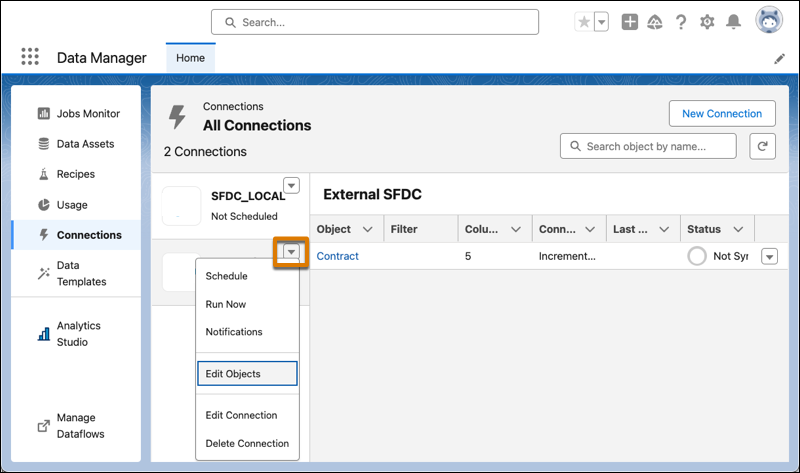
- To add objects to a connection, click the dropdown next to the connection name and
click Edit Objects.
Did this article solve your issue?
Let us know so we can improve!
