
You are here:
Input Node: Add Data to the Recipe
Although you choose input data when you create a recipe, if needed, you can add more data to an existing recipe. In CRM Analytics, Data Prep shows a separate Input node for each set of data that you add to the recipe.
| User Permissions Needed | |
|---|---|
| To manage and create a recipe: | Edit CRM Analytics Dataflows OR Edit Dataset Recipes |
- In the recipe, select the Add Data button (
 ).
). - Select the input data (1) and then choose which columns to include (2). You can select
a CRM Analytics dataset, external connected objects, or Salesforce objects as the input
data.
Direct data refers to all Salesforce objects that aren’t synced. If you bypass the sync step, the recipe can still access the data directly from the Salesforce object. All Salesforce objects and fields that aren’t synced are available as direct data. A field added as direct data uses its API name as its label. To use the defined label, add the field to sync. You can’t use a trended dataset as input data for a recipe.
By default, the Custom Columns option is selected from the dropdown next to the list of column names. Custom Columns allows you to manually select which columns to include in your recipe. If you select multiple sets of input data, select each row, one at a time, to choose its columns. The Selected Columns area shows columns for the selected row only. For instances when you want to automatically update every available column, use the All Columns option.
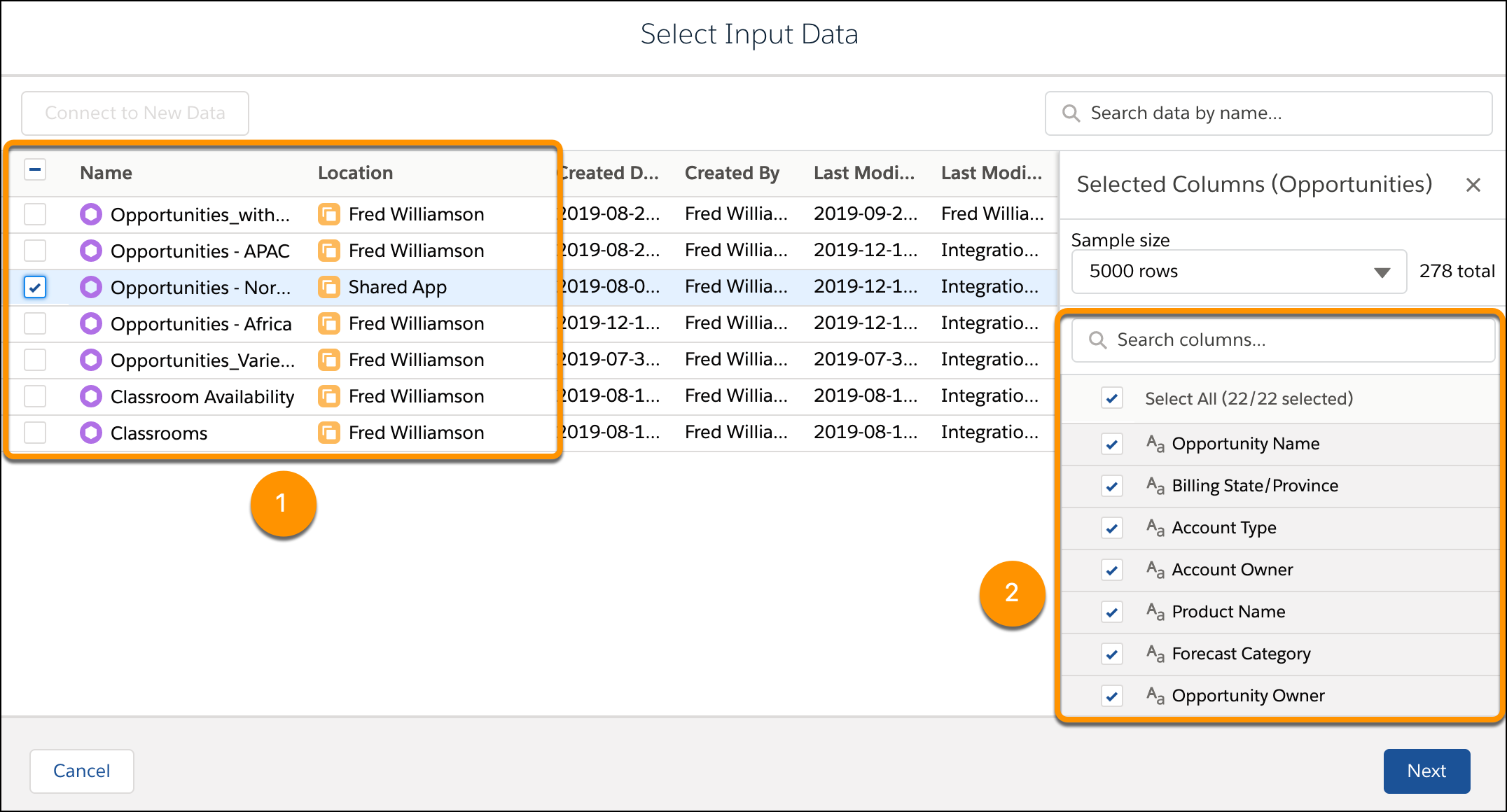
- Click Next.
Data Prep adds a separate Input node to the graph for each input data selection. If an input source has more than 100 columns, the first 100 columns are automatically shown in preview by default. If needed, you can show more columns in preview.
- Save the recipe.
When you add an Input node to a Data Prep recipe, all columns after the first 100 are hidden from preview, by default. If needed, you can unhide them to preview them.
- Data Preview Sampling
In CRM Analytics, use data preview sampling to see a more accurate picture of your data at each node in Preview. By widening the sample size and selecting the mode to arrange your data, data sampling helps prevent working without preview data. Select Filtered Rows to isolate specific values. Select All Column Values to populate a sample when you need to see all column values, such as when creating a bucket. - Pull Data Directly into Recipes
Direct data for recipes in CRM Analytics lets your recipes access data in Salesforce objects that you don’t sync. When you use direct data, the latest data is pulled directly from the Salesforce object with each recipe run, bypassing the data sync step. Direct data is designed to access a small number of objects instead of optimizing for performance as is the case with data sync connected objects. After you decide to use direct data, you can use it in recipes, add filtering, and switch the data to be connected instead. - Preserve Original Currency Values for Salesforce Direct Data
By default, all currency fields are converted to the default org currency on all data syncs. With Salesforce direct data objects, use thepreserveCurrencyFieldsin your recipe JSON to specify which fields you want to preserve the original currency value for on data sync. This process allows you to use unconverted currencies in some workflows and converted currencies in others, even within the same Salesforce direct data object.
