
You are here:
Append Node: Stack Rows from Different Sets of Data
Use an Append node in a Data Prep recipe in CRM Analytics to stack rows from multiple sets of input data into one dataset. For example, use this node to combine sales records from two different Salesforce orgs, each containing sales transactions from a specific region.
| User Permissions Needed | |
|---|---|
| To manage and create a recipe: | Edit CRM Analytics Dataflows OR Edit Dataset Recipes |
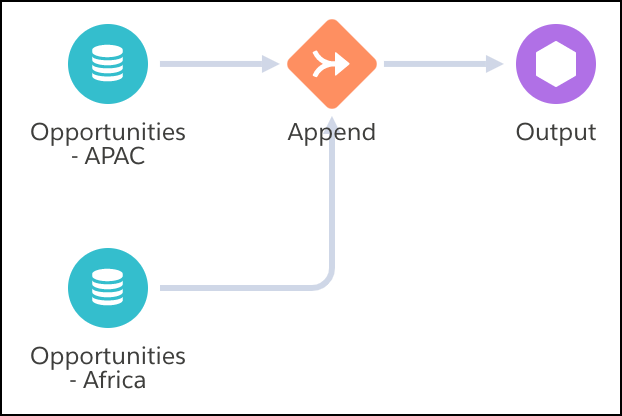
Let’s look at an example of how you can use append in a recipe. Imagine you’re a company that uses separate Salesforce orgs for your APAC and Africa sales, but you want to report on worldwide sales. You sync the APAC opportunities to CRM Analytics, add the data to a recipe, then use an Append node to combine it with the Africa sales data. After you match the columns from both sets of input data, both sets of sales records are combined into the same worldwide opportunity dataset.

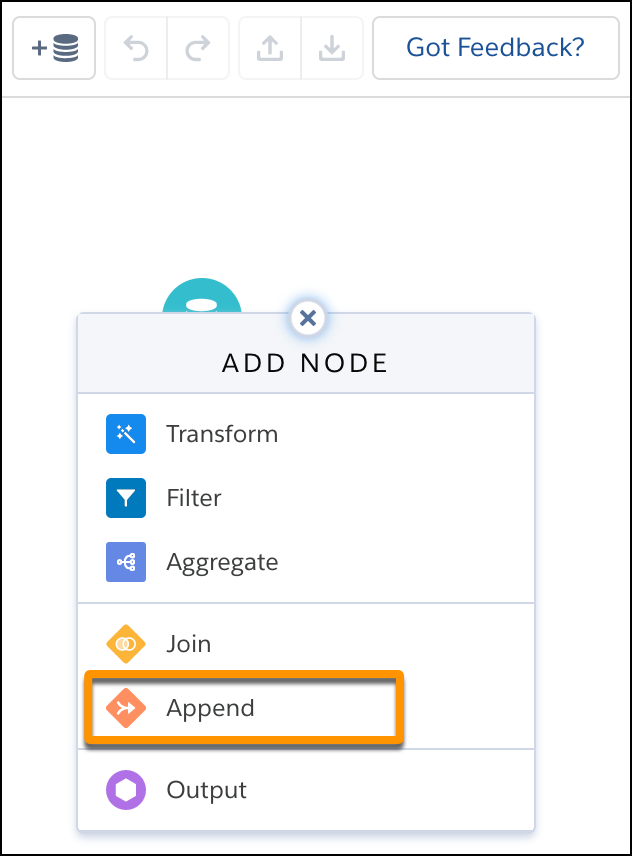
- In a Data Prep recipe that already has at least one Input node, select the Add Node
button (
 ) between two nodes or at the end of the recipe. To show the Add Node button
between two nodes, hover the cursor on the connecting line.
) between two nodes or at the end of the recipe. To show the Add Node button
between two nodes, hover the cursor on the connecting line. - In the Add Node box, select Append.
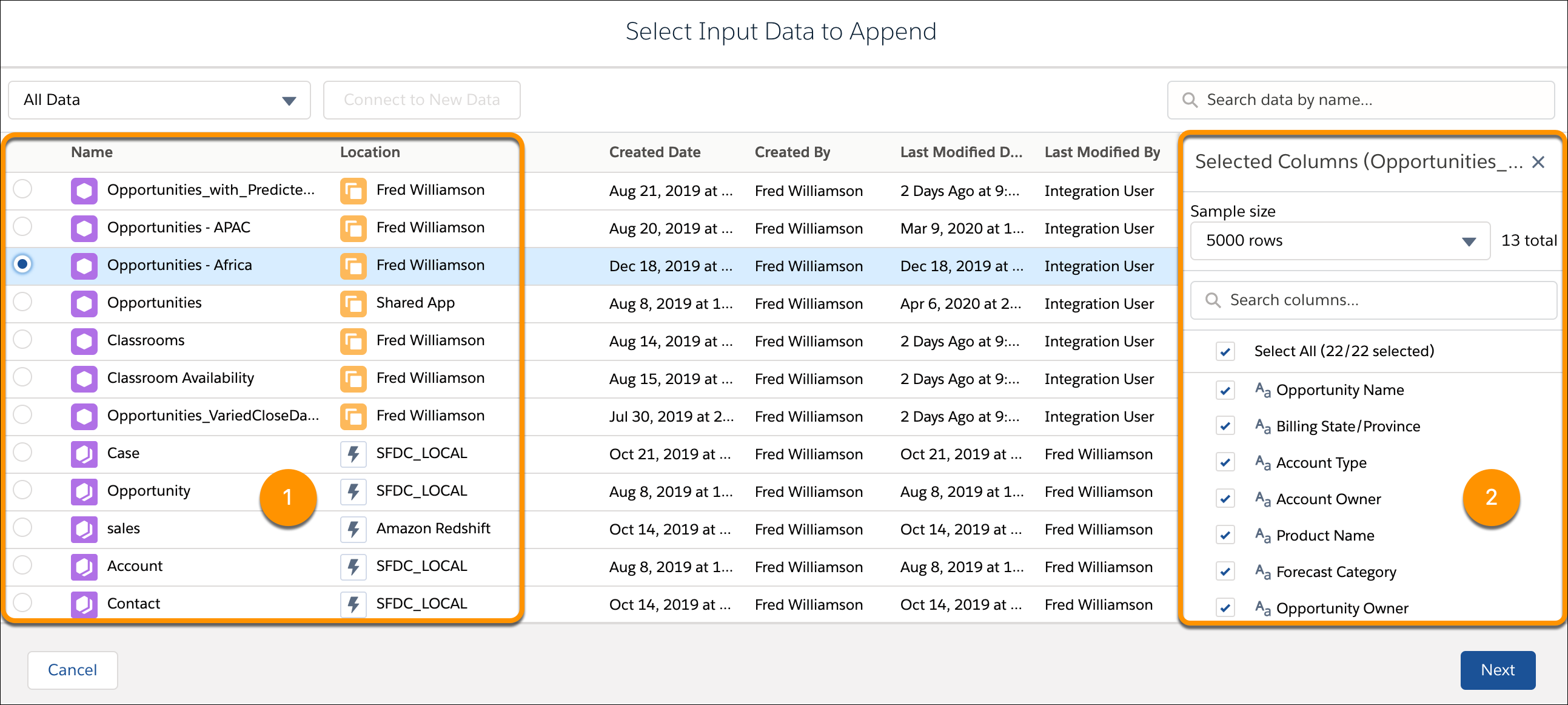
- Select the data to append (1), and then choose which columns to include (2).
- Click Next.
Data Prep automatically maps columns from both sets of input data based on matching column names. These mappings are based on API names. You can change the mappings, manually map unmapped columns, or leave columns unmapped. To continuously map all columns as your recipe updates, turn on Map all columns in the node details section. To map all columns that don't have corresponding API names, select Allow schema merge.
 Note Map all columns is available for datasets only. It is not available for direct data, staged, or connected datasets.
If a column is mapped for one source and not the other, the Append node inserts null values for all source rows to which the column doesn’t apply. For example, the Product ID and Region columns aren’t mapped to Legacy Sales Data source. As a result, the preview shows nulls for these columns for all rows coming from Legacy Sales Data (1). If the reverse is true, and Legacy Sales Data contains rows that aren’t mapped to the recipe columns Product ID and Region, then preview inserts null values in those columns for all rows coming from Legacy Sales Data.
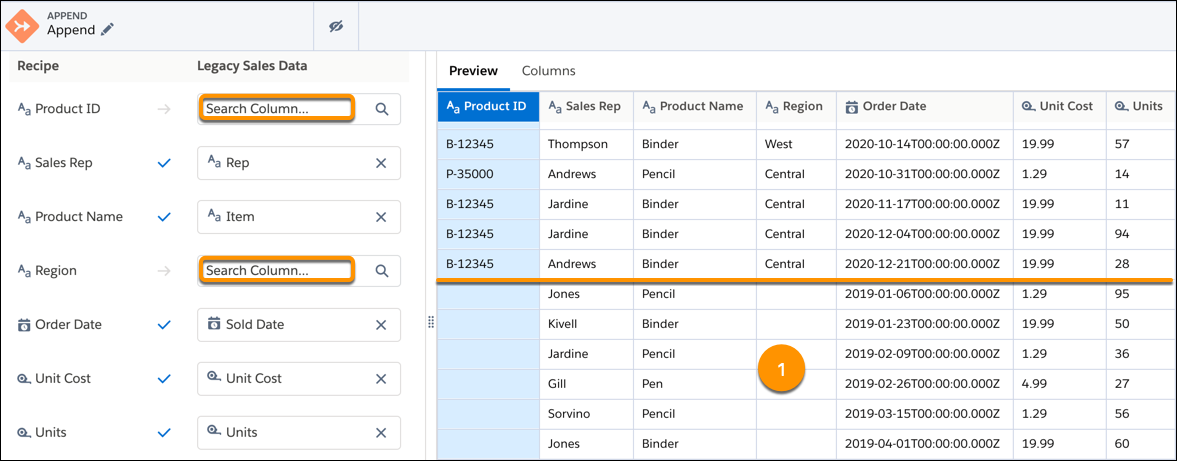 Note If a measure column isn’t mapped to a source and null measure handling isn’t enabled, the Append node inserts zeroes instead of nulls for those source rows.
 - To map two columns, enter the column name from the appended rows next to its corresponding recipe column.
- To add a column from the appended rows that doesn’t exist in the recipe, click + (below the mapped columns) and select the column. Leave the recipe column blank.
- Click Apply to add the node to the recipe.
- Save the recipe.
When you run the recipe, the Append node combines rows from both sets of input data into the same dataset.
