In CRM Analytics, a lookup returns all rows from the left data stream (recipe data) and
only matching rows from the right data stream (lookup source). If multiple matches are found in
the right data stream, you can set the lookup to return either a single row or all matching
rows. To ensure that the grain of the results doesn’t change, the lookup outputs one row for
each row in the left data stream.
Required Editions
Available in Salesforce Classic and Lightning Experience.
Available with CRM Analytics, which is available for an extra cost in
Enterprise, Performance, and Unlimited Editions. Also available in
Developer Edition.
Example
Our company's marketing team captures demographic data in an external data source for
opportunities stored in Salesforce. To help create more targeted campaigns, the team is
building a dashboard that segments our current opportunities by the customer demographics.
Let’s use a lookup to add the demographic data to each opportunity record.
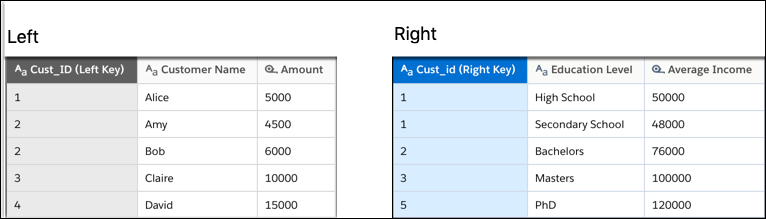
Consider the following two data streams. The left data stream contains opportunity
records. The right contains demographic data. To illustrate how the lookup handles special
cases, both data streams contain unmatched rows and duplicate
keys.
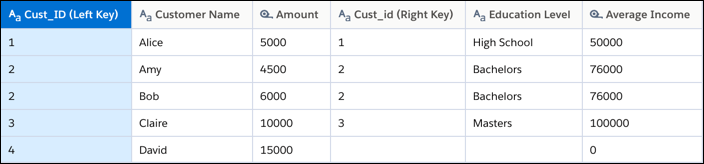
If the lookup is configured to return a single match when multiple matches are found, the
lookup produces the following results based on the matching keys.
All rows from the left, including rows without a match, are included in the results.
Although Cust_ID 1 has two matches on the right, the lookup returns only the first
matching record. Also, because Cust_ID 4 doesn’t have a match, the Cust_id and Education
Level columns are null and Average Income is 0 for that record. Unmatched dimensions are
set to null. Unmatched measures are set to 0.
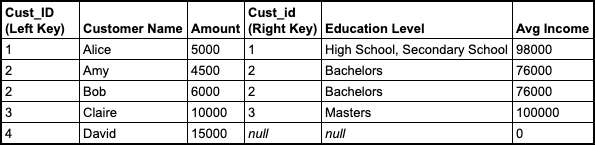
If the lookup is configured to return all matching values when multiple matches are
found, the lookup produces the following results based on the matching keys.
A multiple-match lookup returns the same results as the single-match lookup, except for
left rows that have multiple matches. Unlike a single-match lookup, a multiple-match
lookup returns all matches and combines them. For dimension columns, it generates a
multivalue column with all dimension values—notice how High School and Secondary School
are both in the Education Level column for Cust_ID 1. For measure columns, it adds the
measure values from all matched records. For Cust_ID 1, the Avg Income column is 98,000
(50,000 + 48,000).
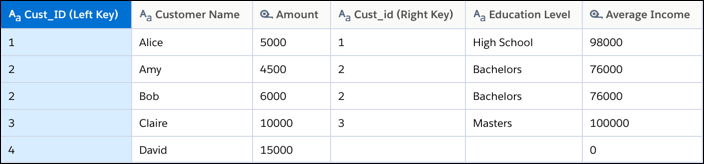
Note The Preview tab doesn’t show all values in a multivalue column. Instead, it shows the
first value only. Keep this behavior in mind when you preview the results of a
multiple-match lookup. In the example, notice that the Preview tab shows only High School
in the Education Level column even though the column contains High School and Secondary
School.
We use three kinds of cookies on our websites: required, functional, and advertising. You can choose whether functional and advertising cookies apply. Click on the different cookie categories to find out more about each category and to change the default settings.
Privacy Statement
Required Cookies
Always Active
Required cookies are necessary for basic website functionality. Some examples include: session cookies needed to transmit the website, authentication cookies, and security cookies.
Functional Cookies
Functional cookies enhance functions, performance, and services on the website. Some examples include: cookies used to analyze site traffic, cookies used for market research, and cookies used to display advertising that is not directed to a particular individual.
Advertising Cookies
Advertising cookies track activity across websites in order to understand a viewer’s interests, and direct them specific marketing. Some examples include: cookies used for remarketing, or interest-based advertising.