
You are here:
Nodes for Data Prep Recipes
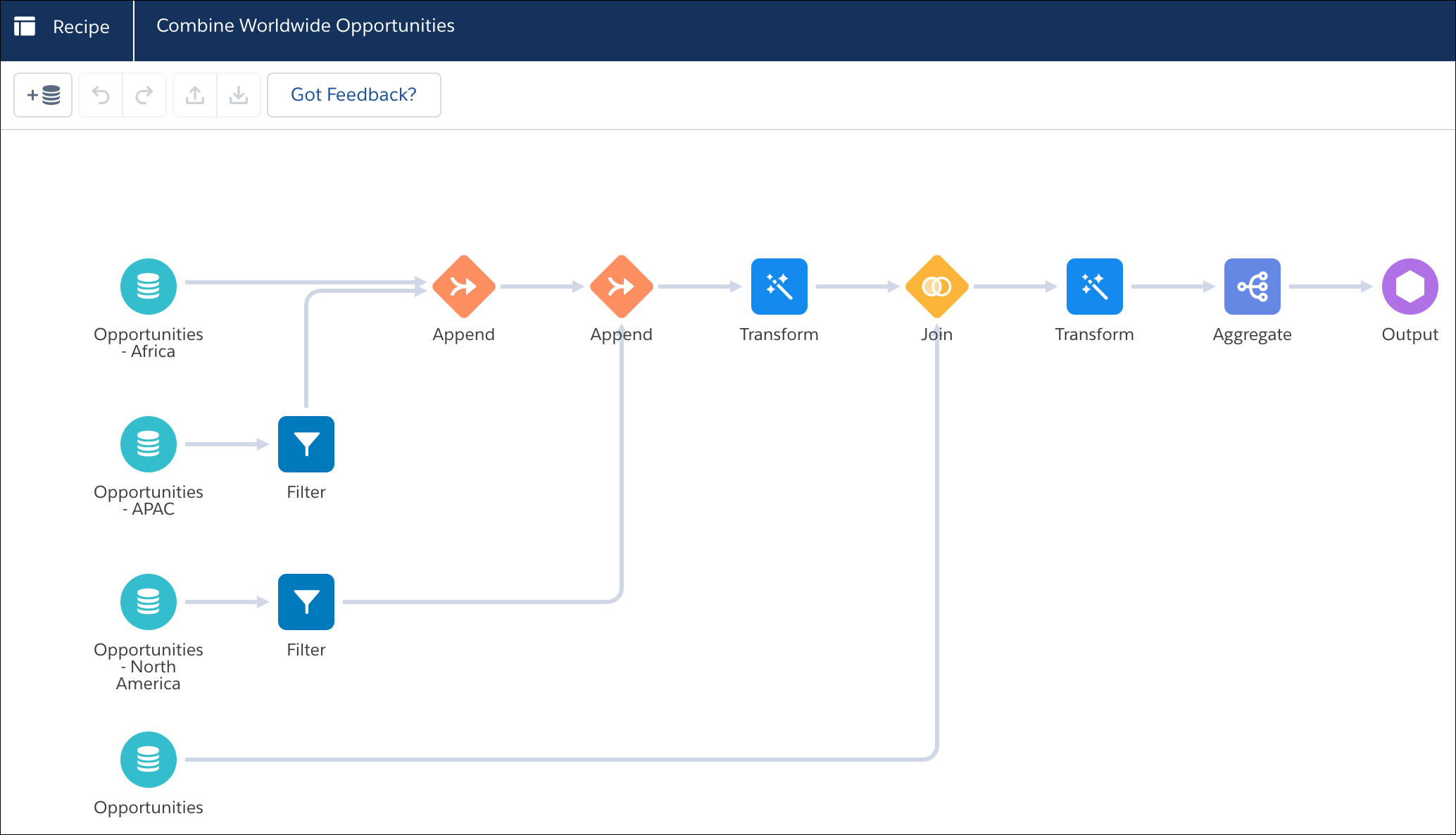
In CRM Analytics, Data Prep provides nodes that allow you to bring in data, transform it, and write the results to a target. For example, you can use a Join node to add columns from a related object to a recipe. You add nodes in the Graph area of Data Prep. You can string together multiple nodes to sequentially change the flow of the data.
A recipe can have multiple Input, Append, Aggregate, Filter, Join, Transform, Update, and Output nodes.
- Input Node: Add Data to the Recipe
Although you choose input data when you create a recipe, if needed, you can add more data to an existing recipe. In CRM Analytics, Data Prep shows a separate Input node for each set of data that you add to the recipe. - Aggregate Node
Use an Aggregate node in CRM Analytics to roll up data. You can aggregate to a higher level of granularity or roll up hierarchical data. - Append Node: Stack Rows from Different Sets of Data
Use an Append node in a Data Prep recipe in CRM Analytics to stack rows from multiple sets of input data into one dataset. For example, use this node to combine sales records from two different Salesforce orgs, each containing sales transactions from a specific region. - Filter Node: Filter Rows
In CRM Analytics, use a Filter node to remove rows that you don’t need in your target. For example, you can filter case records to focus on escalated cases only. Filter values are case-sensitive. Filter nodes next to a direct data input node speed up recipe runs by reducing the number of records pulled into the recipe. - Join Node: Add Related Columns of Data to the Recipe
Use a join node in CRM Analytics to add columns of data from related objects to existing data in a recipe. When working with CRM Analytics datasets and external objects, add a join node on the recipe canvas. When working with Salesforce objects, you can either create a join on the recipe canvas or join the data when you first create your dataset on the Add Input Data screen. - Transform Node: Transform the Data Before Loading It Into a Target
Use a Transform node in CRM Analytics to manipulate data based on the transformations added to the node. You can add one or more transformations to each Transform node. For example, you can add transformations to concatenate two columns, standardize the formats in a date column, and detect the sentiments of comments in a Feedback column. Each transformation modifies the data in a unique way. To manipulate data at multiple stages of a recipe, add a separate Transform node at each stage. - Update Node: Swap Column Values
In CRM Analytics, you can swap column values with data from another data source when key pairs match with the Update node. For example, to update selected account names after a series of recent acquisitions and mergers, replace the name from an uploaded spreadsheet based on matching account IDs. Processing time is minimized by only changing column values with matching key pairs, instead of every value in the column. - Output Node: Write Recipe Results to a Dataset or External System
In CRM Analytics, use Output nodes with Data Prep recipes to write recipe results to a target, such as a dataset, staged data, .csv, a Data 360 data lake object, or remote location like Amazon S3. A recipe can have more than one Output node. If the recipe writes to a dataset, you can change the API name and label of the dataset in the Output node. If an existing dataset uses the specified API name, the recipe overwrites the existing dataset when it runs.
Did this article solve your issue?
Let us know so we can improve!
