
You are here:
Write Recipe Output to Data 360
Use the Data Prep output node in CRM Analytics to save your prepared data as a Data 360 data lake object (DLO). After your data is in Data 360, you can create calculated insights, semantic models, and Data 360 reports and dashboards.
Required Editions
| User Permissions Needed | |
|---|---|
| To manage and create a recipe: | Edit CRM Analytics Dataset Recipes |
| To view Data 360: | Data 360 User Permission Set |

For information on limits, see Write To Data 360 Limits
A recipe created to write output to Data 360 can only contain 2 nodes, an input node and the output node. Perform any necessary data prep on the data in a separate recipe first.
- From Setup, in the Quick Find box, enter Analytics, select Analytics, and then Settings.
- Select Enable CRM Analytics recipe to write output dataset to Data Cloud and then save your changes.
- In Data Manager, click Recipes.
-
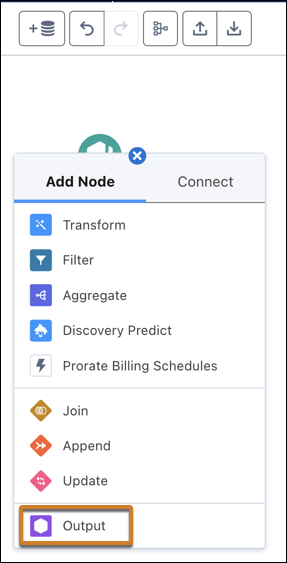
In the recipe, select the add node button (
 ) at the end of the recipe.
-
For the node type, select Output.
-
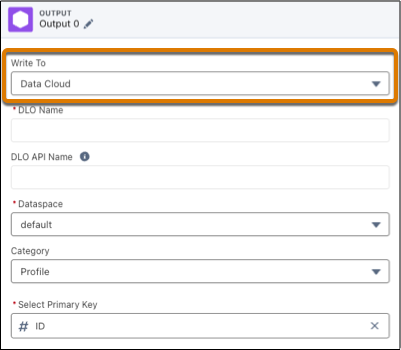
To create a DLO, for Write To, select Data Cloud.
-
Enter the DLO name, and optionally, the DLO API name.
If no DLO exists with this name, the recipe creates a new one. If you don’t specify the DLO API name, node creation generates a unique value.
 Warning If the DLO exists, the recipe overwrites it. Make sure that you use a unique name if you don’t want to overwrite an existing DLO.
 - Select one or more Data 360 data spaces. You can add up to 5 data spaces.
-
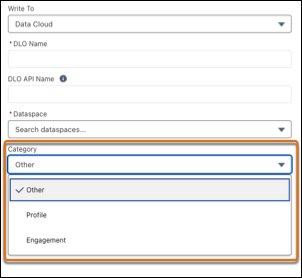
Select the DLO category.
- Select the primary key for the DLO from the input fields. Any text field can be the primary key as long as the field doesn't contain empty values. We recommend you pick a field that is a unique identifier.
-
Enter the DLO name, and optionally, the DLO API name.
-
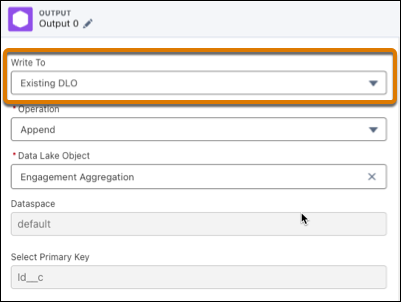
To update an existing DLO, for Write To, select Existing
DLO.
-
Select the operation, Append, Upsert, or Delete.
Note Write to Data Cloud Optimized Output is a pilot or beta service that is subject to the Beta Services Terms at Agreements - Salesforce.com or a written Unified Pilot Agreement if executed by Customer, and applicable terms in the Product Terms Directory. Use of this pilot or beta service is at the Customer’s sole discretion.
-
Select a Data Lake Object to run the operation on.
The append operation adds all data from the input to the existing DLO, and records can be duplicated. The upsert operation appends data from the input to the DLO if new and overwrites existing rows when they match. The delete operation removes input data from the existing DLO when existing rows match.
The data space and primary key values default to the existing DLO values and aren't editable.
These operations are supported for both Home and Companion Data 360 orgs.
-
Select the operation, Append, Upsert, or Delete.
-
Verify the results in the Preview panel and click Apply.
If Apply is disabled, check that you have values for every output field and that the recipe input is a CRM Analytics dataset.
- Save and run the recipe to generate the Data 360 DLO.
Schedule the recipe to run at regular intervals or based on other data sync events. You can view the recipe output in Data 360, on the Data Lake Objects tab.
Considerations for DLO creation:
- Multi-value fields in CRM Analytics datasets convert to text fields in the Data 360 DLO.
- Recipes fail validation at creation if
- The DLO API name exceeds 40 characters. The name can’t contain . characters.
- An API name of any field in the CRM Analytics dataset contains __c.
- An API name of any field in the CRM Analytics dataset is a duplicate of a field in the Data 360 DLO.
- The number of fields in the CRM Analytics dataset exceeds 1050.
- The number of fields of a specific type exceeds 800.
- After a DLO is associated with a data space, you can’t remove it from the data space in the recipe editor. After the recipe creates successfully, data spaces can be added to the output node, but not removed.
- Input dataset can’t contain columns with these names, as they’re reserved keywords in
Data 360:
- DataSource
- DataSourceObject
- InternalOrganization
- cdp_sys_PartitionDate
- cdp_sys_SourceVersion
- cdp_sys_record_currency
- KQ_<PrimaryKey>
