You are here:
Preview Results in a Data Prep Recipe
As a best practice in CRM Analytics, catch mistakes early by reviewing the results of each node and transformation that you add to a Data Prep recipe.
Required Editions
| User Permissions Needed | |
|---|---|
| To create a recipe: | Edit CRM Analytics Dataflows OR Edit Dataset Recipes |
Watch a Demo:  Preview Recipe Changes to Data (English Only)
The preview shows a sample of the data—up to 5,000 rows. It shows the latest available data, except when you preview a connected object. When previewing a connected object, the preview might show outdated sample data. The sample data for a connected object updates when you run data sync and the sample data is more than 24 hours old. For example, if the data sync just ran, but your sample data isn’t more than 24 hours old, you won’t see the updated sample data right away.

- In the Data Prep recipe, select a node in the graph to view its results.For example, selecting an Aggregate node shows the following preview results.
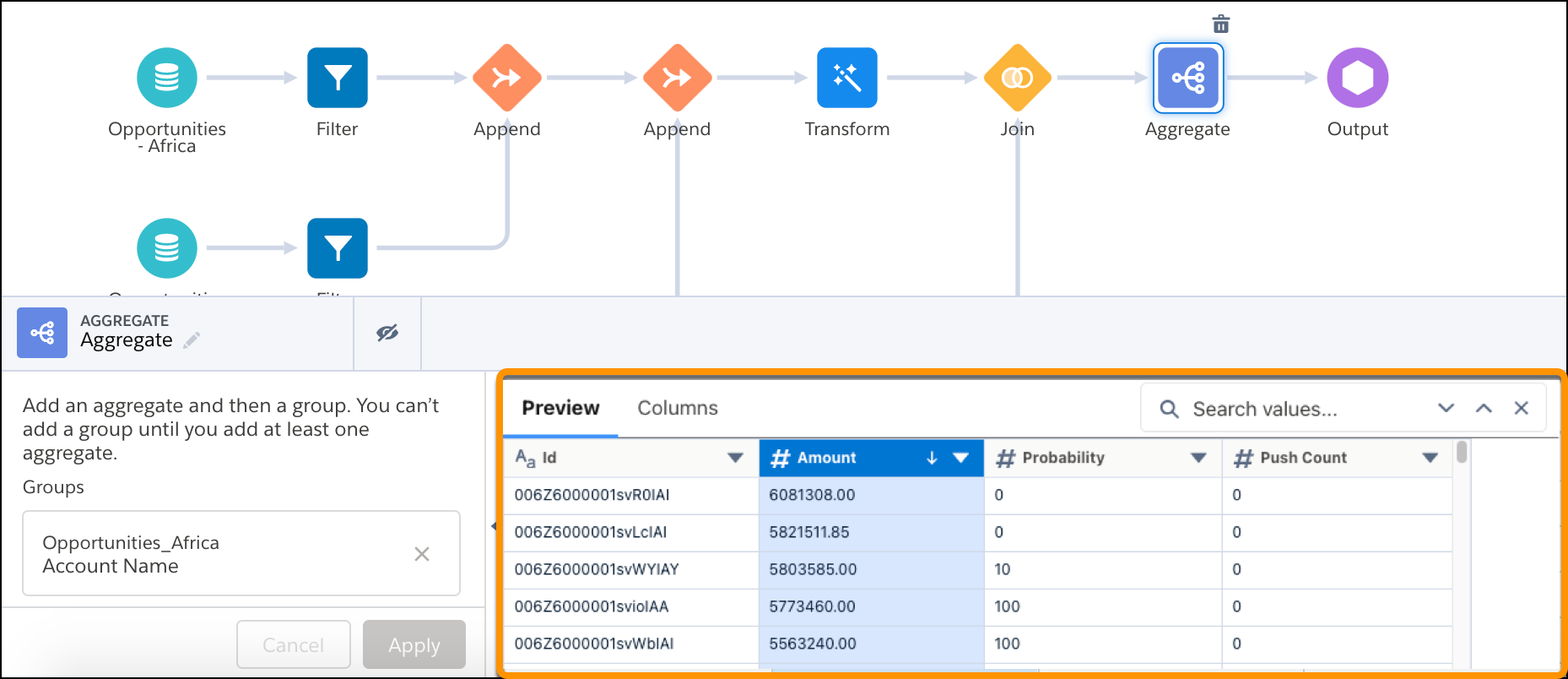
If you add a Filter node, the preview filters the currently sampled rows. For example, the recipe processes 20,000 rows. The preview shows 5,000 sample rows for the Aggregate node. If you add a Filter node after the Aggregate node, you might see only 4,000 of the same sampled rows. The preview doesn’t retrieve an updated sample of 5,000 rows for the Filter node.
Subsequent nodes, such as joins, filters, and transforms, apply their logic to the sample. This behavior means that the sample set can become empty. For example, if the input sample rows to a join don’t have IDs in common, no sample data is shown in the node. Similarly, if a filter’s criteria removes all the sample rows, subsequent nodes display no sample data.
- If needed, edit the node to ensure it produces the correct results.
- In a Transform node, select a transformation step.For example, selecting a Formula transformation that concatenates the billing state and country shows the following results.
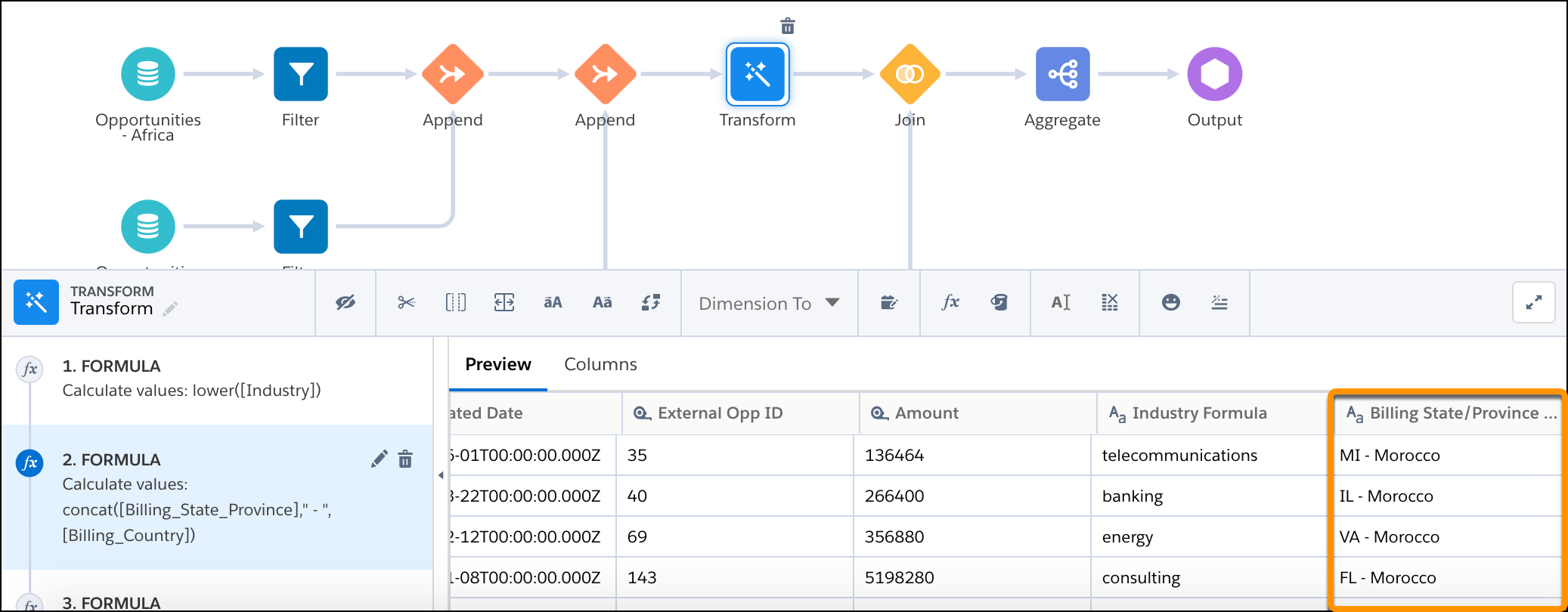
- If needed, edit the transformation to ensure it produces the correct results. When the data preview for a node doesn’t complete immediately, view the preview build status at a glance with the progress wheel. Mouse over the wheel to see the percent built.
- To focus on columns that are impacted by a node or transformation, hide a column from the
preview. Select a column in the Preview tab and click Hide (
 ). Hiding a column from
preview doesn’t remove it from the recipe.
). Hiding a column from
preview doesn’t remove it from the recipe. - To view the columns only and hide the data, click the Columns tab.
- To save the recipe, click Save.

To increase performance when previewing results in Data Prep, hide columns that don’t require a preview, such as columns that aren’t transformed by a node or transformation. By default, the first 100 columns of each source object in an input node are shown in preview. To hide a column from preview, select it and then click the Hide button in the Transform toolbar.
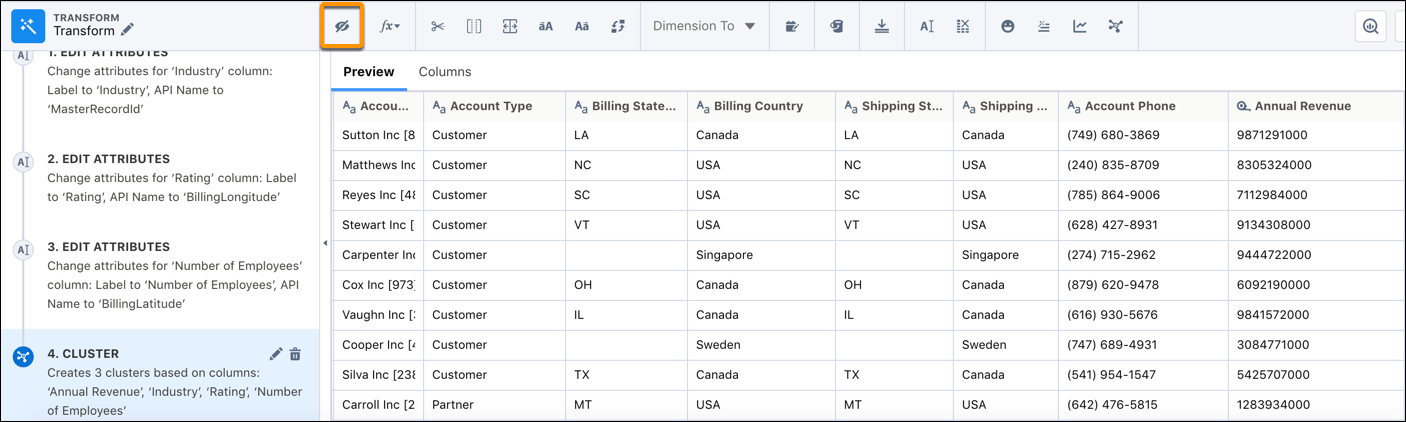
To further increase preview performance, hide all unused columns. Click the Hide Unused button from the Transform toolbar.
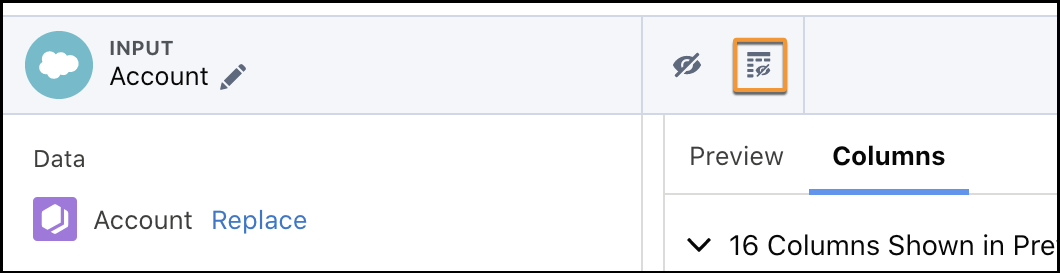
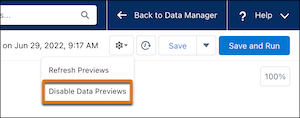
If data preview is still delayed, disable data preview. You can always turn it back on when you want to see your progress.