Loading
Feature degradation | Gmail Email delivery failureRead More
CRM Analytics
Table of Contents
Select Filters

          No results
          No results
          Here are some search tips

          Check the spelling of your keywords.
          Use more general search terms.
          Select fewer filters to broaden your search.

          Search all of Salesforce Help
          Detect Sentiment Transformation: Determine the Sentiment of Text

          Detect Sentiment Transformation: Determine the Sentiment of Text

          In CRM Analytics, text fields show valuable information such as product reviews and social media posts. Use the Detect Sentiment transformation in a Data Prep recipe to quickly categorize text into sentiments. Choose whether you want sentiment results as a decimal value on a 5-point scale, with 5 as the most positive, or as labels of Positive, Negative, and Neutral. For example, detect the sentiment of survey responses to evaluate how customers feel about your product support. If more than a certain percentage—say 30%—of the comments are negative, escalate the feedback to support management.

          Required Editions

          Detect Sentiment Transformation: Determine the Sentiment of Text

          User Permissions Needed
          To create a recipe: Edit CRM Analytics Dataflows OR Edit Dataset Recipes

          This transformation works on a text (dimension) column and supports English text only. It processes non-English text as English and ignores images, including emoji. If the input value is null or an empty string (''), the transformation assigns the sentiment as Neutral or with a value of 2.5, depending on the output type. Applying Detect Sentiment on text such as IDs, nouns, addresses, or alphanumeric values) can return unexpected results.

          1. In a Transform node of a Data Prep recipe, select the text (dimension) column that contains the text for sentiment analysis in the Preview tab.
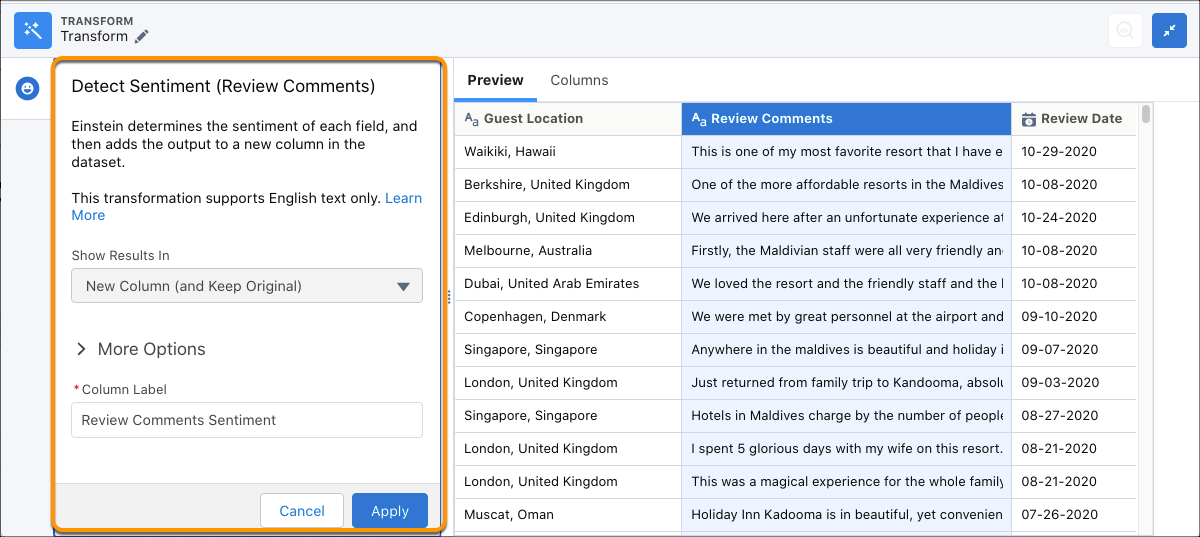
          2. In the Transform toolbar, click the Detect Sentiment button (Detect Sentiment button).
            Detect Sentiment setup panel.
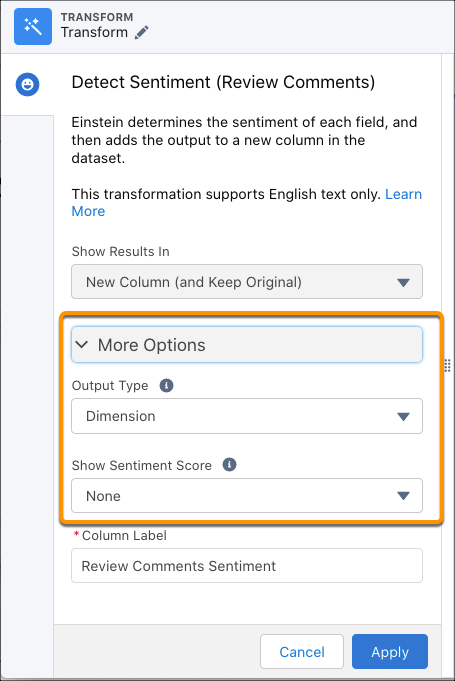
          3. Optionally, use More Options in the setup panel to change the output type or to show sentiment scores.
            Detect Sentiment setup panel showing the more options section.
            OptionsDescription
            Output Type

            Results of the sentiment analysis in a new column in the dataset.

            Text (default) shows detected sentiment as Positive, Neutral, or Negative.

            Number shows detected sentiment as a decimal value on a scale of from 1 through 5, with 5 as the most positive.

            When determining sentiment, Detect Sentiment classifies the text into groups from 1 through 5.

            When output is Text, the sentiment values are mapped to the numbers as follows:

            • Positive is >3.50 and <= 5.00
            • Neutral is >= 2.50 and < 3.5
            • Negative is >= 1.00 and < 2.50

            When output is Number, the sentiment is calculated as a weighted sum of the number probabilities.

            Example table of sentiment calculated as a measure.
            Show Sentiment Score

            Einstein self-assesses its confidence in the accuracy of each sentiment option. Sentiment scores are decimal values that add up to 1 and that can be used in formulas. For example, trigger a support case when an online review is negative with a strong sentiment score.

            None (default) shows the detected sentiment column only. No sentiment scores are added to the dataset.

            All Sentiments shows the detected sentiment column and sentiment score columns in the dataset.

            • If output type is Text, sentiment scores appear in three columns for Positive, Neutral, and Negative.
            • If output type is Number, sentiment scores appear in five columns for 1, 2, 3, 4, and 5.
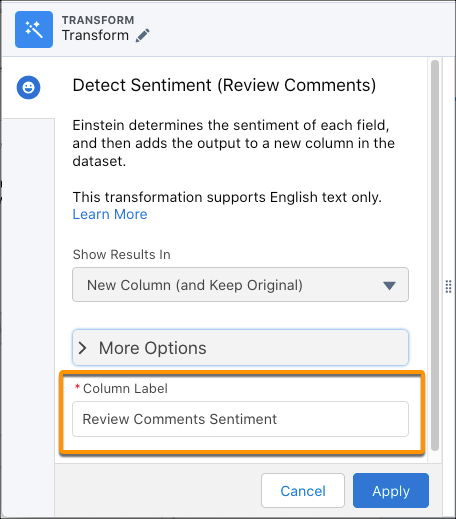
          4. Optionally, to change the label of the column that stores the detected sentiments, go to Column Label.The Transform modal allows you to change the column label.
          5. To add the transformation to the Transform node, click Apply.

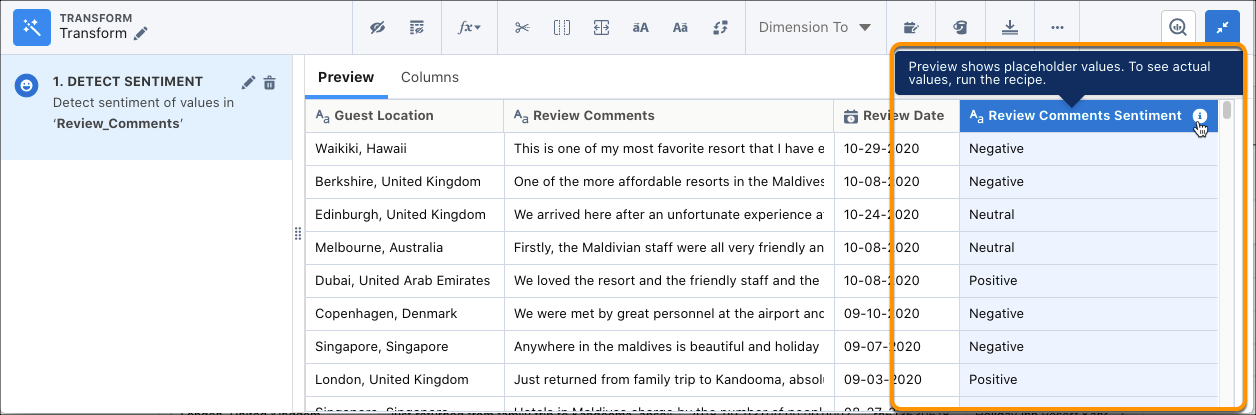
            The Preview tab shows the new sentiment column. The column shows the temporary value Sentiment TBD. To see the detected sentiment results, run the recipe.

            Preview shows "Sentiment TBD" for the new column.
          6. To collapse the view and see the graph, click (Collapse button).
          7. Save the recipe.

          After you run the recipe, you can view the detected sentiments in the sentiment column.

          • Detect Sentiment Model Card
            In CRM Analytics, the Detect Sentiment transformation uses the model to determine whether the sentiment of text is positive, negative, or neutral. Use this model card to better understand the model, how it’s trained, its capabilities, its intended use, and its limitations.
           
          Loading
          Salesforce Help | Article