
You are here:
Restore a Previous Version of a Recipe
Test new ideas on recipes in CRM Analytics. If you break a recipe, you can revert to a previous version. For recipes with multiple collaborators, each version displays the name of the contributor who made an update.
- To view a recipe’s version history, click the Version History button (
 ).
).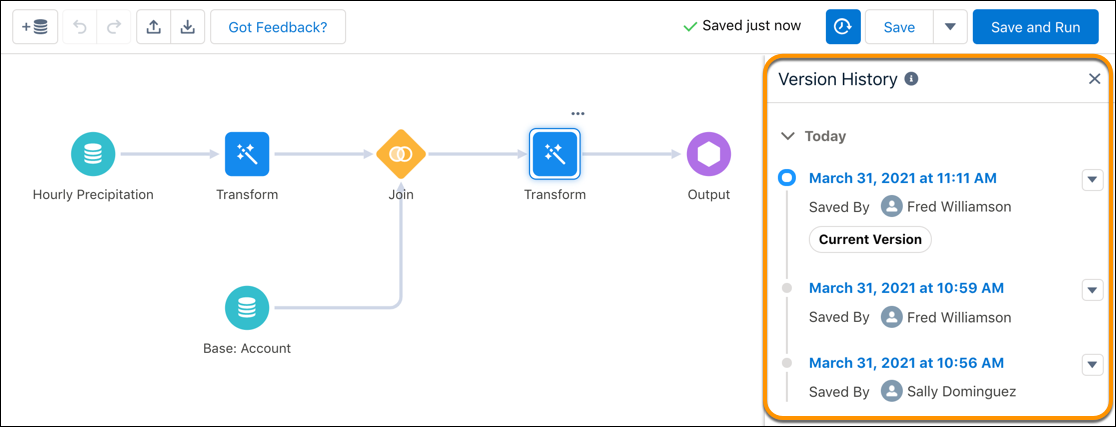
- To view a previous version, click the date of the version.
- To make sure you don’t lose changes to a version, save the changes before switching to another version. Saving changes to an old version makes it the current version.
- To add a description to a version, click the down arrow (
 ) next to the
version date and click Add Description.
) next to the
version date and click Add Description.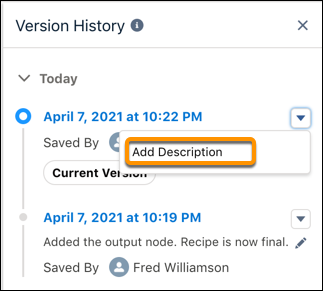

Example
Data Prep can store up to 20 versions for each recipe—10 with descriptions and 10 without. The latest versions are always kept. For example, if there are 10 versions with descriptions and another version with a description is added, the oldest one with a description is deleted.
Did this article solve your issue?
Let us know so we can improve!
