You are here:
Overriding Salesforce Field Metadata
You can override the field metadata that the sfdcDigest transformation extracts from a Salesforce object to make the data appear differently in a dataset. For example, CRM Analytics can add a default value to records that have missing values for a field.
You can add these field parameters to the sfdcDigest transformation node to override the field metadata:
- defaultValue
- type
- fiscalMonthOffset
- isYearEndFiscalYear
- firstDayOfWeek
- isMultiValue
- multiValueSeparator (not available in dataflow editor)
- precision
- scale
For a description of each of these field parameters, see Field Parameters.
Custom Field Considerations
Your source data can include custom fields with different API names that share label values. To avoid confusion when viewing the fields in the UI, you can:
- Ingest the fields with different label names.
- Use the computeExpression transformation to change the label values.
- Use dataset-level Analytics Extended Metadata (XMD) to modify the label values.

For example, you want to override metadata extracted from the Opportunity object.
To override field metadata from the Opportunity object, you add the bold text to the sfdcDigest node in the dataflow definition file.
{
   "Extract_Opportunities": {
      "action": "sfdcDigest",
      "parameters": {
         "object": "Opportunity",
         "fields": [
            { "name": "Id" },
            { "name": "Name" },
            {
               "name": "Amount",
               "defaultValue":"0",
               "precision":18,
               "scale":2
            },
            { "name": "StageName" },
            {
               "name": "CloseDate",
               "fiscalMonthOffset":9,
               "firstDayOfWeek":2,
               "isYearEndFiscalYear":true
            },
            { "name":"AccountId" },
            { "name":"OwnerId" },
            {
               "name": "OpportunitySupportTeamMembers__c",
               "type":"Text",
               "isMultiValue":true,
               "multiValueSeparator":",",
               "precision":255
            }
         ]
      }
   },
   "Register_Opportunities_Dataset":{
      "action":"sfdcRegister",
      "parameters":{
         "alias":"Opportunities",
         "name":"Opportunities",
         "source":"Extract_Opportunities"
      }
   }
}
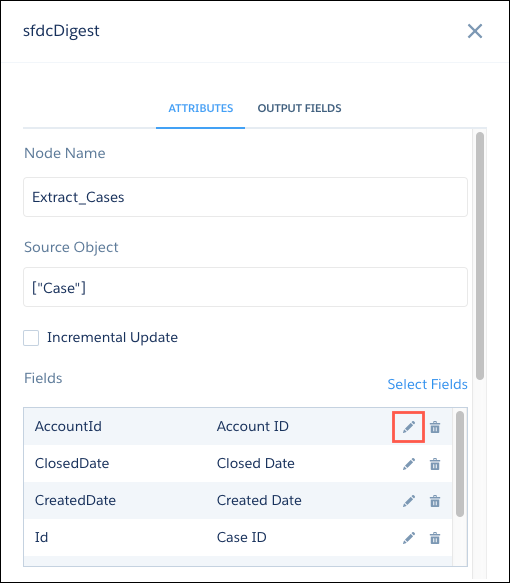
If you’re working in the dataflow editor, click the sfdcDigest node and
then click  next to the field that you want to change.
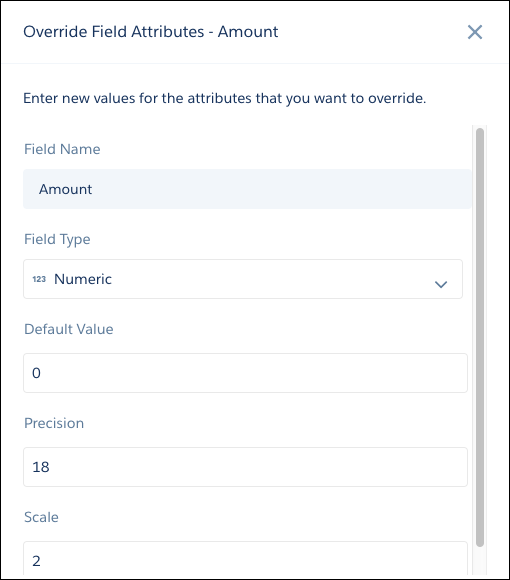
Update the field attributes, and then click Save.