
You are here:
Handle Custom Time Zone Values
Time zone support lets you view time-specific data on dashboards in a time zone that you specify for your org. By default, CRM Analytics datasets aren’t time-zone aware, so CRM Analytics treats all date-time values as being in GMT. The data you see on your dashboards is in GMT, regardless of your local time zone. When you enable time zone support, CRM Analytics converts date-time values in your datasets to the time zone selected for CRM Analytics. You can then create time zone enabled dashboards to display these converted date-time values. Users see dashboard data in the single custom time zone you set, not their personal timezone specified in Salesforce. Recipe formulas and filters with date-time fields operate in GMT.
Why Is Time Zone Support Important?
Time zone support lets your dashboard viewers see data in a time zone that’s relevant to them. Here’s an example.

The customer service operations manager at a California-based company monitors daily case creation on a Service Operations dashboard. Here’s what she sees today, Wednesday August 22, before time zone support is enabled in her org.
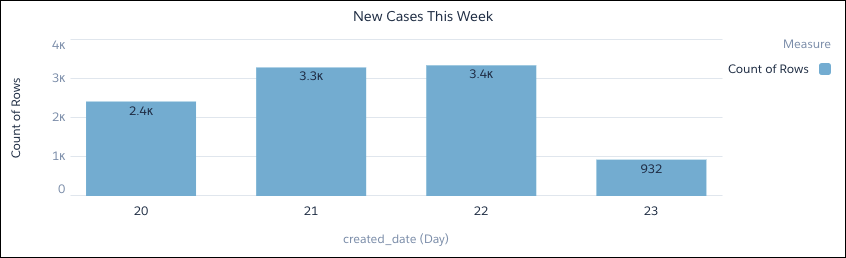
The dashboard chart shows the number of cases created so far this week. But it also shows cases created tomorrow, Thursday 23rd. The customer service operations manager is in the PDT time zone, but the dashboard shows data in GMT, which is 8 hours ahead. So, any cases created after 4:00pm in PDT appear as being created the next day when displayed in GMT.
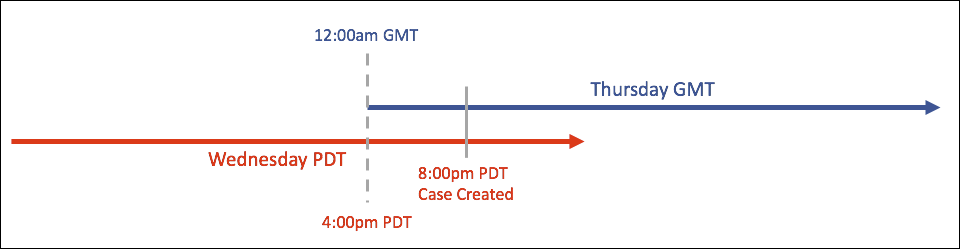
If these 932 cases were created in a GMT location, then the chart would be accurate. But the company has customer service agents only in California, so the widget isn’t helpful. What’s more, cases created on the last day of a reporting period can end up in the wrong month, quarter, or even year.
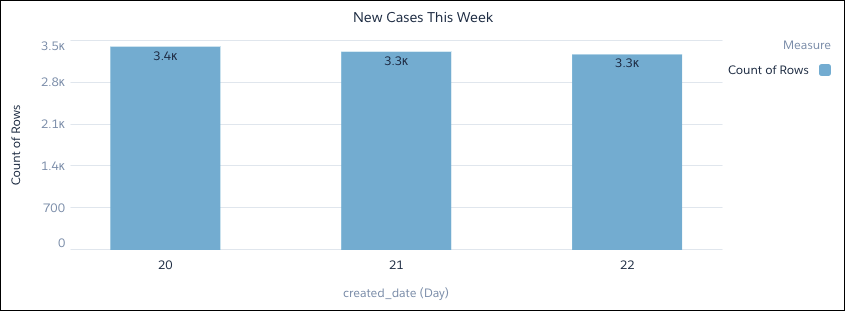
With time zone support enabled, and the supported time zone set to the company’s local timezone of PDT, the customer service operations manager gets a much more accurate view of case creation this week.
How Does Time Zone Support Work?
When you enable time zone support, you select a supported time zone for CRM Analytics. CRM Analytics converts date-time values in your datasets or connected objects from GMT to your selected time zone. When you create a dashboard, you have the option to create a time zone enabled dashboard. Time zone enabled dashboards use the converted date-time values from datasets, instead of the original values.

Let’s take a closer look at how CRM Analytics converts date-time values. After you enable time zone support, you have to refresh your connected objects and datasets. Refresh connected objects by syncing them, and refresh datasets by running the related recipe or dataflow, or uploading the .csv file. During the refresh, CRM Analytics runs this process:
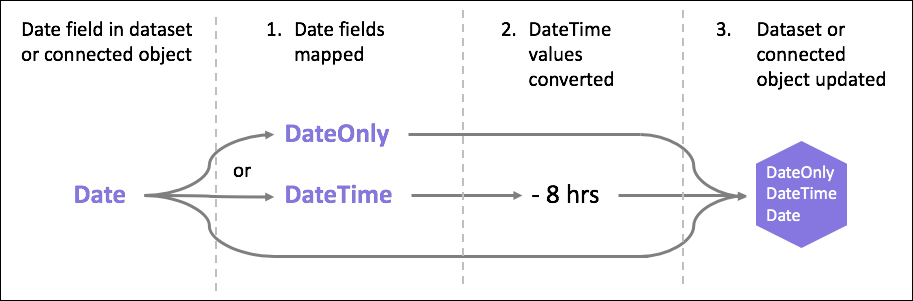
- CRM Analytics maps each Date field in the dataset or connected object to a new DateOnly or DateTime field, depending on whether the field values have a time component.
- Values in the new DateTime field are assumed to be GMT, and are converted to the time zone
selected for CRM Analytics. Note Dates from .csv-sourced datasets are assumed to be GMT unless you select a different source time zone when you upload the file. See Set a Source Time Zone for .Csv data.
- The DateTime field generates fields in the new time zone and GMT (the original version), which are added to the updated dataset or connected object. The GMT field is included to ensure the dataset still works with your existing dashboards.
