
You are here:
Access Dashboards from a Record with Actions, Buttons, and Links
Use actions, buttons, and links on records to give your users quick access to a dashboard with filters already applied.
When you add an action, button, or link from a record to a dashboard, users tap the action, button, or link (1) to go directly to the dashboard (2).
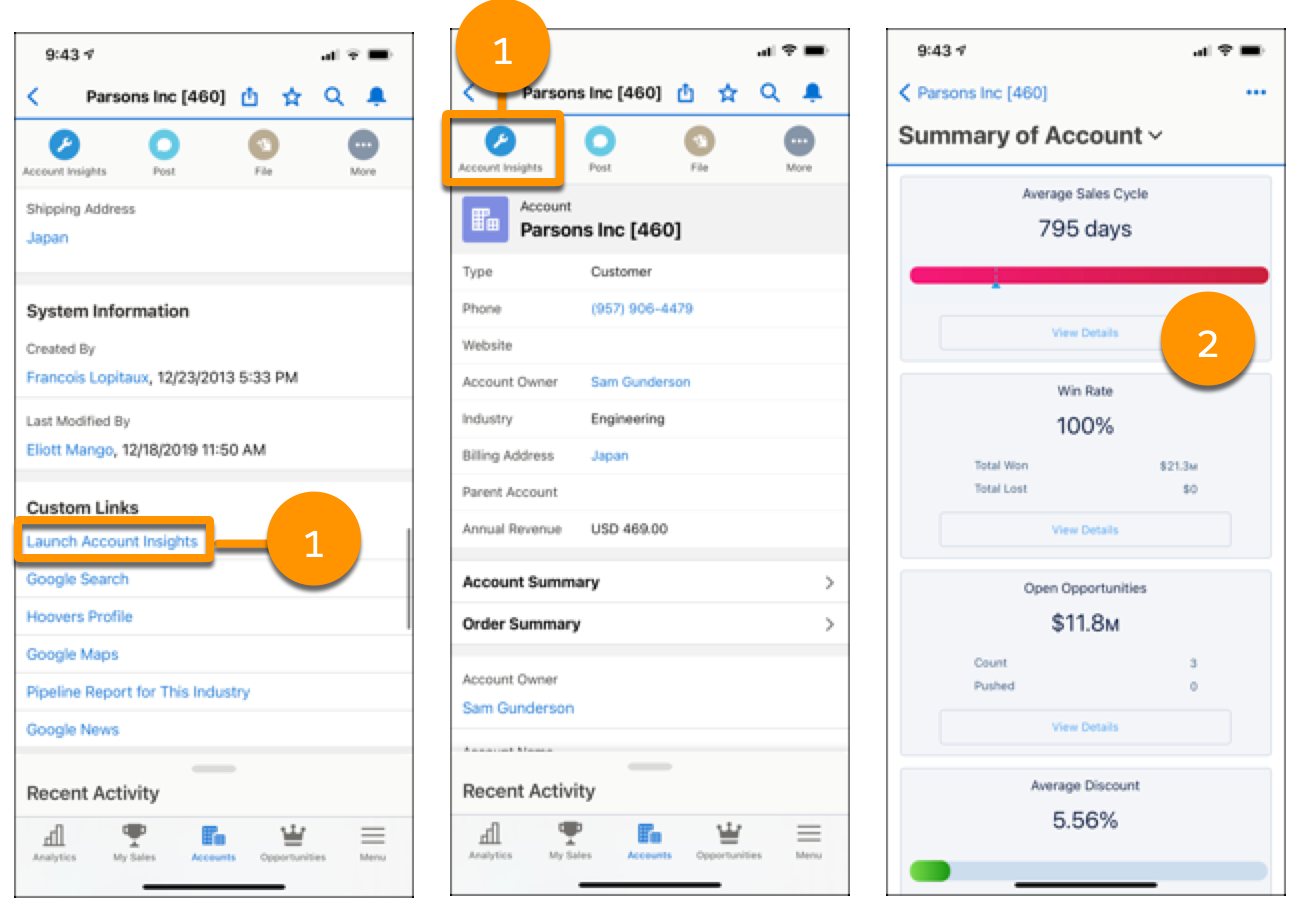
Create custom URLs so your users can open a dashboard with relevant filters already applied.
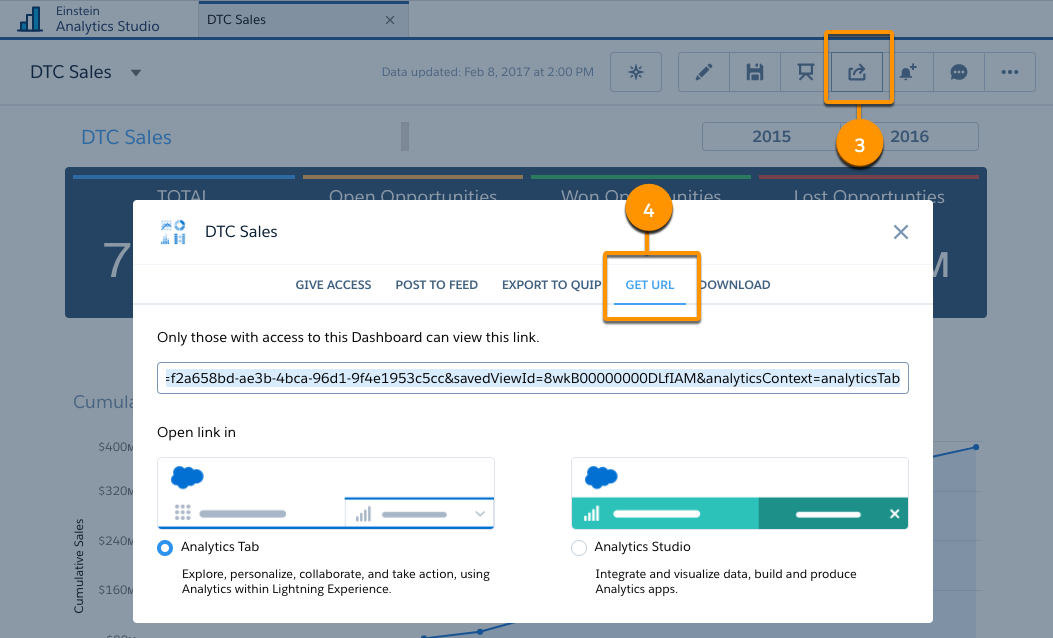
- To create a custom URL to a dashboard so it opens in a specific state,
use the Share (3) and GET
URL (4) option in CRM Analytics.
- Add the dashboardState parameter to the URL to
pass the record ID and other filters to the dashboard. Use this
syntax for the custom link URL.
https://domain.my.salesforce.com/analytics/wave/dashboard?assetId={dashboardID}&orgId={orgID}&loginHost={loginHost}&urlType=sharing&dashboardState={URL-encoded dashboard state}To learn more about dashboard URL syntax, see Launch CRM Analytics Assets with URLs.
- In Setup, add the custom link URL to a record page in the Object Manager. For example, create an Account Insights (5) link so account owners can launch a sales metrics dashboard with relevant filters applied directly from a record.
Did this article solve your issue?
Let us know so we can improve!
