
You are here:
Access Dashboards Instantly as Navigation Items
Add a dashboard to your users’ navigation so they can interact with it in any context.
When you make your dashboard into a navigation item, your users tap (1) and start interacting with the dashboard without waiting for it to launch.
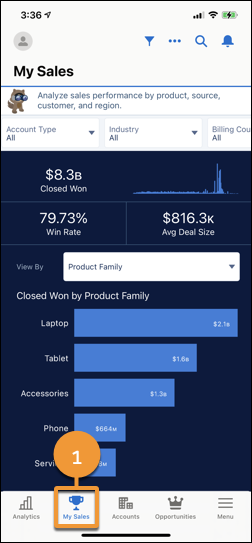
- To turn your dashboard into a navigation item, create a Lightning web tab, add your dashboard URL, and then add the tab to your users’ navigation.
- From Setup, in the Quick Find box, enter Tabs,
then select Tabs. Create and customize a web
tab. For example, create a Sales Insights tab so your Sales team can
access your interactive sales opportunity dashboard.

- Add your dashboard URL to the web tab. To get the dashboard URL, open it in desktop, select Share, and then select GET URL.
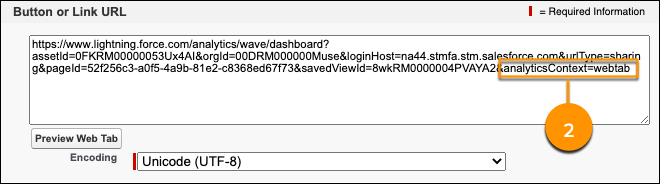
- Paste the URL into your web tab, and then change
analyticsContext from
analyticsTab to
webtab (2).
- Add the tab to your users’ navigation in Lightning App Builder. Now your users can instantly interact with the dashboard.
Did this article solve your issue?
Let us know so we can improve!
