
You are here:
Learn Your Way Around CRM Analytics for Android
Explore your data in Android using the toolbar and a few simple gestures to create meaningful visualizations, and and analyze your data in new ways.
Home Screen
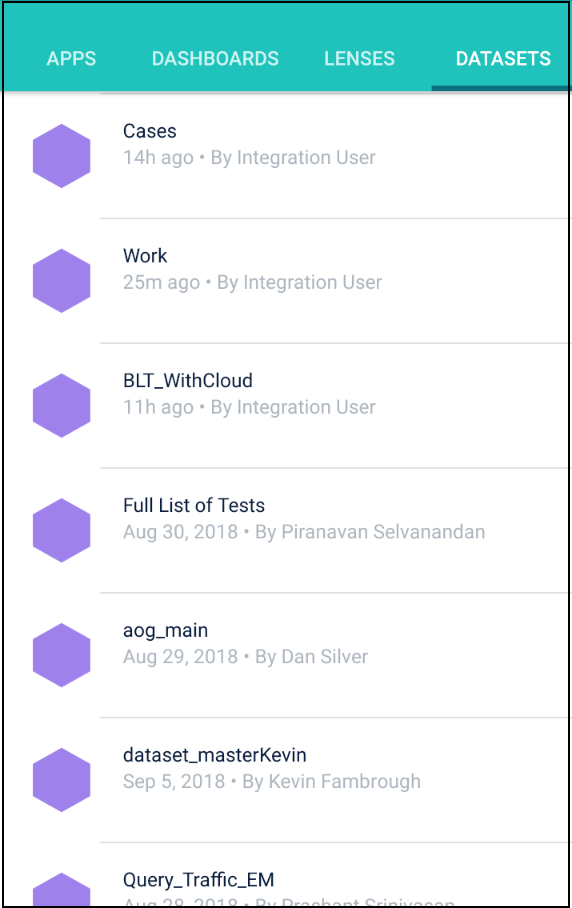
The Home Screen is the first thing that you see when you open CRM Analytics on your mobile device. The Home Screen consists of the header and a list of CRM Analytics assets.
In the header, you can access:
- The lists of your apps, dashboards, lenses, and datasets —in most recently used
order.
- Navigation (
 ) to change settings, get help, and log out.
 - Search (
 ).
).
Navigation Menu
Open the navigation menu from the home screen by tapping . The navigation menu is where you can:
- Change settings.
- Send feedback.
- Get help.
- Log out of your org.
Lens/Dataset Exploration
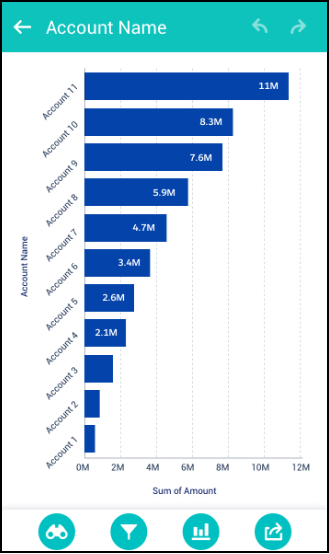
At the bottom of the lens screen, you can access the toolbar to explore and filter data in lenses with the new build, filter, view, and actions tools for data insights.
A Few Simple Gestures
These gestures help you quickly navigate through CRM Analytics.
| Gesture | Result |
|---|---|
| Swipe up | Scroll down lists and dashboard. |
| Swipe down |
|
| Swipe left |
|
| Swipe right |
|
| Scroll | Use one finger to scroll a dashboard or a scrolling widget; use two fingers to scroll the dashboard when directly over a scrolling widget. |
Did this article solve your issue?
Let us know so we can improve!
