
You are here:
Two Approaches for Importing Data
Create dataset from external files or via a URL from inside CRM Analytics.
In iOS, there are many places from which you can import a data file, such as
an email app or a Web browser. Depending on where you import a data file
from, the way in which you access it differs. Look for prompts to
Open in... or for sharing icons ( ). These prompts and icons allow you to open the data
file in CRM Analytics, which launches the data import process.
). These prompts and icons allow you to open the data
file in CRM Analytics, which launches the data import process.
- Locate a CSV, TSV, or XLSX data file, or a ZIP file containing multiple data files.
-
Tap either Open in... or the share icon ().
-
To begin importing data, tap the Analytics icon (
 ).
).

In the Playground, tap the settings icon ( ) and tap
Add Your Data. Then tap Add Data
from a Remote Source and enter the URL for your data file.
To paste a URL, touch and hold the text box. Then tap Import
Data.
) and tap
Add Your Data. Then tap Add Data
from a Remote Source and enter the URL for your data file.
To paste a URL, touch and hold the text box. Then tap Import
Data.
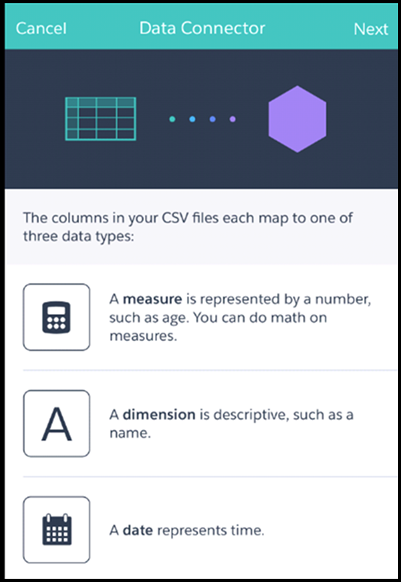
With either approach, CRM Analytics launches the CRM Analytics Data Connector, which guides you through the rest of the data import process. Depending on your data file, the import process can include selecting the sheets to import from an XLSX file and mapping the data fields.
You’ll find your new dataset in a new CRM Analytics app in the navigation menu.
