
You are here:
Monitor and Troubleshoot Templated App Installations
Click an app name to see the entire install history for the app, cancel running installations, and view app logs and state. The app logs and state provide details for each installation and each task. Use this information for troubleshooting why an installation or task wasn’t successful or when an installation was canceled.
- From Setup, in the Quick Find box, enter App Install History, and
then select App Install History.
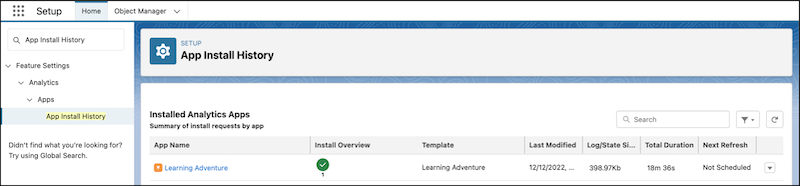
- To view the individual app history detail, click an app name.
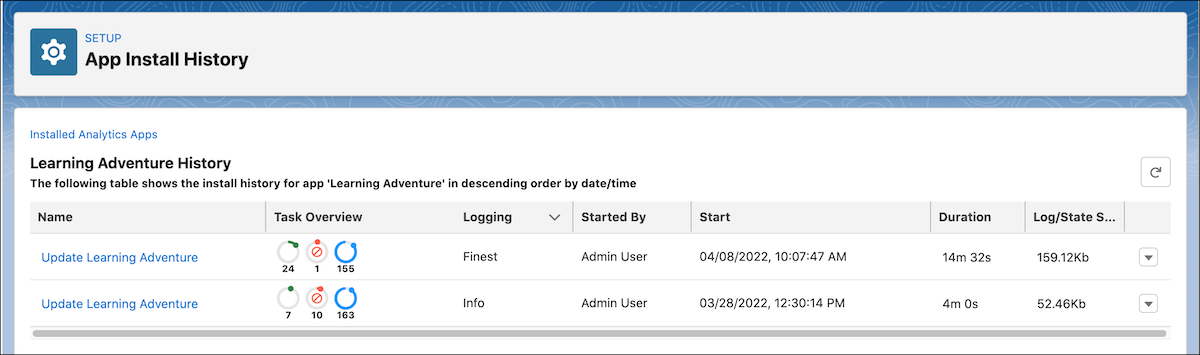
Each templated app install history record has an action menu accessible from the dropdown list icon
 .
. Use the actions to cancel an app installation that is in progress, delete app install history records, or display the top-level installation logs.
- To view the details of an individual install history, click an install action record on the
app history page.
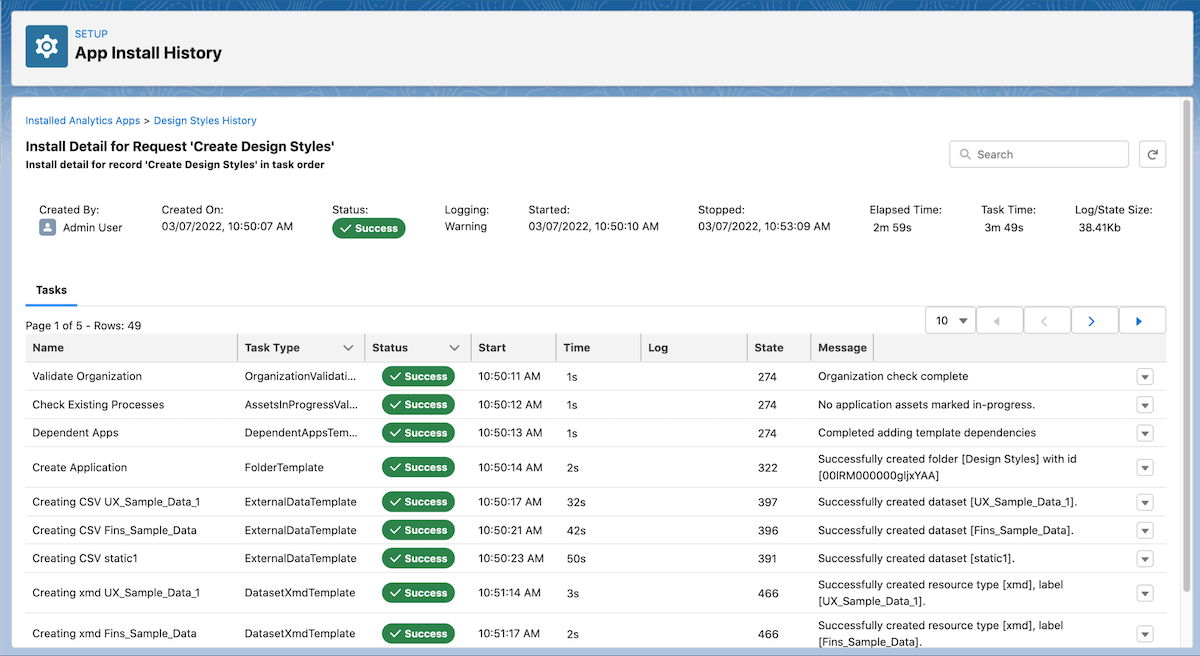 The install detail shows overview information for the installation and a list of individual install tasks. Use the dropdown list for an install record to display the logs or
the state for a task detail. A default of 10 tasks is displayed. To change the number of rows
shown or to load more rows, use the pagination controls in the upper right of the task
list.
The install detail shows overview information for the installation and a list of individual install tasks. Use the dropdown list for an install record to display the logs or
the state for a task detail. A default of 10 tasks is displayed. To change the number of rows
shown or to load more rows, use the pagination controls in the upper right of the task
list. - To view logs, click View Log on an install history record or an
install task.
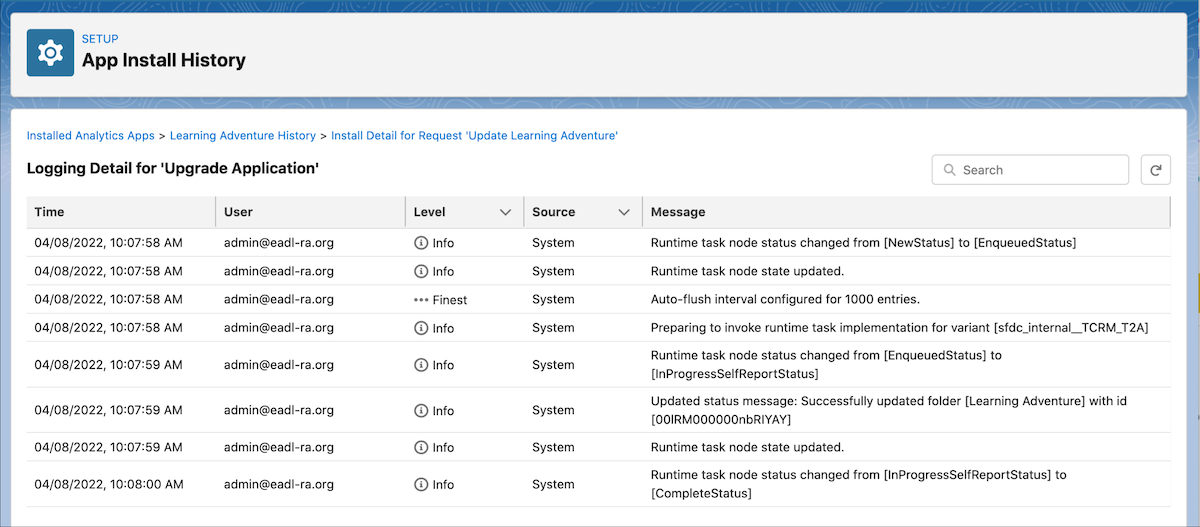 The log entries provide granular detail for each installation and each task. The logs are helpful for troubleshooting why an installation or task wasn’t successful or when an installation was canceled.
 Important Logs availability is dependent on the log level selected at app creation. If there are logged events that are equal to or more severe than the selected log level, logs are available for viewing.
 - To view the runtime state, click View State on an install
task.
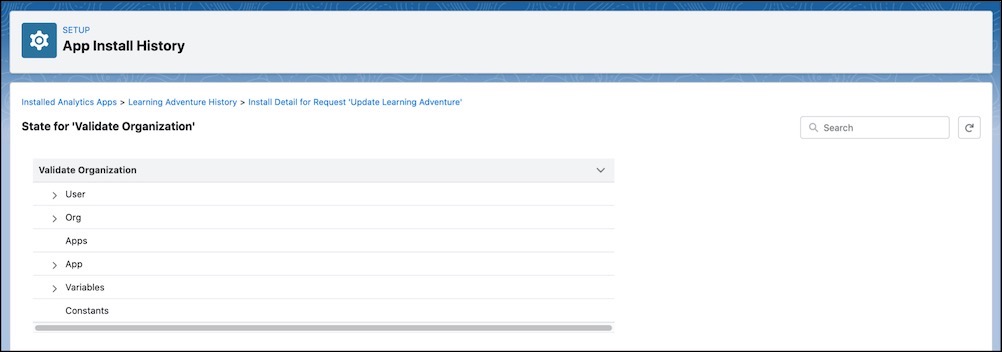 The state for each install task detail record contains context information about the user, org, app, app, variables, and constants, represented as a tree. For each item, click
 to expand the elements of the tree.
For more information on how to use this page for troubleshooting, see the Use the App Install History Page in the Analytics Templates Developer Guide.
