
You are here:
Customize Onboarding with In-Dashboard Instructional Content
Drive adoption and engagement with specialized educational resources right where users work. With the widget-specific Learn option, you can provide videos and webpages that help users get the most out of each dashboard and its charts.
Customized onboarding content can help users to understand and interpret the data, make informed decisions, and act based on the latest information. Selecting Learn in the widget dropdown menu opens the in-app, resizable, draggable onboarding frame, loaded with the content you specify.
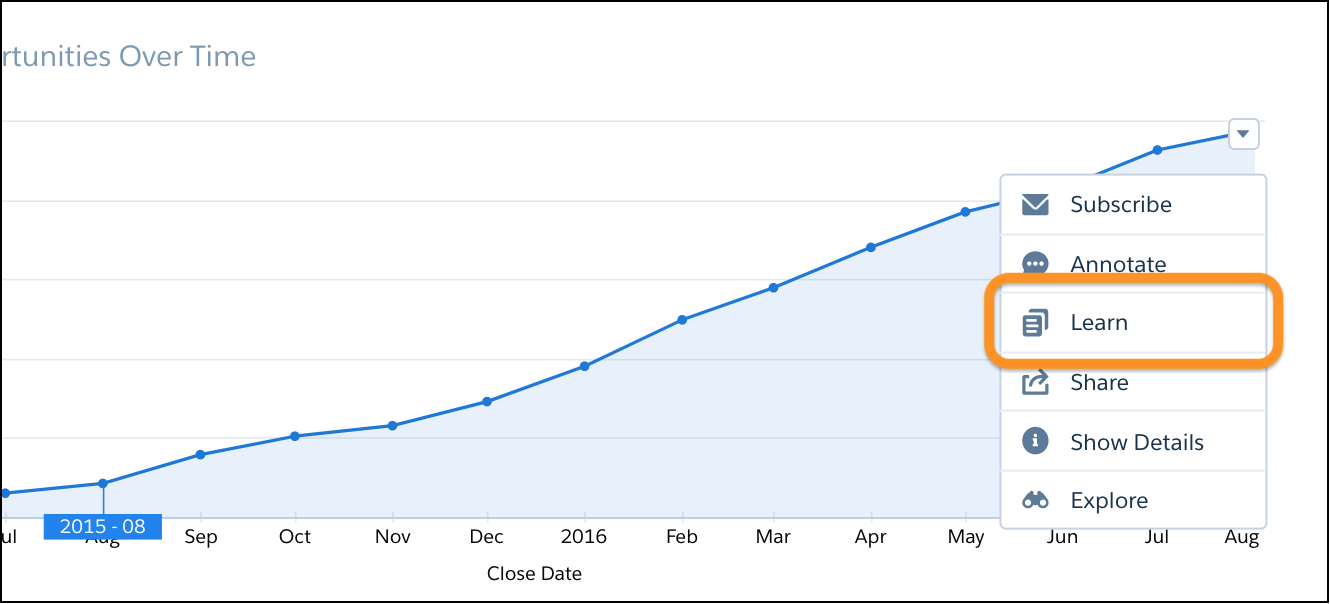
To set up customized onboarding, follow these steps.
- In the dashboard designer, select the widget where you want to add the Learn option.
- In the widget properties panel, open the Onboarding section.
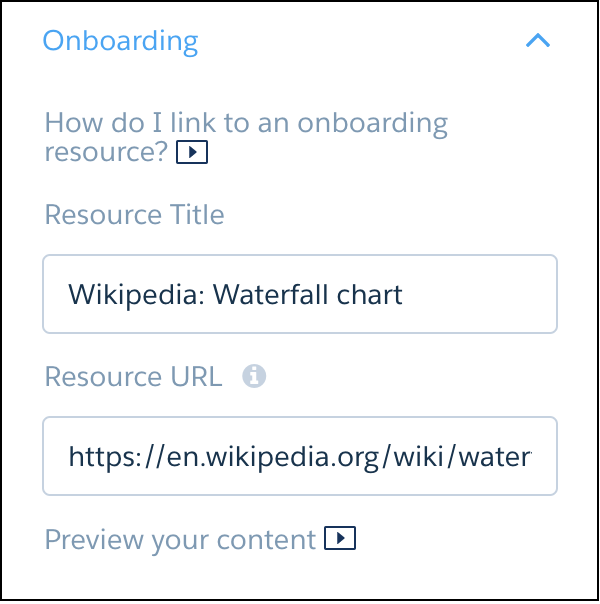
- Enter a title for the frame that presents your resource.
- Enter the URL for your video or webpage. See the following considerations.
- Click Preview your content to see what your users experience .
- (Optional) Add custom onboarding for multiple charts to create a step-by-step learning progression through the dashboard.
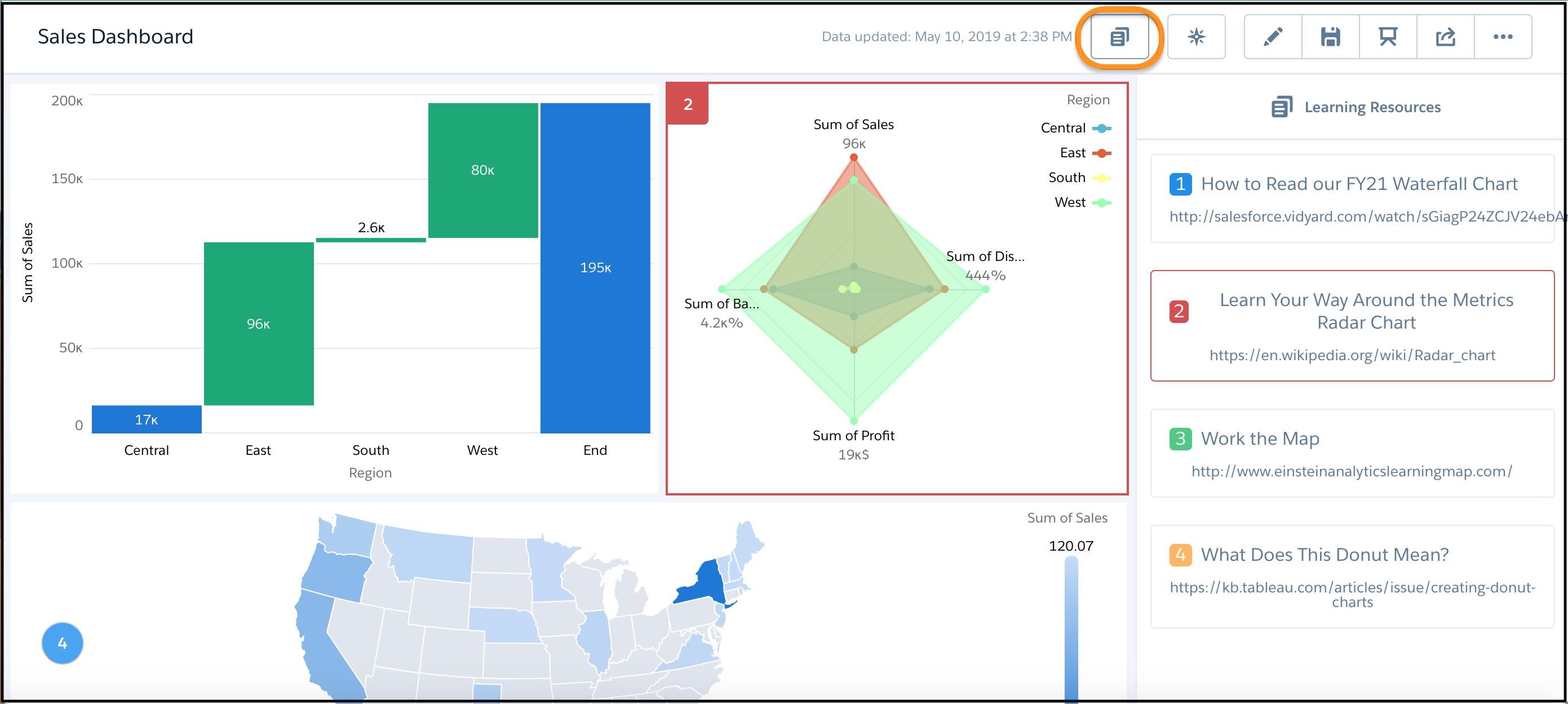
When you have at least one widget with onboarding, the Learning Resources icon appears. Click the icon to open and close the Learning Resources panel. When the panel is open, hover on a learning resource to highlight the chart that goes with it. Each learning resource is numbered and the numbers appear on the charts for easy reference.
Take note of these considerations for dashboard widget onboarding.
- Provide the URL to a site that doesn’t prevent embedding.
- The Onboarding property loads content from any URL into a CRM Analytics inline frame. If the URL allows execution within an inline frame, then all content at the URL becomes accessible to dashboard viewers. Salesforce is not responsible for third-party URLs.
- If your resource is secured, instruct users to authenticate so that the resource can appear in the onboarding frame.
- For best results with YouTube, provide your video’s embed URL. To get the embed URL in YouTube, click Share and then Embed. The URL must have this format: https://www.youtube.com/embed/xxxxxxxxxx.
- When designing web content for widget onboarding, keep in mind that while the onboarding frame allows linking to other webpages, browser controls such as Back and Refresh aren’t accessible.
