
You are here:
Migrate CRM Analytics Assets with Change Sets
Use change sets to move customized CRM Analytics assets between orgs that have a deployment connection. For example, create a CRM Analytics app containing dashboards, lenses, datasets, dataflows in your Sandbox org, then migrate the app assets to your production org once testing is complete.

Tip Remember, this topic describes how to migrate CRM Analytics
assets—such as lenses, customized dashboards, dataset containers, and so on. It does
not discuss migrating Salesforce or CRM Analytics data from org to org. Where this topic
refers to a CRM Analytics dataset, what actually gets migrated is the container; the dataset
metadata.
To migrate CRM Analytics assets:
- Create and test your CRM Analytics assets in your source org, such as Sandbox. Note that assets in the Private App aren’t available for change sets.
- From Setup in your source org, select Outbound Change Sets and create a new one.
-
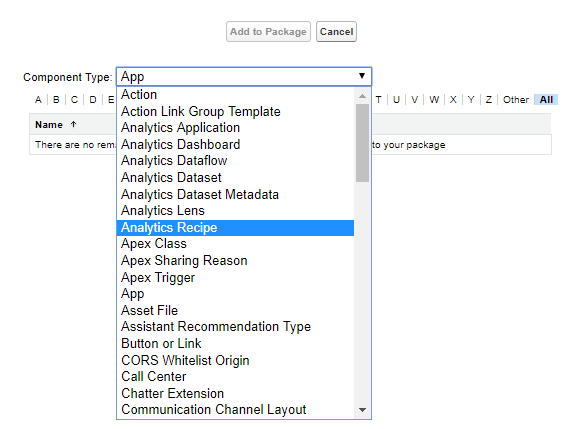
Click Add in the Change Set Components section, then use the
Component Type drop-down list to select and add your CRM
Analytics assets to the change set. Each asset type is prefixed with “Analytics.” Note
that you must add dependent dataflows manually. That is, if you add a dataset to a change
set, the associated dataflows are not automatically picked up.
 Important Analytics components include Analytics applications, dashboards, dataflows, datasets, lenses, recipes, and user XMD. As you package Analytics components, keep these tips and best practices in mind.
- Analytics unmanaged packages, as opposed to managed packages, are considered a developer-only feature and aren’t supported for general-purpose distribution. While Analytics unmanaged packages work as expected within the constraints of Salesforce unmanaged packages, they aren’t subject to as much testing as managed packages. Unmanaged packages come without many of the safeguards of managed packages, and are intended for developers familiar with their limitations. Also refer to the relevant topic in the First-Generation Managed Packaging Developer Guide.
- Before a recipe is available for packaging, you must create a dataset with the recipe. The related dataflow must be added to the package along with the recipe for deployment to succeed.
- Analytics Admin permissions are required to create a package but not for deployment, which requires only Salesforce admin permissions.
- There’s no spidering between datasets and dataflows, meaning there’s no dependency following. When packaging both, they must be added manually. If they aren’t, an error appears during deployment. The same is true for change sets—when packaging both datasets and dataflows, add them manually.
- When you package a data flow, source and security predicates aren’t included in the package.
- Because views are user-specific, they aren’t included when you package the dashboard.
- If you migrate dashboards manually using JSON copy-and-paste, any conditional formatting, widget-specific number formats, and measure labels on blended queries are lost. To retain these formats and labels in the migrated dashboard, include the Analytics Dataset Metadata component type when packaging your change set.
- All custom fields used in a deployed dataflow must exist on the target org. The Analytics Cloud Integration User user must have access to the custom fields.
- Unlike Apex or other code, the underlying JSON definition of Analytics assets are visible in a managed package.
- The Winter ’18 release contains a beta version of Apex steps, which lets developers include custom Apex functionality in a dashboard to access Salesforce platform features that aren’t inherently supported in Analytics. If you include dashboards in a package, Apex steps aren’t included—migrate Apex classes separately.
- Before the Spring ’17 release, images didn’t render when deploying a dashboard that used an image widget that referenced image files not available on the target org. There were two workarounds: Manually upload the images, or add a folder containing the images to the package. As of the Spring ’17 release, images are packaged with the dashboard, and references between dashboards are maintained. You can’t delete a dashboard that is referenced in a link. Either re-create the image, or link the widgets in the dashboard in the source org. Then repackage or fix the link issues in the target org.
- Take care when packaging dataflows. Invalid schema overrides and unsupported or
illegal parameters are removed. For example,
Type =
                  dim
is no longer supported. UseType = textinstead. Comments in JSON are removed. Nodes can appear in a different order.
- Click View/Add Dependencies to ensure all dependent assets and appropriate permission sets and profile settings are added.
- Click Upload and select your target org, such as Production. Make sure that the target org allows inbound connections. The inbound and outbound orgs must have a deployment connection.
- From Setup in your target org, select Inbound Change Sets and find the one you uploaded from your source org.
- Validate and deploy the change set, making sure to assign the right users to any permission sets and profiles you included. Your CRM Analytics assets will be available in the target org.
For details on using change sets to migrate configuration changes between orgs, view the Release Management: Deploying Changes Using Change Sets (Salesforce Classic) video.
Did this article solve your issue?
Let us know so we can improve!
