
You are here:
Post CRM Analytics Dashboards and Lenses to Slack
Facilitate data-driven collaboration by sharing directly from CRM Analytics to your channels in Slack. Slack recipients get a snapshot showing the latest data. Or post a link with quick action buttons.
Required Editions
| Available in: Lightning Experience and Salesforce Classic |
| Available in: Professional, Enterprise, Unlimited, and Developer Editions |
| The CRM Analytics for Slack app is available for use where approved by a workspace admin and installed in Slack. |
| Permissions Needed | |
|---|---|
| To use CRM Analytics for Slack: | Connect Salesforce with Slack |
| To download data from widgets and lenses using the CRM Analytics user interface: | Download CRM Analytics Data |
| To share images of dashboards and widgets when Secure Image Sharing and Downloading is enabled: | Share CRM Analytics Images |
Enable Dashboard Views must be on to view snapshots. The setting is enabled by default.
To set up the Post to Slack feature, complete these steps.
- From Setup, in the Quick Find box, enter Slack, and then select Slack Apps Setup.
- At step 2, click Accept to agree to the Terms and Conditions.
- In the left navigation panel, select CRM Analytics for Slack and click Agree and enable Slack integration. For more information, see Enable Salesforce for Slack Integrations.
- Each user must then add CRM Analytics for Slack to their personal Slack sidebar and connect their Salesforce account. See Add Apps in Your Personal Slack Sidebar.
After setting up the feature, the Post to Slack icon appears on dashboards and lenses.
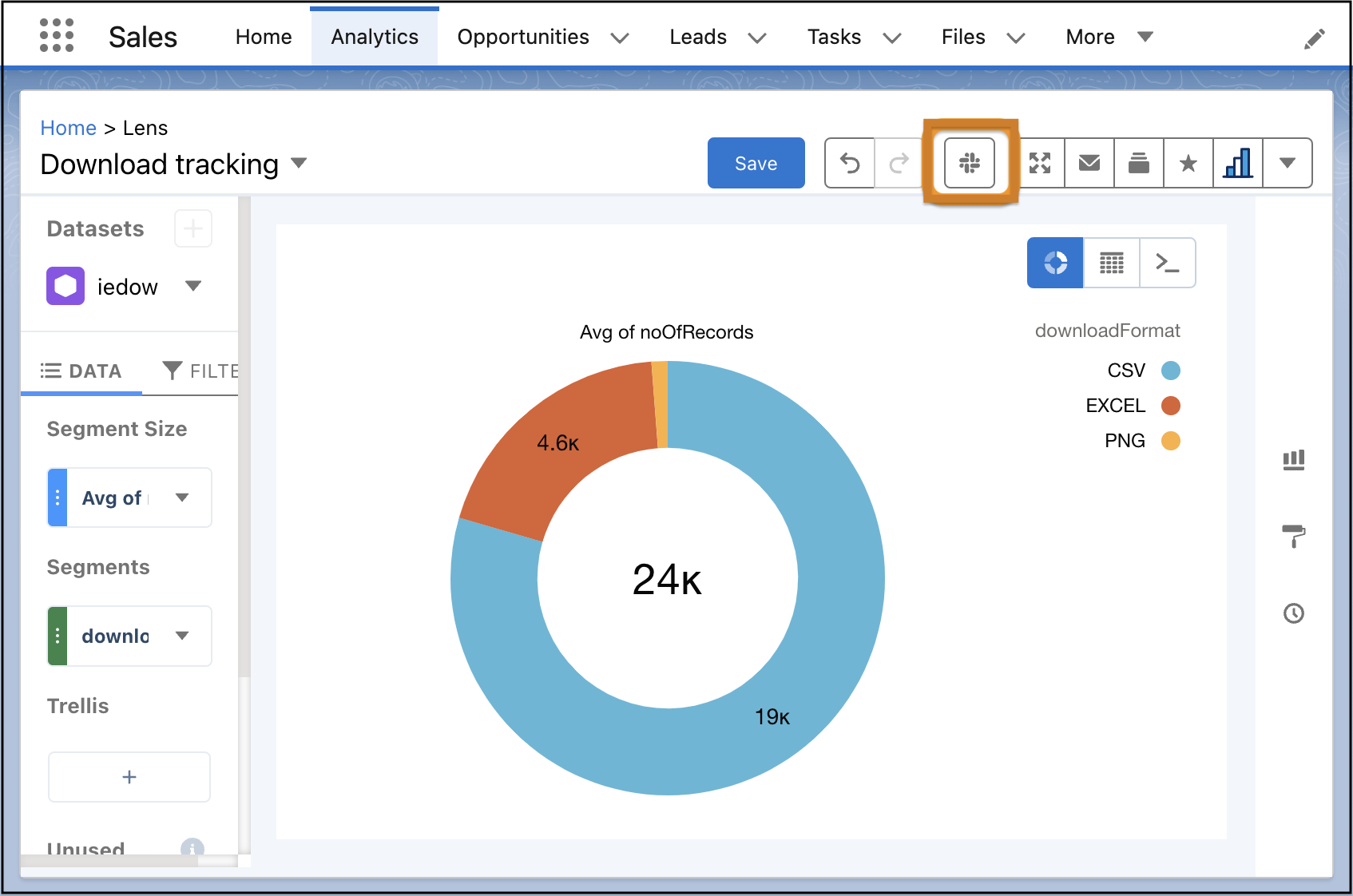
Click the icon to select the Slack workspace and channels where you want to share the item. You can add up to 20 channels per post. Optionally, add a comment to spark conversation with your teammates.
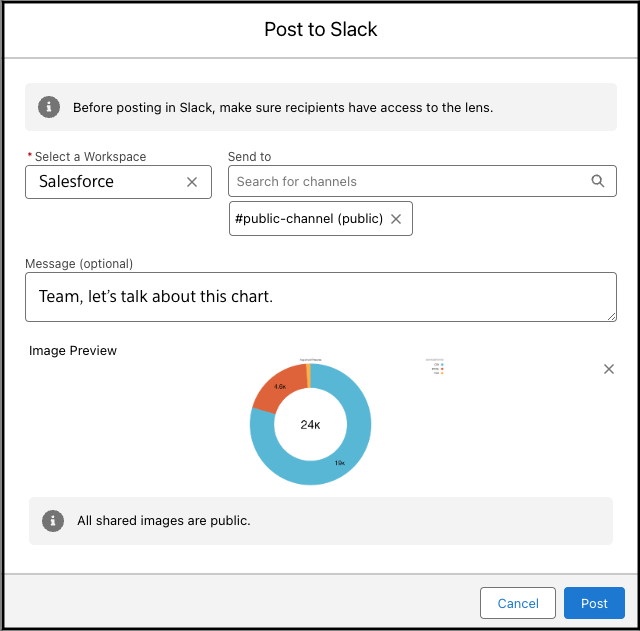
You can post with or without a snapshot. Both options include a link to the item in CRM Analytics.
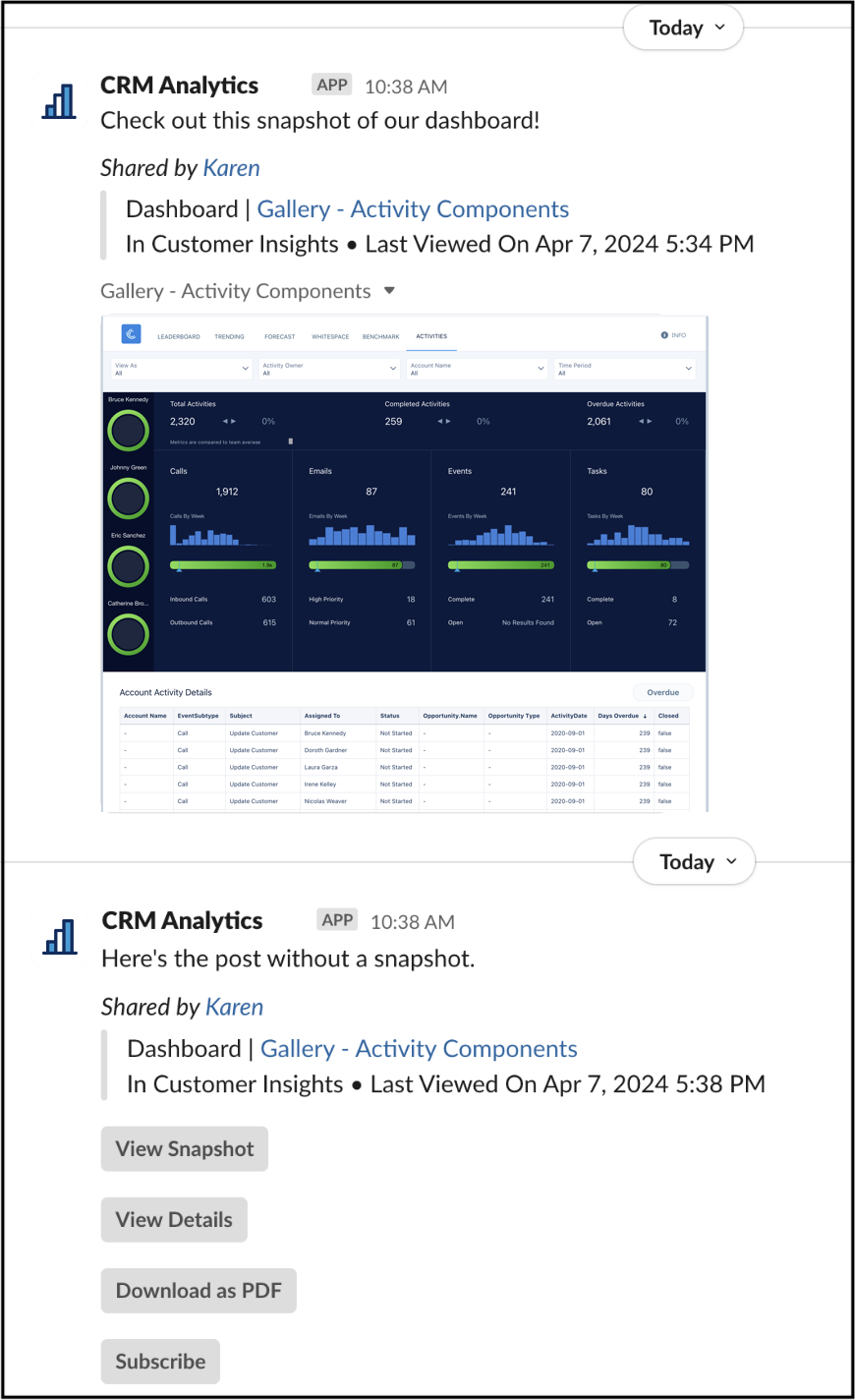
Posts without a snapshot have buttons for the following actions: view snapshot, view details, subscribe (for dashboards only), and download as an accessible .pdf file. The accessible .pdf file includes an image plus the dashboard or lens data in screen-reader friendly, tabular format.

