
You are here:
Create the Dataset
Now that you have the final dataflow definition file, you can create the dataset.
Required Editions
| Available in Salesforce Classic and Lightning Experience. |
| Available with CRM Analytics, which is available for an extra cost in Enterprise, Performance, and Unlimited Editions. Also available in Developer Edition. |
| User Permissions Needed | |
|---|---|
| To download, upload, run, and monitor a dataflow: | Edit CRM Analytics Dataflows |

Warning If you wish to perform the steps in this sample implementation, verify that
you have all required Salesforce objects and fields, and perform the steps in a
non-production environment. Ensure that these changes do not impact other datasets that you
already created. Also, always make a backup of the existing dataflow definition file before
you make changes because you cannot retrieve old versions of the file.
To create the dataset, perform the following steps.
- In CRM Analytics, click the gear icon (
 ) and
then select Monitor to open the monitor.The Jobs view of the monitor appears by default.
) and
then select Monitor to open the monitor.The Jobs view of the monitor appears by default. - Select Dataflow View.
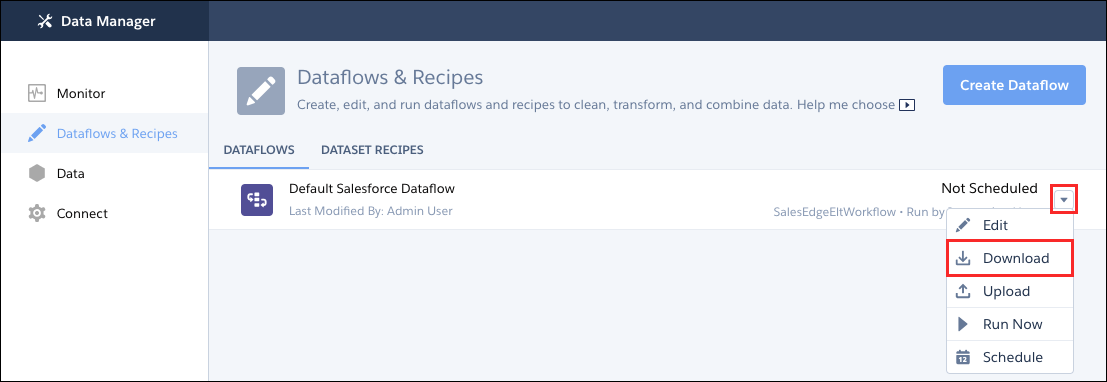
- Click the actions list (1) for the dataflow and then select Download
to download the existing dataflow definition file.
- Open the dataflow definition file in a JSON or text editor.
- Add the JSON determined in the previous step.
- Before you save the dataflow definition file, use a JSON validation tool to verify that the
JSON is valid.An error occurs if you try to upload the dataflow definition file with invalid JSON. You can find JSON validation tool on the internet.
- Save and close the dataflow definition file.
- In the Dataflow View of the monitor, click the actions list for the dataflow and then select Upload.
- Select the updated dataflow definition file and click Upload.
- In the Dataflow View of the monitor, click the actions list for the dataflow and then select Run to run the dataflow job.
- Click the Refresh Jobs button (
 ) to
view the latest status of the dataflow job.You can view the OppTeamMember dataset after the dataflow job completes successfully.
) to
view the latest status of the dataflow job.You can view the OppTeamMember dataset after the dataflow job completes successfully.

Note If you are adding a predicate to a dataset that was previously created, each user must log
out and log back in for the predicate to take effect.
Did this article solve your issue?
Let us know so we can improve!
