
You are here:
Enable CRM Analytics and Create Permission Sets
After identifying user types, create your permission sets then enable CRM Analytics in your org.
Create Permission Sets
Create permission sets made up of CRM Analytics user permissions. We show you how to create two permission sets:
- Manage CRM Analytics permission set, for users who administer CRM Analytics.
- View CRM Analytics permission set, for users who explore app dashboards and datasets.

Note
- Customers who purchased CRM Analytics before October 20, 2015: See Set up the CRM Analytics Platform With Licenses Purchased Before October 20, 2015 before following the instructions here.
- The Manage CRM Analytics permission set enables the equivalent functionality provided by the previous Analytics Builder license (purchased before October 20, 2015). If you have a Builder license or you’re migrating to the current CRM Analytics platform license, follow these steps to create a permission set with the same functionality.
- The View CRM Analytics permission set enables the equivalent functionality provided by the previous CRM Analytics Explorer license (purchased before October 20, 2015). If you have an Explorer license or you’re migrating to the current CRM Analytics platform license, follow these steps to create a permission set with the same functionality.
- In the Setup menu, click Users | Permission Sets and then click New.
- Enter
Manage CRM AnalyticsorView CRM Analyticsin the Label field, as appropriate. This automatically creates the API name as well. You can change it if you like, but it can’t include spaces, end with an underscore, or have two consecutive underscores. - For License, select the license to associate with this permission set.When you select a specific permission set license, any user assigned to the permission set is auto-assigned the permission set license. If you select --None--, you must manually assign the permission set license to users before you can add them to the new permission set.
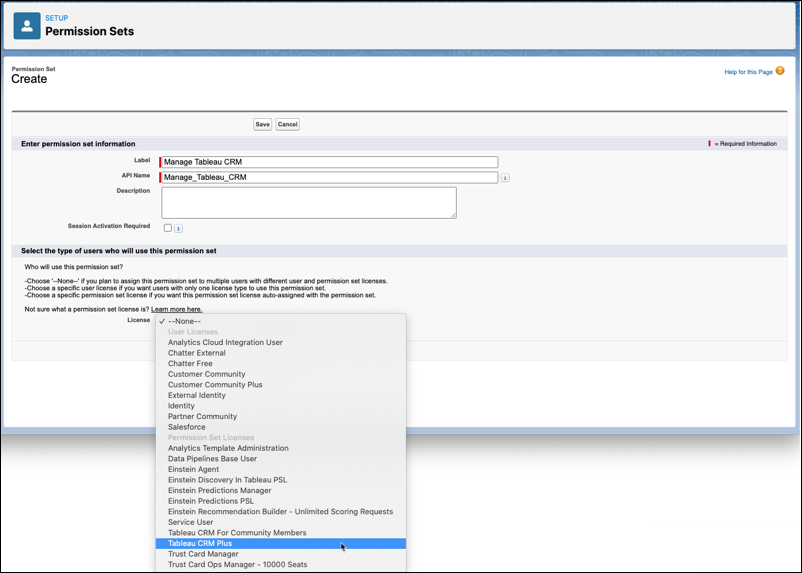
- Click Save. The Permission Set Overview page shows the new permission set. Now add user permissions to the set.
- Click System Permissions to open the list of user permissions enabled by the CRM Analytics license. Then click Edit.
- Do one of the following.
- If you're creating the Manage CRM Analytics permission set, select "Manage CRM Analytics" user permissions and click Save then Save again to confirm settings. You’ve successfully created a permission set that enables access to all CRM Analytics features. You don’t have to select any of the other individual permissions. Assign this permission set sparingly because it provides access to all CRM Analytics features, many of which are inappropriate for most analytics users.
- If you're creating the View CRM Analytics permission set, select "Use CRM Analytics" and "Upload External Data to CRM Analytics" user permissions and click Save. You’ve successfully created a permission set that enables a user to view the CRM Analytics datasets, lenses, and dashboards that they have permission to view, and to upload data files from outside Salesforce.
- You can now assign your new permission set to users, which is covered in Assign Permission Sets to Users. Repeat these steps for every user in your organization who requires access to CRM Analytics.
- Enable CRM Analytics
- Go to Salesforce Setup and enter Analytics in the Quick Find / Search field.
- Select Getting Started.
- Click Enable CRM Analytics.
Did this article solve your issue?
Let us know so we can improve!
