
You are here:
Get Scheduled Updates with Email Subscriptions
Subscribe to lenses and dashboard widgets and receive a daily or
weekly email with updates on your most important charts and metrics, and table data in .csv attachments.
Required Editions
| Available in Salesforce Classic and Lightning Experience. |
| Available with CRM Analytics in Enterprise, Performance, and Unlimited Editions for an extra cost. Also available in Developer Edition. |
| User Permissions Needed | |
|---|---|
| To set subscriptions on CRM Analytics lenses and dashboard widgets: | Subscribe to CRM Analytics Assets |
| To subscribe to tables and receive email with table data in attached .csv files: | Download CRM Analytics Data |
To set up an email subscription, follow these steps.
- Locate a dashboard widget or a lens with information you want delivered to you with
regular email updates.
- For a widget, you can use the dashboard’s filters and selectors to create a more personalized view of your data.
- For a lens, be sure to save before subscribing.
- Select Subscribe from the menu on a dashboard widget, or from a
lens, click the Show Subscriptions icon (
 ).
). - The first time you subscribe, you’re asked to set the schedule for your subscription email. Select the frequency and timing, and click Save.
- Enter a title for the subscription, and click Subscribe. The
subscription appears in the Subscriptions panel.
That’s it! All subscriptions arrive together in one email.
Here’s more you can do with subscriptions.
- When viewing a dashboard, click the envelope ()
to open the Subscriptions panel and show numbers in blue (
 ) on widgets that have subscriptions.
 - To view the filters on a widget subscription, click the subscription tile in the dashboard
Subscriptions panel.
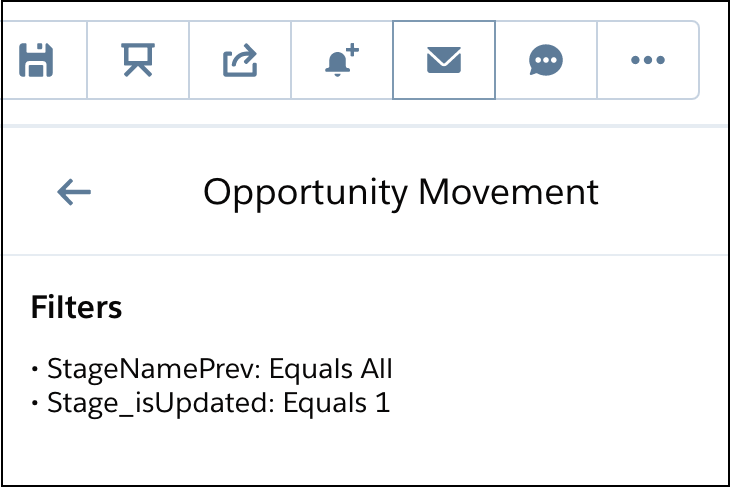
 Note Filters in SAQL queries aren’t listed in the Subscriptions panel but are referenced as “custom.”
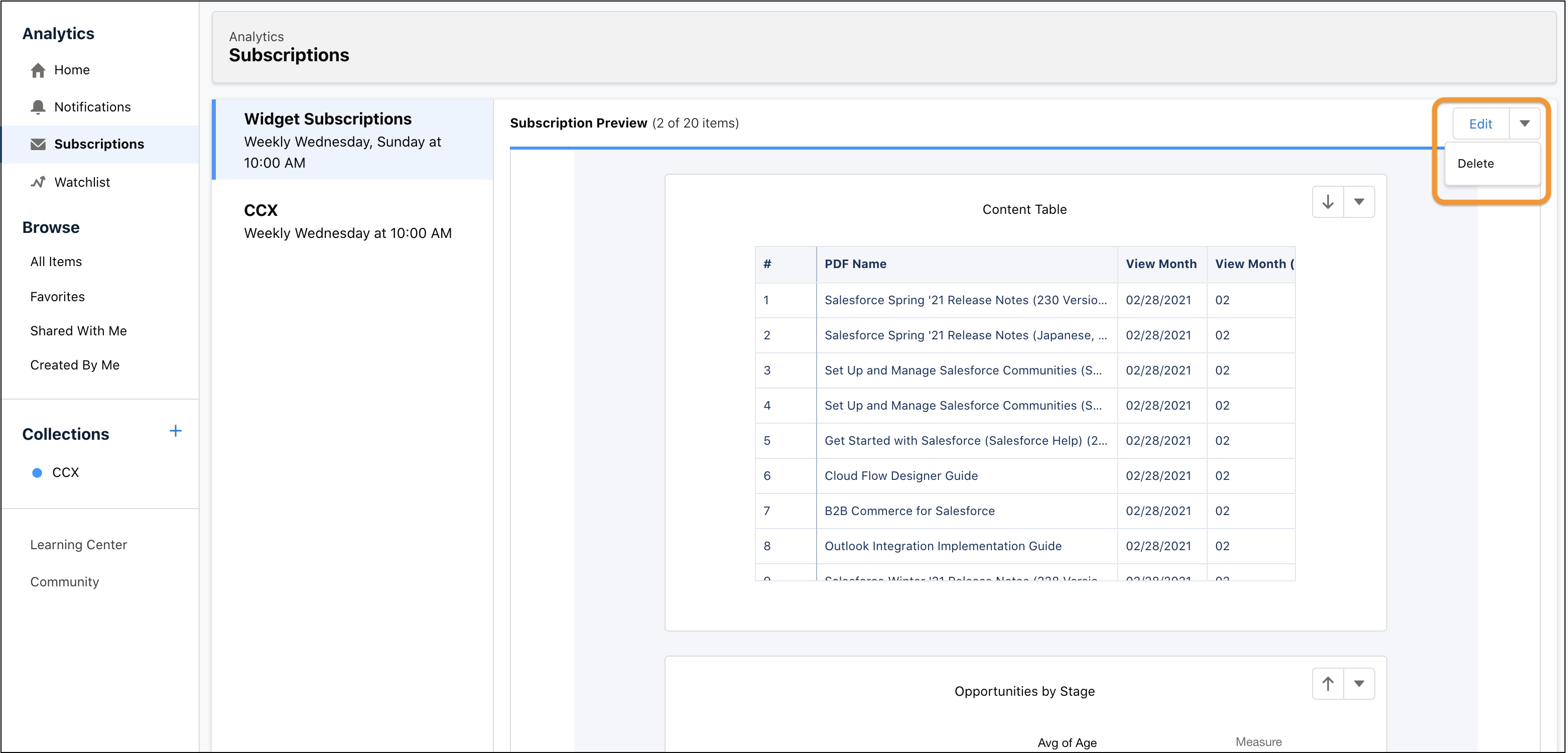
 - To see a preview of your subscription, click Subscriptions on the CRM Analytics home page and select Widget Subscriptions. In the Subscription Preview, click the title of a subscription to go to its dashboard or lens.
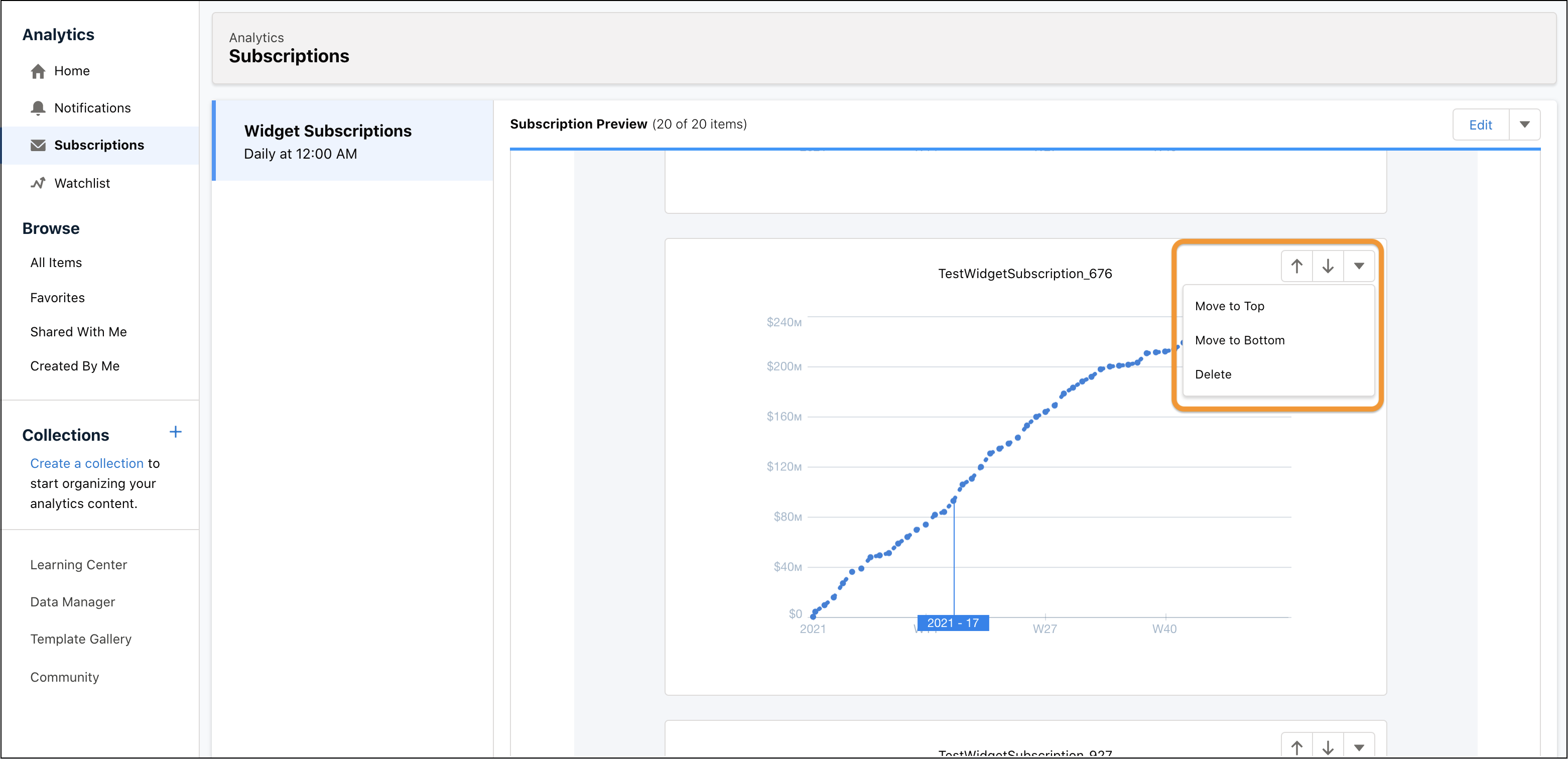
- In the Subscription Preview, you can arrange the order of your subscriptions. Newly
subscribed widgets and lenses are added last by default. To reorder subscriptions, use the
arrow buttons and actions in the menu next to the title. You see the new order in the
Subscription Preview immediately and in your subscription email when it next arrives in your
inbox.
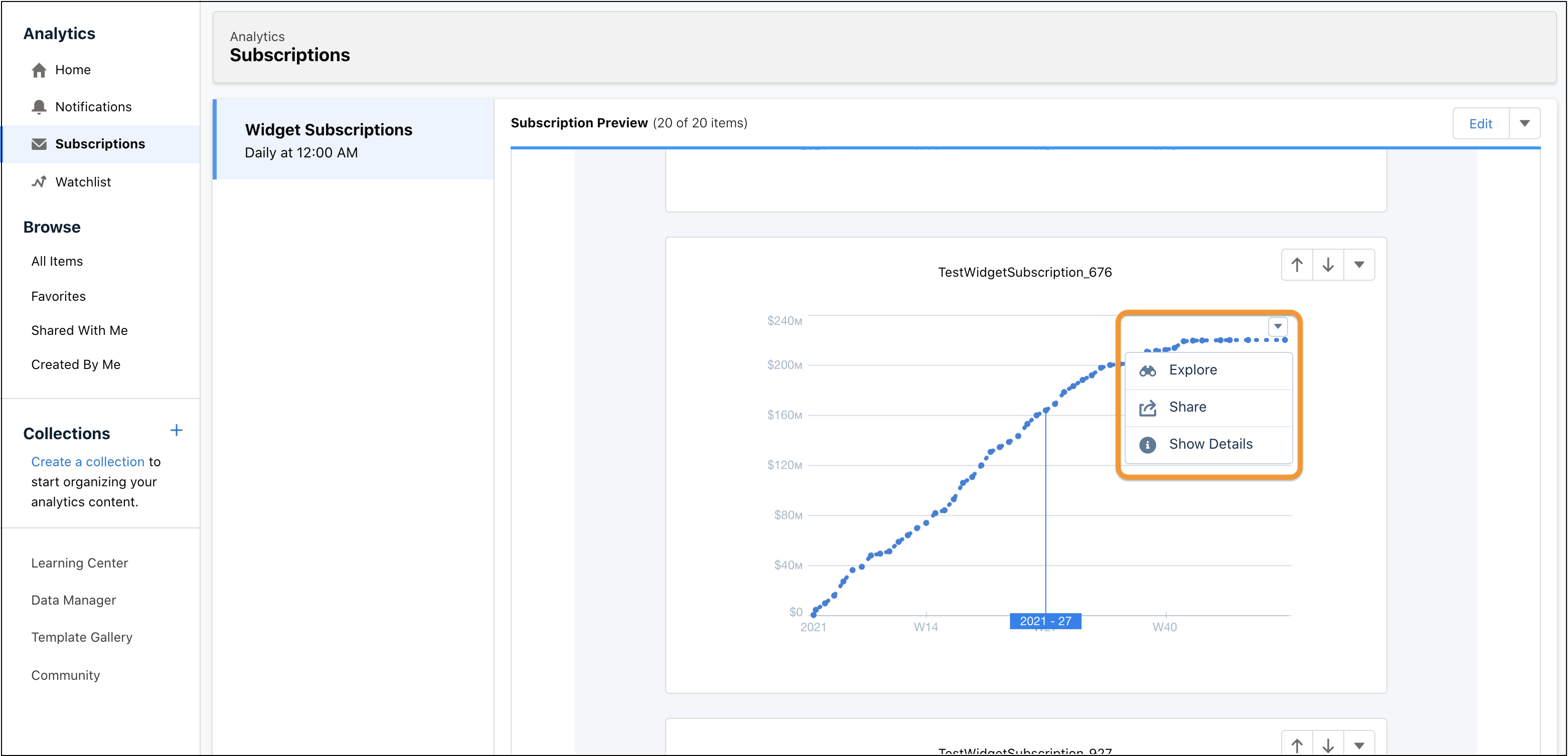
- To take action from the Subscription Preview, open the menu on the chart or table.
 Note When you subscribe to a table, the Subscription Preview shows the first rows of the table and you can scroll to see succeeding rows. The subscription email body contains a placeholder for the table and a
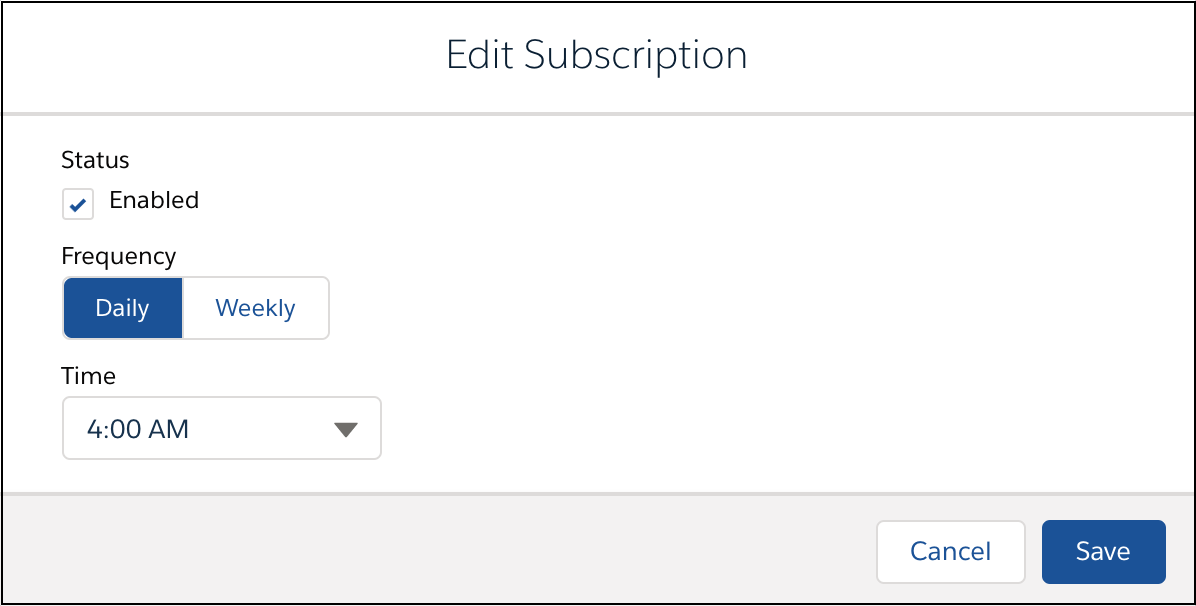
.csvfile of the table data is attached. - To change the frequency or timing of subscription emails, click
Edit on the Subscription Preview. Note To receive emails, Enabled must be selected.
- To delete a subscription, select Delete from the menu on the subscription in the
Subscriptions panel of the dashboard or lens. To remove an item from the Widget
Subscriptions in the Subscription Preview, select Delete from the
menu next to the title of the widget or lens. You can also delete all Widget Subscriptions
from the menu at the top of the Subscription Preview.
Take note of these considerations for CRM Analytics subscriptions.
- Set up subscriptions in the CRM Analytics Studio, the Analytics tab, and in embedded CRM Analytics dashboards.
- You can schedule one Widget Subscriptions email with up to 20 subscriptions. You can also subscribe to 4 collections. For more information about collections, see Subscribe to Multiple Shared Collections. The maximum number of subscriptions per hour per org is 100.
- To limit email size, charts are rendered within defined width and height.
- Table data
.csvattachments can be up to 3 MB each, with total attachments per email up to 15 MB. - Subscriptions are available on all widgets and lenses except maps.
- You can subscribe to any lens that is saved in SAQL format in CRM Analytics. If you must convert a lens to SAQL, we let you know when you try to subscribe. To convert to SAQL, open Query Mode, click Run Query, and then save the lens.
- A lens subscription is dynamic, which means that any change saved to a subscribed lens is automatically reflected in the subscription email and preview. Because a lens subscription is dynamically in sync with its lens, you can’t delete a lens while there’s a subscription to it.
- A widget subscription is based on a snapshot of the query at the time you subscribed, and the subscription isn’t automatically updated when the dashboard is edited. After a subscription is set, any change to the dashboard or update to the query or widget properties doesn’t change the subscription. Conditional formatting, measure formats, and column names in compare tables are captured when a subscription is created and aren’t automatically updated.
- If a widget’s query includes results from another query, the outside query is run only at the time that the subscription is created. Queries with dependencies can cause subscription emails to become inaccurate over time. Before subscribing, consider revising a widget’s query to remove its dependencies.
- You can subscribe to the same widget multiple times to get updates with different filtered views. Each subscription captures the state of the widget with any dashboard filters or selections you’ve applied.
- Subscriptions to widgets based on SOQL, Apex, Salesforce Direct, and CRM Analytics Direct queries, such as direct queries on Salesforce objects, CDP, Snowflake, and Google BigQuery, aren’t supported.
- Subscriptions aren't supported in dashboards that were created in orgs enabled with CRM Analytics Time Zones.
- Custom tooltips on number widgets aren’t included in subscription preview or email.
- If a subscription is based on a SAQL query or a compare table, and filters have been applied, the filters aren’t listed in the Subscriptions panel.
- Subscription emails are typically sent from the email address of the user who created the CRMA notification. To use an organization-wide email address, in Setup, select Use Org-Wide Email Address for Subscriptions and Notifications, and then select the organization-wide email address to use from the dropdown list. The dropdown displays only the email addresses with purpose set as Default No-Reply Address in the Organization-Wide Addresses page in Setup. Org-wide email addresses with purpose set as User Selection are displayed only when the System Administrator role is selected.
Did this article solve your issue?
Let us know so we can improve!
