
You are here:
Subscribe to Multiple Shared Collections
Subscribe to collections of lenses and receive a daily or weekly
email with updates on your most important charts and metrics, and table data in .csv attachments. Subscribe to as many as four collections that
you created or that were shared with you. Each collection subscription has its own schedule
for when you receive CRM Analytics email.
Required Editions
| Available in Salesforce Classic and Lightning Experience. |
| Available with CRM Analytics, which is available for an extra cost in Enterprise, Performance, and Unlimited Editions. Also available in Developer Edition. |
| User Permissions Needed | |
|---|---|
| To set subscriptions on CRM Analytics lenses and dashboard widgets: | Subscribe to CRM Analytics Assets |
| To subscribe to tables and receive email with table data in attached .csv files: | Download CRM Analytics Data |
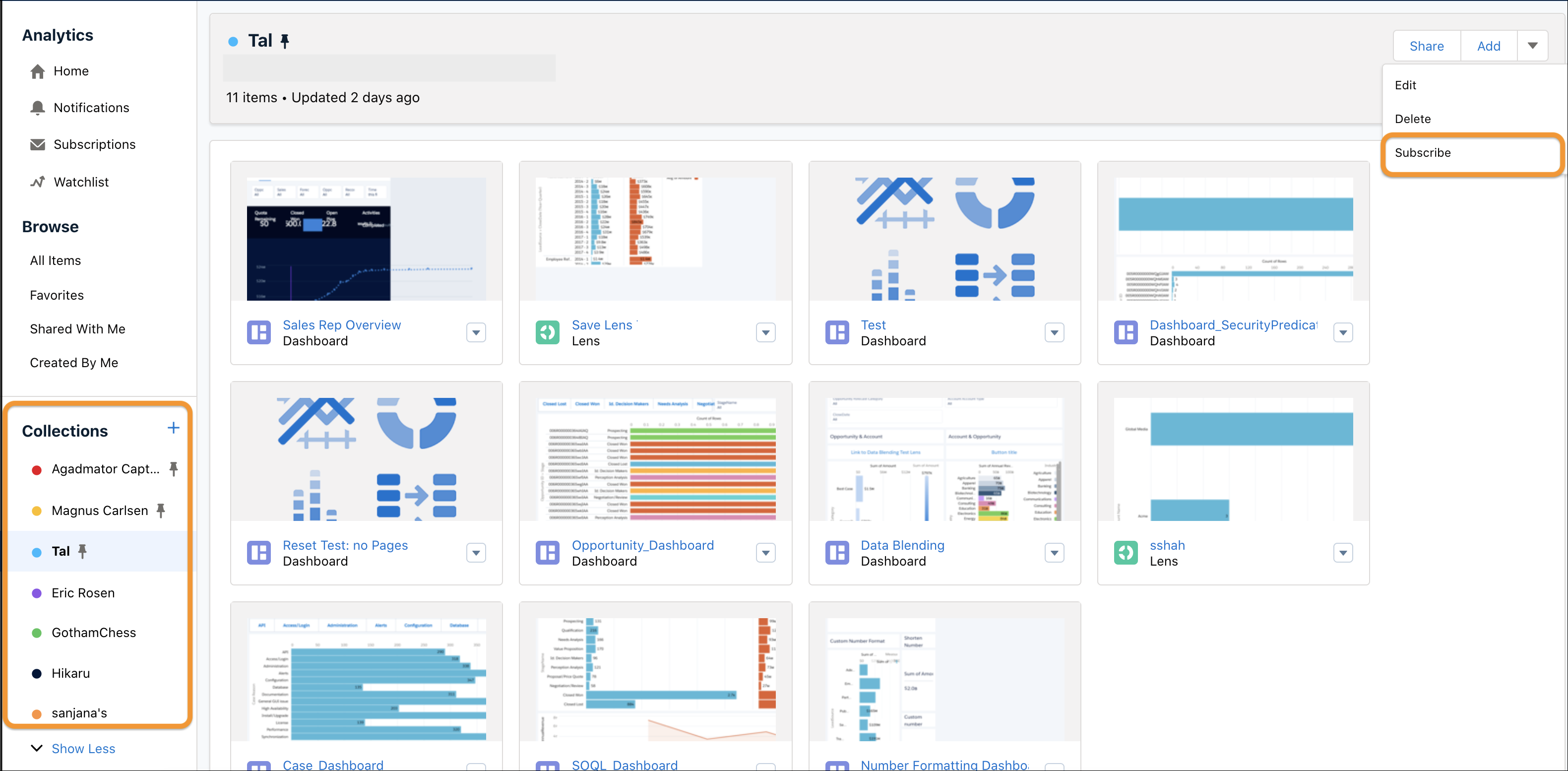
To subscribe to a collection, follow these steps.
- Click the collection on the CRM Analytics home page.
- Arrange the collection so that it’s in the order you want. The first 20 lenses are included in the subscription.
- Select Subscribe in the menu.
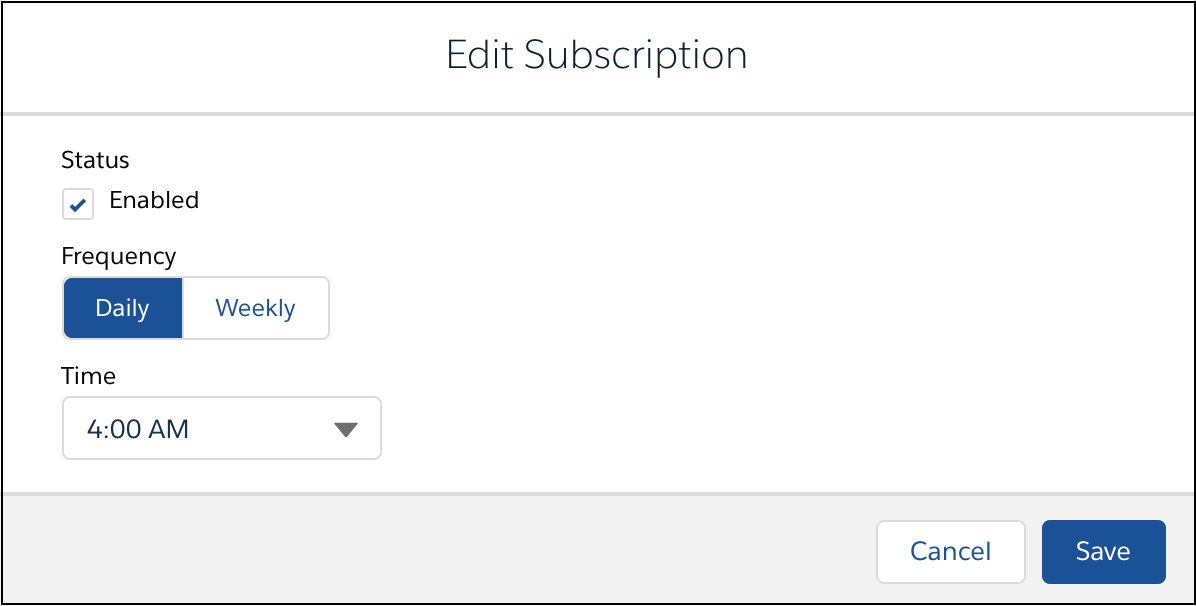
- Set the schedule for your subscription email, and click Save to start the subscription at the next occurrence of your specified time. Or click Save and Run to start it immediately and then continue at the set time and frequency.
Subscription emails include a link to the collection on the CRM Analytics home page and direct links to each lens.

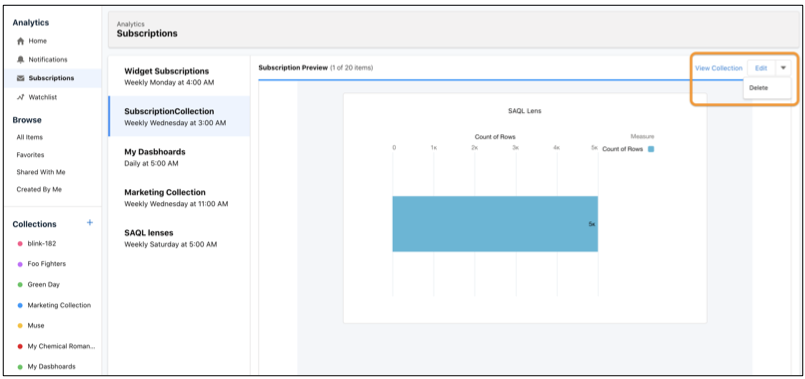
To see a preview of your subscription, click Subscriptions on the CRM Analytics home page and select your collection. In the Subscription Preview, click the title of a lens to open it in lens mode.
To take action from the Subscription Preview, open the menu on the chart or table.
.csv file of the table data is
attached. To change the frequency or timing of subscription emails, go to Subscriptions on the CRM Analytics home page, select your collection, and click Edit.
To delete your subscription to a collection, select Delete from the menu on the Subscription Preview.
Take note of these considerations for CRM Analytics subscriptions.
- You can subscribe to as many as 4 collections, each with its own schedule. Each subscription email can include up to 20 lenses. The maximum number of users per org with the same schedule is 100.
- Dashboards within a collection don’t appear in the subscription email. Lenses in Salesforce Analytics Query Language (SAQL) format appear as charts and tables in the email. If a lens isn’t in SAQL format, the email provides only the link to the lens within CRM Analytics. To convert a lens to SAQL, open the lens in the Query Mode, run the query, and then save.
- A collection subscription is dynamic, which means that adding, reordering, or deleting lenses in the collection is automatically reflected in the subscription email and preview. A lens subscription is dynamic, which means that any change saved to a subscribed lens is automatically reflected in the subscription email and preview.
- Unlike Widget Subscriptions, the order of lenses in a collection subscription can’t be changed in the Subscription Preview. To reorder subscription email, rearrange your collection. The first 20 lenses of the collection are included in the subscription email.
- Unlike Widget Subscriptions, the titles of lenses within a collection subscription aren’t editable.
- Unlike Widget Subscriptions, individual lenses in a collection can’t be deleted in the Subscription Preview. To remove a lens from the subscription, delete it from the collection.
- Deleting a collection also deletes the subscription to that collection.
- Subscriptions can include all lenses except maps.
- Table data
.csvattachments can be up to 3 MB each, with total attachments per email up to 15 MB. - When creating collections for others to subscribe to, save your lenses in SAQL format and be sure that users have access to them.
