
You are here:
Analytics for Corporate and Investment Banking
The Analytics for Corporate and Investment Banking app is designed to help you understand your Corporate and Investment Banking deals. This app includes details about deal participants, deal products, and deal parties (such as legal teams or other external partners).
Required Editions
| Permission Sets Needed | |
|---|---|
| To create and manage the app: | FSC Analytics Admin, CRM Analytics Plus Admin |
| To use the app: | FSC Analytics User, CRM Analytics Plus User |
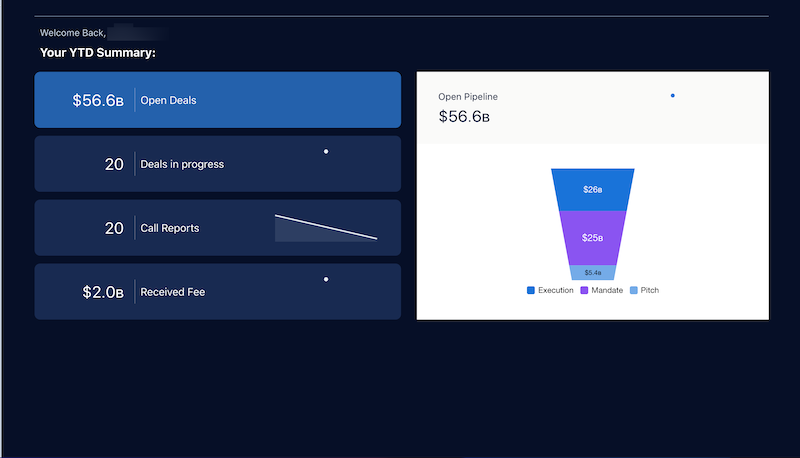
The template creates datasets, recipes, and dashboards to help you understand your Corporate and Investment Banking deals.

Salesforce Org Requirements
Note these requirements to create an app from the template:
- Make sure that you and all app users have the FSC Apps license.
- Your org must have at least one of each of these record types: FinancialDeal, and Account.
- Set Salesforce field-level security to enable the Analytics Integration User to see all fields used in the app. See Set Field Level Security to Enable Creation of an CRM Analytics Template.
- This template uses recipes. Recipes require that your org is set up for data sync. For a better understanding of working with recipes, see Run a Recipe.
- For security purposes, you likely want to configure compliant data sharing. For details, see Enable Compliant Data Sharing for Objects.
Create the App
- In CRM Analytics Studio, click Create in the upper right corner
- To open the template picker, select App, then Create App from Template.
- Locate the Analytics for Corporate and Investment Banking tile, select it, and click Continue.
- Review the app preview page, and click Continue to open the configuration wizard.
- If you’re offered a choice of basing your app on an existing app or creating a one, select Create a brand new app and click Continue. Analytics for Corporate and Investment Banking runs a compatibility check against your org to ensure it includes the data to successfully create the app’s datasets, recipes, and dashboards. If it doesn’t, follow the instructions in the error message to add the required data and start the app creation process again.
- When the org compatibility check succeeds, click Looks good, next.
- Name your app, and click Create.
Give CRM Analytics a few minutes to create your app. You can track its progress on the page that appears. When you see the Application Complete! message, refresh the page. You see your app page with the datasets, recipes, and dashboards showing team performance and activity intelligence. Click it to have a look.
Schedule the Recipe
The app creates a recipe. Schedule the recipe to sync data and to run.
- In CRM Analytics Studio, click the wheel icon at upper right and select Data Manager. Or, click the Data Manager link in the left-hand column.
- Schedule the sync, and then select the Connect tab on the left.
 Note If you can’t see the Connect tab, you must enable data sync in your org. See Enable Data Sync and Connections.
 - Click the arrow
 to the far right of
SFDC_LOCAL, which is the name of the connection your app uses.
From the menu that appears, select Schedule.
to the far right of
SFDC_LOCAL, which is the name of the connection your app uses.
From the menu that appears, select Schedule.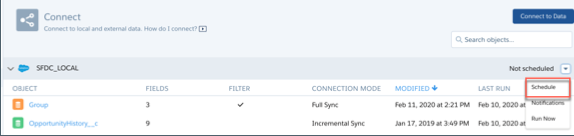
- Set a time for running the data sync. It’s best to select a time outside normal working hours so the sync and recipe don’t interrupt business activities. Then save your changes.
- Next, schedule the recipe. Select the Dataflows & Recipes tab on the left.
- Schedule the recipe.
- Look for the recipe that contains the name of your app appended with
_CIB_Deal_Management, and click the triangle to the far right.
- Select Schedule, then check the box next to Time-based.
- Select the time to run the recipe. You can schedule the data to run by minute, hour, week, or month. See Schedule a Dataflow to Run Automatically for more details.
- Save your changes.
- Look for the recipe that contains the name of your app appended with
_CIB_Deal_Management, and click the triangle
The recipe now syncs and runs every day at the time you set.
Embed Analytics for Corporate and Investment Banking
The Analytics for Corporate and Investment Banking app includes dashboards that you can embed and access in Lightning Experience pages and Salesforce Classic experiences.
For general instructions on embedding dashboards, see Embed Dashboards Everywhere in Salesforce Help.
For instructions on filtering embedded dashboards, see Filter and Selection Syntax for Embedded Dashboards in Salesforce Help.
Assign Analytics for Corporate and Investment Banking for Admins
Enable administration of the Analytics for Corporate and Investment Banking app by assigning the relevant permissions.
Available in: Developer, Enterprise, Performance, and Unlimited editions that have Financial Services Cloud enabled.
- From Setup, in the Quick Find box, enter Users, and then select Users.
- Click the name of the user.
- Click Permission Set Assignments, and then click Edit Assignments.
- Select both the CRM Analytics Plus Admin and FSC Analytics Admin permission sets.
- Click Add, then save your changes.
- Repeat Steps 2–5 for all users who administrate the Analytics for Corporate and Investment Banking app
Assign Analytics for Corporate and Investment Banking for Users
Enable administration of the Analytics for Corporate and Investment Banking app by assigning the relevant permissions.
Available in: Developer, Enterprise, Performance, and Unlimited editions that have Financial Services Cloud enabled.
- From Setup, in the Quick Find box, enter Users, and then select Users.
- Click the name of the user.
- Click Permission Set Assignments, and then click Edit Assignments.
- Select both the CRM Analytics Plus User and FSC Analytics User permission sets.
- Click Add, then save your changes.
- Repeat Steps 2–5 for all users who view the Analytics for Corporate and Investment Banking app.
Datasets
| Dataset Name | Contents | Special Requirements |
|---|---|---|
| Financial Deal | Financial Deal, Account | None. |
| Financial Deal Snapshot | Financial Deal, Account | None. |
| Financial Deal Participant | Financial Deal Participant, Financial Deal, User, Account, Group | None. |
| Financial Deal Party | Financial Deal Party, Financial Deal, Account, | None. |
| Financial Deal Product | Financial Deal Product, Financial Deal, Product | None. |
| Interaction | Interaction, Account, Financial Deal | None. |
| Interaction Attendee | Interaction Attendee, Interaction, Account, Financial Deal, Contact, User | None. |
| Interaction Participant | Interaction Participant, Interaction, Account, Financial Deal, Group, User, ParticipantRole | None. |
| Interaction Summary | Interaction Summary, Interaction, Account, Financial Deal | None. |
| Interaction Summary Participant | Interaction Summary Participant, InteractionSummary, User, Account, ParticipantRole, Financial Deal, Group | None. |
- Home Embedded Dashboard
The Home embedded dashboard includes pipeline metrics, call reports (including any interactions between internal or external deal parties), and account insights. - Account Insights
The Account Insights dashboard answers questions such as how many deals are being managed in a given account space? What are your customer interactions and profitability? And what meetings are scheduled with deal parties? - Deal Insights
Deal insights help you answer questions such as how is the deal progressing? What milestones have been met? What interactions are planned for the future?
