
You are here:
Use Analytics for Communications - Order Tracking Dashboards
Use the Analytics for Communications - Order Tracking dashboards to monitor the order journey and to identify orders and tasks that require immediate attention. By using these insights, you can develop strategies to minimize order fallout risks and improve SLA adherence.
| Available in: Developer, Enterprise, Performance, and Unlimited Editions where B2B Communications Cloud is enabled |
The Analytics for Communications - Order Tracking app includes these dashboards:
- My Orders and Tasks
- Fallout Management
- Order Analysis
- Order Overview (embedded)
My Orders and Tasks Dashboard
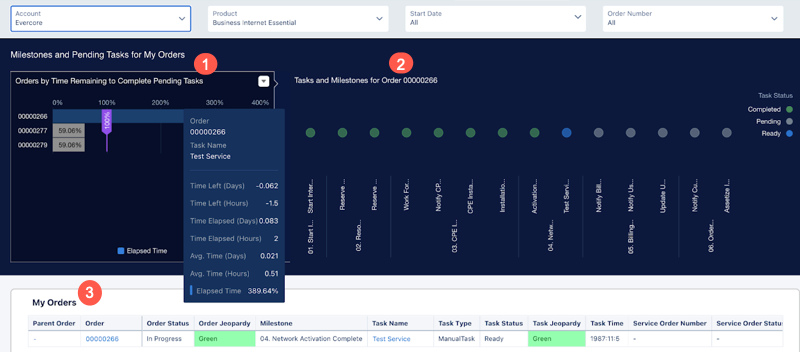
My Orders and Tasks dashboard is the starting point in the day of a Fallout Manager or Fallout Operator. The left panel shows orders that require the most attention from the manager or operator. The dashboard answers these questions:
- Which orders have manual tasks that are Ready for my completion?
- How can I compare the manual tasks in the Ready status based on the average time taken to complete the tasks?
- In which stage of the orchestration plan for the selected order does the manual task appear?
- What's the status of other tasks and milestones in the orchestration plan for the order that I selected?
- How can I go to the record page for the Manual task in the Ready status for the order selected?
Use the panes in the dashboard to select an area of interest.
-
(1) Orders by Time Remaining to Complete Pending Tasks: Shows the elapsed time for each order and gives you a quick insight into which order to focus on. Click an order row to know more about the order.
 Note The chart shows all the orders that have at least one manual task pending.
 -
(2) Tasks and Milestones for Order <>: Shows the order, the corresponding tasks, and the milestones. You can also view the status of each task and the milestones that the order belongs to.
-
(3) My Orders: Shows the details of the selected order.
Fallout Management Dashboard
The Fallout Management dashboard provides insights to monitor the fallout of orders and to identify the orders that require immediate attention. You can view the number of orders in each milestone and the jeopardy distribution details of the tasks across all orders in the milestone. The dashboard answers these questions:
- How adherent are the orders to your organizational fulfillment commitment date?
- Which milestones and orders in the milestone need my attention?
- What's the distribution of jeopardy statuses of the orders in a milestone?
- What are the related Service Orders (SOM), and what are the Service Orders’ task statuses?
Use the panes in the dashboard to select an area of interest.
-
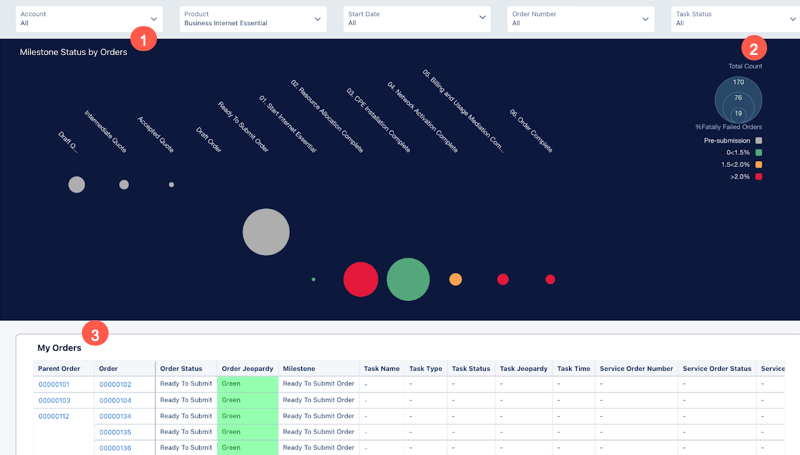
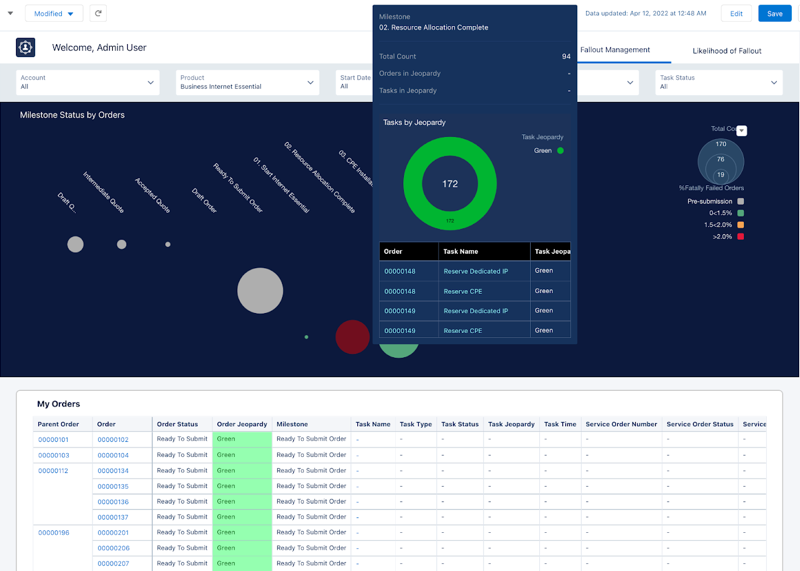
(1) Milestone Status by Orders: Shows the distribution of orders in each milestone and tracks the overall milestone health for fallout and jeopardy severity to identify orders at risk of missing their assigned service level agreement (SLA). The color of the bubble depends on the fallout distribution of orders in a particular milestone:
- Grey: Denotes different stages in the quote creation and pre-orchestration workflow
- Green: Order fulfillment is on track and is expected to be completed on time. No immediate actions are required, and the orders are being processed in adherence to standard operations flow.
- Yellow: Based on the progress of the orchestration plan completion, a manageable risk exists of a considerable number of orders missing the due date. But the fallout percentage can still be under the overall SLA.
- Red: The number of orders in fallout exceeds the organizational threshold, and the milestone needs immediate attention from the fallout manager
Hover over the bubble to view more details.
-
(2) Total Count: The size of the bubble depends on the total count of orders in each milestone.
-
(3) My Orders: Lists all your orders with details. Select a bubble to filter and view the orders specific to a milestone.
Order Analysis Dashboard
The Order Analysis dashboard provides managers insights to compare and analyze the trends for in-progress orders and their corresponding tasks across time periods. The dashboard answers these questions:
- What's the total count of your orders, and how does the count trend over time?
- What's the count of delayed orders, and how does the count trend over time?
- How many orders have failed, and how does the count trend over time?
- How many orders are in jeopardy, and how does the count trend over time?
Use the panes in the dashboard to select an area of interest.
-
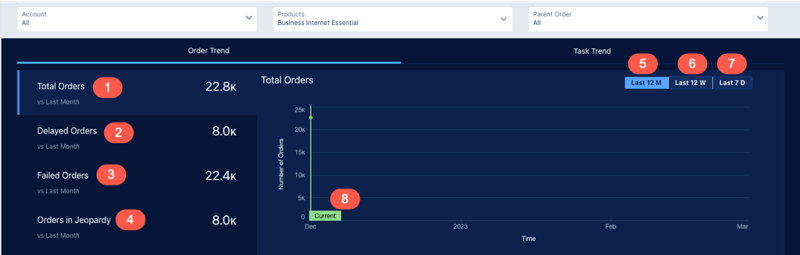
(1) Total Orders: Shows the total count of in-progress orders. You can view and compare the total order count with the previous period's data. View the detailed analysis on the right pane, where you can view the orders’ trend over time.
-
(2) Delayed Orders: Shows the count of in-progress orders that are past the due date. You can view and compare the count of delayed orders with the previous period's data. View the detailed analysis on the right pane, where you can view the orders’ trend over time.
-
(3) Failed Orders: Shows the count of in-progress orders with at least one task failed. You can view and compare the count of failed orders with the previous period's data. View the detailed analysis on the right pane, where you can view the orders’ trend over time.
-
(4) Orders in Jeopardy: Shows the count of in-progress orders with Jeopardy Status as red. You can view and compare the count of orders in jeopardy with the previous period's data. View the detailed analysis on the right pane, where you can view the orders’ trend over time.
-
(5) Last 12 M: Shows the trend based on the current order count with the last 12 month’s order data. The last 12 months include the last 11 months, the current month, and three forecasted months.
-
(6) Last 12 W: Compares the current order count with the last 12 week's order data. The last 12 weeks include the last 11 weeks, the current week, and three forecasted weeks.
-
(7) Last 7 D: Compares the current order count with the last seven days’ order data. The last seven days include the last seven days and the forecasted three days.
-
(8) Current: Differentiates the actual data trend (solid line until the current date) and the forecasted data trend (dotted line after the current date).
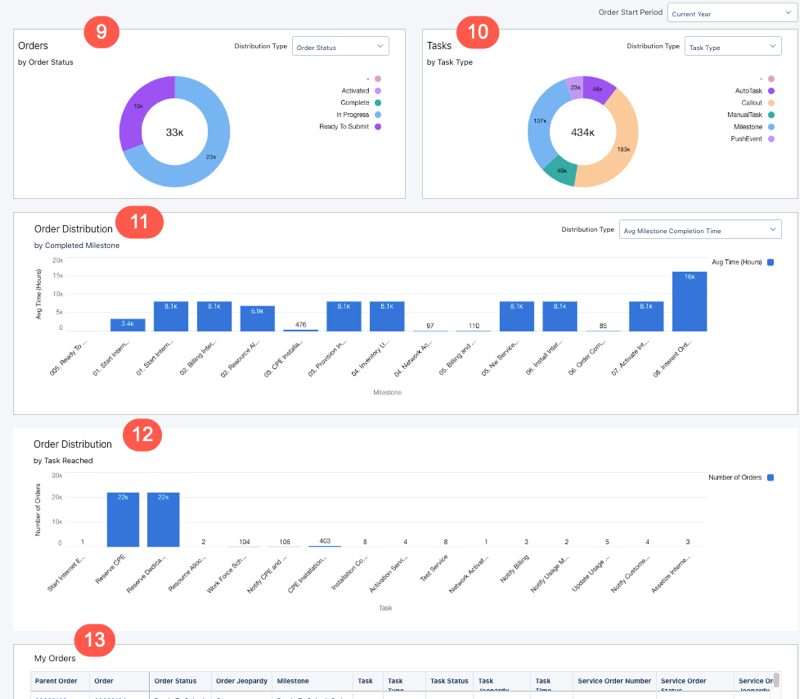
- (9) Orders: Shows the distribution of orders based on the selected measure:
- Order Status: Shows the count of orders in each order status.
- Fulfillment Status: Shows the count of orders in each fulfillment status.
- Jeopardy Status: Shows the count of orders in each jeopardy status.
Order Status is the default status.
- (10) Tasks: Shows the distribution of tasks based on the selected measure.
- Task Type: Shows the count of tasks in each task type.
- Task Status: Shows the count of tasks in each task status.
- Jeopardy Status: Shows the count of tasks in each jeopardy status.
Jeopardy Status is the default status.
- (11) Order Distribution: Shows the distribution of orders based on the selected measure:
- Avg Task Completion Time: Shows the completed tasks based on the task type and the average time to complete.
- Avg Milestone Completion Time: Shows the completed orders in each milestone and the average time to complete the milestone.
Avg Milestone Completion is the default measure.
-
(12) Order Distribution by Tasks Reached: Shows the distribution of orders based on the last task completed in a specific orchestration plan. Hover over the individual bars to see the average time taken for each named task.
-
(13) My Orders: Lists all your orders with details.
Team Performance Dashboard
The Team Performance dashboard gives the Fallout Manager insight into the performance of the team and identifies the top-performing team member based on manual task completion status. Use the dashboard to filter individual allocation of manual tasks, analyze the data table, and reassign tasks if needed. The dashboard answers these questions.
- How’s my team performing based on their task completion metrics?
- Who’s the high-performing team member?
- Who needs my attention?
- What’s the team’s order distribution by completed milestones?
Use the panes in the dashboard to select an area of interest.
-
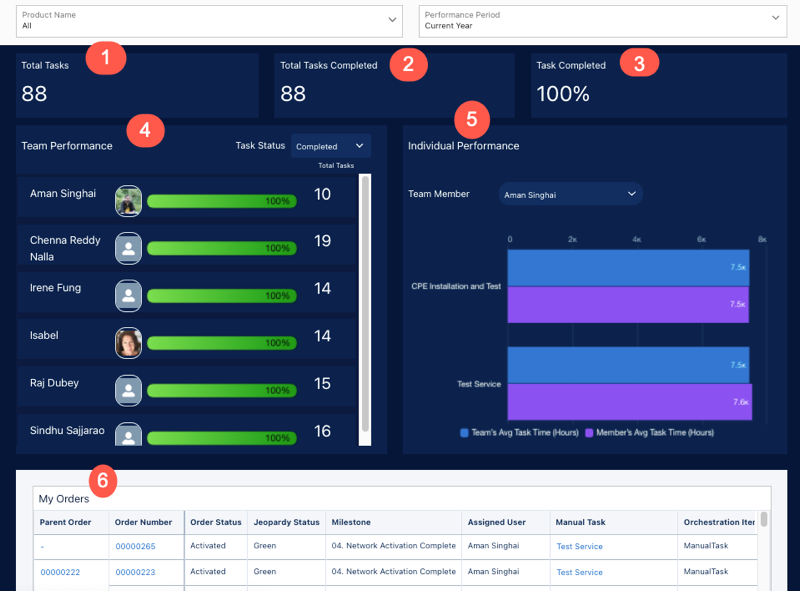
(1) Total Tasks: Shows the count of all manual tasks assigned to the team.
-
(2) Total Tasks Completed: Shows the count of tasks completed by the team.
-
(3) Tasks Completed: Shows the percentage of completion of tasks compared to the total tasks.
-
(4) Team Performance: Shows the performance of each team member based on the selected task status. Completed is the default status, and indicates the percentage of manual tasks completed by each team member.
-
(5) Individual Performance: Shows the performance of the selected team member based on the team’s performance. You can assess performance by comparing the time taken by the team member to complete a task with the average time taken by the team to complete the same task.
-
(6) My Orders: Lists all your orders with details.
Order Overview Dashboard
The Order Overview dashboard provides a quick overview of your order. The dashboard can be embedded in and accessed from Lightning Experience pages for the Order entity. The dashboard answers these questions:
- How many days have passed after placing the order?
- How many hours or days remain for or have passed the order due date?
- How many tasks and milestones are pending?
- What's the orchestration plan for the order?
- What’s the estimated time of completion for each pending milestone?
Use the panes in the dashboard to select an area of interest.
-
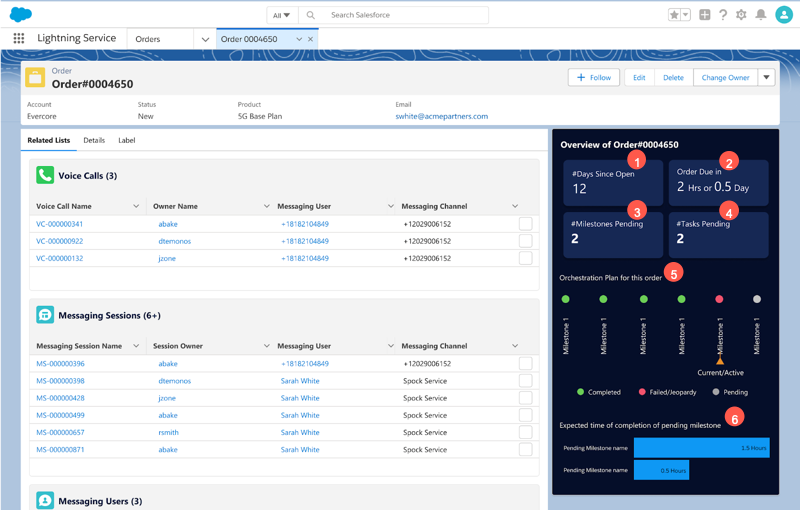
(1) Days Since Open: Shows the count of days that the order has been in the Open status.
-
(2) Order Due in: Shows the number of days that remain for or have passed the order due date.
-
(3) Pending Milestones: Shows the number of milestones yet to complete.
-
(4) Pending Tasks: Shows the number of tasks yet to complete.
-
(5) Business Milestone in the Orchestration Plan: Shows the milestones for the specific order and the status.
-
(6) Pending Milestones by Expected Completion Time: Shows pending milestones for the specific order and the expected completion date.
