
You are here:
Patient Risk Stratification Template
The Patient Risk Stratification template creates an app that lets healthcare coordinators identify high-risk patients to make sure they get the extra care they need.
Required Editions
| User Permissions Needed | |
|---|---|
| To create and manage the Patient Risk Stratification app and set up custom actions in the app: | Manage CRM Analytics Templated Apps |
| To use the Patient Risk Stratification app: | Use CRM Analytics Templated Apps |
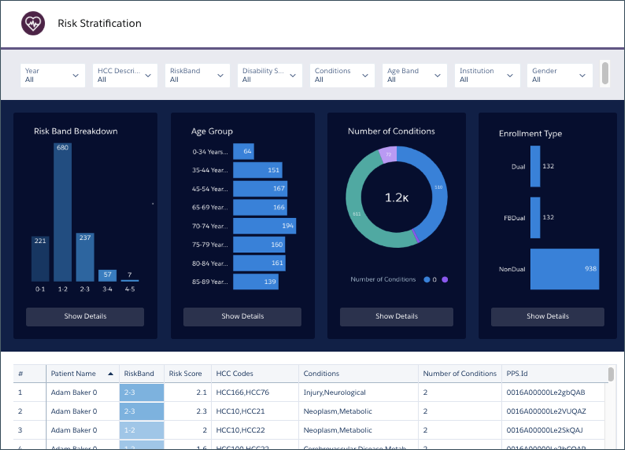
Patient Risk Stratification brings your Health Cloud data into CRM Analytics to help you deliver the right level of care management to high-risk patients. The Patient Care Risk Stratification dashboard lets you drill in to a population. You can see risk score, age, number of conditions, and enrollment type for specific population segments. The metrics help you understand risk for your patients and plan the appropriate level of care to assure best-possible treatment outcomes.


Org Requirements
Your org requires the following before you can create an app from the Patient Risk Stratification template:
- Make sure you and all app users have the CRM Analytics license.
- Patient Risk Stratification is only for Health Cloud customers who have installed the Health Cloud Risk Stratification package.
- Your org needs to include at least one risk score within a program patient summary record. You also need to use Record Types.
- Set Salesforce field-level security to enable the Analytics Integration User to see all fields used in the app. See Set Field Level Security to Enable Creation of an CRM Analytics Template.
Enable Bulk Actions in the App
After creating the app, enable bulk actions in the table at the bottom of the Risk Stratification dashboard. Bulk actions let you perform an action on multiple Salesforce records at the same time. In this case, you can send a list of high-risk patients to other Health Cloud users.
- Click the edit icon
 at the top of the
dashboard.
at the top of the
dashboard. - Select the table with the list of patients at the bottom of the dashboard.
- In the Properties panel at right, select Widget.
- To enable the bulk action, click Show custom action. In the
Custom Action Label field, enter a name for the custom action,
for example Send List to Health Cloud.
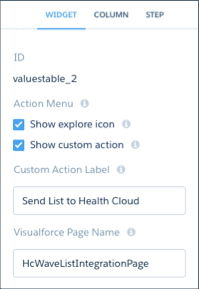
- In the Visualforce Page Name field, enter HcWaveListIntegrationPage. This string refers to a Visualforce page that’s included with the Health Cloud package.
- Click the Save icon
 at the top of the dashboard, then click the
Save button.
at the top of the dashboard, then click the
Save button.
Use Patient Risk Stratification
Open the app.
- From the app picker
 , select CRM
Analytics Studio to open the CRM Analytics home page.
, select CRM
Analytics Studio to open the CRM Analytics home page. - Under Browse in the left column, select All Items.
- Select the Apps tab, then click your app to open it. If you can’t immediately find it, consult your Salesforce administrator to find out the name they gave it when creating the app.
The filters along the top of the dashboard let you select criteria for creating a list of high-risk patients. In the example dashboard shown above, you could select Diabetes from the Conditions filter and 60-64 Years Old from the Age Band filter to create a list of 60-to-64-year-old patients with diabetes.
The visualizations just below the filters change to show data for the selected group of patients as determined by filter selections. Click the Show Details button below each chart to learn more about that group. View the list of patients in the table at the bottom of the dashboard. Click the arrow in the top right corner of the table and select Send to Health Cloud to share the list with others in your org.
