
You are here:
Multi Org Sales Analytics Template
Use the Multi Org Sales Analytics template to create a scaled-down version of the Sales Analytics that pulls in data from all your connected orgs.
Required Editions
| User Permissions Needed | |
|---|---|
| To create and manage the Multi Org Sales Analytics app: | Manage CRM Analytics Templated Apps |
| Manage Einstein Discovery | |
| To use the Multi Org Sales Analytics app: | Use CRM Analytics Templated Apps |

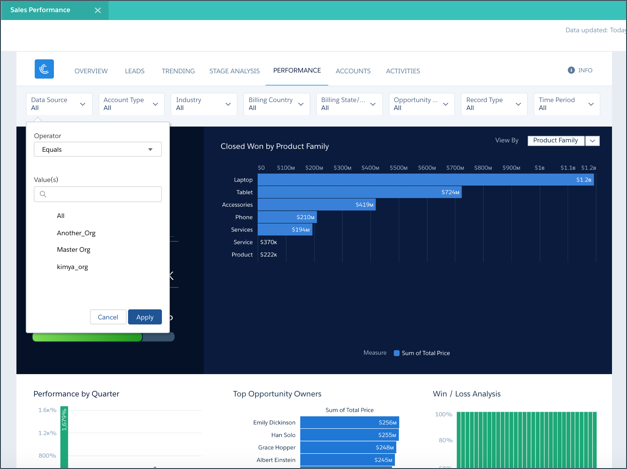
Now you can create a version of the Sales Analytics app that includes data from all the Salesforce orgs you use to manage sales interactions. You get key dashboards that help sales managers unlock the full power of Sales Cloud data—from any org already connected to CRM Analytics. Select the orgs whose data you want to add to the app in the configuration wizard when you create the app. Then, when you use the app’s interactive dashboards, choose the org data you want to view.

Org Requirements
Your org requires the following before you can create an app from the Multi Org Sales Analytics template:
- Make sure you and all app users have an CRM Analytics Plus license or the CRM Analytics Growth license for an org.
- You only need an CRM Analytics Growth license or CRM Analytics Plus license for your local org.
- Create connections from the local org to connected orgs before attempting to create the app. Connected orgs must support API version 35 or higher. See Create a Remote Connection. Or watch the first 1:20 of the video Connect to External Orgs.
- Sales Analytics data requirements apply to Multi Org Sales Analytics. See Sales Analytics Limitations. Also, the Multi Org Sales Analytics doesn’t enable you to include data from the Campaign object.
- All connected orgs must use the same objects as the local org, and all those objects must contain data. If they don’t, app creation may fail.
- Only the local org supports action menus. To add action menus to connected orgs, see Add Actions to Dimensions in the CRM Analytics Extended Metadata (XMD) Developer Guide.
- The local and connected orgs are limited to a combined maximum of 100 objects or the Multi Org Sales Analytics dataflow fails.
- Schedule data connections to sync every day at a time before the daily dataflow for the Multi Org Sales Analytics app. It’s recommended that you set data connections to sync at least 3 hours before the dataflow. The Multi Org Sales Analytics app doesn’t contain the latest data if the daily data syncs don’t finish running before the daily app dataflow starts running. See Schedule, Run, and Monitor Data Sync.
- Set Salesforce field-level security to enable the Analytics Integration User to see the fields that you want to analyze. During app creation, CRM Analytics checks your org’s field-level security and lets you know if you have to edit it.
Multi Org Sales Analytics Configuration Wizard
Use the Multi Org Sales Analytics configuration wizard to add data from other connected orgs with Sales Cloud data to your app.
- In CRM Analytics Studio, click Create, then App.
- Select Create App from Template. On the Choose an App Template page, find Multi Org Sales Analytics, and select it. Then click Continue.
- That brings you to the Multi Org Sales Analytics page. Have a quick look at a preview of app dashboards, and click Continue.
- The next page requires you to add data from connected orgs to your app. Select the
connected orgs you want to use and click Looks good, next. Important Be sure that the number of objects from the local org and connected orgs combined doesn’t exceed 100 or the dataflow fails.
- That starts a compatibility check of the local org. It checks to be sure that the data in the org meets the data requirements to create the app. If it determines that the local org doesn’t contain the required data, you see error messages with instructions on what to fix. Once the compatibility check finishes running, click Looks good, next.
- The next page lets you choose to add data from the Products, Leads, and Cases objects in
your local org to your app. Select the ones you want, then click Looks good,
next. Important Be sure that the connected orgs contain data in the selected objects. If they don’t, app creation may fail.
- On the next page, click Sync Data to bring in data from the connected orgs. When the progress bar reaches 100%, click Looks good, next.
- Name your app, and click Continue.
CRM Analytics creates your app and shows a page with status. If app creation fails, check to see if the sync with connected orgs succeeded.
- Click the wheel icon at upper right, and select Data Manager.
- To see the status of your data connections, click Connect in the left-hand column.
- Roll over the icons next to the names of the connections to see their status. The icons show green if the data sync succeeds, red if the sync fails.
- You can try rerunning the sync. Click the arrow to the far right of the connection name and select Run Data Sync.
- Data sync fails for one of two reasons:
- The number of objects in your local and selected remote orgs exceeds 100.
- One or more of your remote orgs don’t contain data in the same objects as the local org.
- Fix the issue and try creating the app again.
Use the Multi Org Sales Analytics App
Open the app.
- From the app picker
 , select CRM Analytics
Studio to open the CRM Analytics home page.
, select CRM Analytics
Studio to open the CRM Analytics home page. - Under Browse in the left column, select All Items.
- Select the Apps tab, then click your app to open it. If you can’t immediately find it, consult your Salesforce administrator to find out the name they gave it when creating the app.
Click Run App. The app opens to the Company Overview dashboard. Navigate to the app’s other dashboards by following the links across the top. The app includes dashboards from the Sales Analytics app’s targeted for sales managers. App dashboards function identically to the Sales Analytics dashboards with one addition. Use the Data Sourcemenu to select the org data to view in the dashboard.
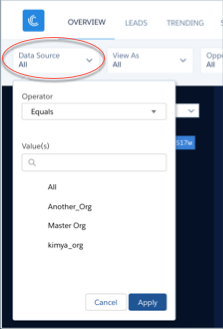
Follow help links from the dashboard to details about using the dashboards and metric calculations. Or, follow the links here.
- Accounts
- Activities
- Company Overview
- Company Trending
- Lead Analysis
- Sales Performance
- Sales Stage Analysis
- Forecasting
- Opportunity splits
- Product schedules
