
You are here:
Pipeline Analytics Template
Use Pipeline Analytics to plug your pipeline snapshot data into a ready-made waterfall dashboard. You get instant insight into how the pipeline changes between two snapshots.
Required Editions
| User Permissions Needed | |
|---|---|
| To create and manage the Pipeline Analytics app: | Manage CRM Analytics Templated Apps |
| To use the Pipeline Analytics app: | Use CRM Analytics Templated Apps |
Use the Pipeline Analytics template to create a waterfall dashboard from snapshotted pipeline data. You can use a dataset created using the Snapshot Analytics template, another snapshotted Salesforce object, a trended pipeline report, or even a snapshot of a CSV file with pipeline data. The template’s configuration wizard takes you through a step-by-step process to make it easy to get a cool waterfall chart showing your pipeline. You don’t have to manually import data or create a dashboard from scratch in CRM Analytics Studio. CRM Analytics does the work for you.


Org Requirements
Your org requires the following before you can create an app from the Pipeline Analytics template:
- Make sure you and all app users have the CRM Analytics license.
- Make sure you and others who create the app have the ‘Use Any API Client’ permission. Without that permission, you may not see the datasets you want to use for the app in the wizard. To assign that permission, request API Access Control from Salesforce Customer Support. See Restrict Access to APIs with Whitelisted Connected Apps.
- A snapshotted dataset with pipeline data. It’s recommended that you use the Snapshot
Analytics template to snapshot the dataset, but any other snapshotted dataset can work.
The source of your data can be any of the following, as long as it’s imported to a CRM
Analytics dataset:
- Data from the standard Salesforce Opportunities object.
- Data from a trended pipeline report.
- Data from another standard or custom object.
- Data from a CSV or some external tool.
- The dataset you use in the waterfall must include fields that contain the following data
or app creation fails.
- Amount (measure)
- Is closed (yes/no; boolean)
- Is won (yes/no; boolean)
- Unique ID
- Close date (dimension)
- Snapshot date
The Pipeline Analytics Configuration Wizard
Answer the questions in the eight questions in the wizard to select a dataset and fields required to create the waterfall.
- Choose dataset. Choose a snapshotted dataset with your pipeline data. If the dataset
doesn’t contain pipeline data, the remaining questions don’t list the fields required to
create the waterfall. Important If you don’t see the dataset you want to use in the wizard, be sure you have the ‘Use Any API Client’ permission. See Org Requirements, above.
- Select field that contains total amount.
- Select the dimension field with opportunity close date.
- Select the boolean field that indicates if an opportunity is open or closed.
- Select the boolean field that indicates if an opportunity is closed won or closed lost.
- Select the field that contains the unique idea for an opportunity.
- Select the field that contains the date of the snapshot date.
- Select fields to use as filters in the dashboard. Values in those fields appear as filter options at the top of the dashboard. The dashboard also uses field names as column headers in a values table at the bottom of the dashboard. Select up to six fields
Use Pipeline Analytics
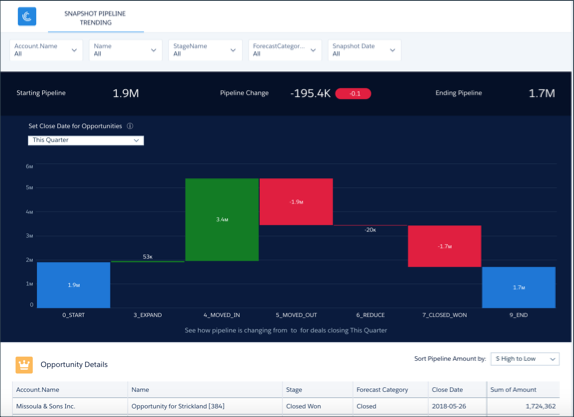
Open the app.
- From the app picker
 , select CRM
Analytics Studio to open the CRM Analytics home page.
, select CRM
Analytics Studio to open the CRM Analytics home page. - Under Browse in the left column, select All Items.
- Select the Apps tab, then click your app to open it. If you can’t immediately find it, consult your Salesforce administrator to find out the name they gave it when creating the app.
Change filter selections in the Pipeline Analytics dashboard to dig deeper into your pipeline. Available filters depend on your selections in the last question of the wizard. Here you can see five of possible six filters, as follows:If you don’t see the filter selections you need to analyze the pipeline, create the app again using different selections in that last wizard question.
- Account Name: View pipeline for selected account.
- Name: View pipeline by named opportunity.
- StageName: View pipeline by sales stage, such as Closed Won or Closed Lost.
- ForecastCategory: View pipeline by forecast category, such as Best Case, Commit, or Closed.
- Snapshot Date: View pipeline as of a specific date.
