
You are here:
Create and Share an App from a CRM Analytics Template
Create and share an app from the CRM Analytics template of your choice.
Required Editions
| User Permissions Needed | |
|---|---|
| To create and manage CRM Analytics apps: | Manage CRM Analytics Templated Apps |

- Navigate to Analytics Studio.
- Click Create, then select App.Alternatively, click Template Gallery to see app template overviews, get ideas for your dashboards, and select the best template for your use case. The gallery has categorization tags for quick reference and a Recommended section with the most popular templates.
- Select a template. You might have to scroll to find it. Then click
Continue.
If the template you choose includes a configuration wizard, it opens now. The help for your template includes instructions about the wizard.
Answer the questions on each page of the wizard. The first page asks you to choose between creating an app or using answers of an existing app if you’ve already created an app with that template. See the help for the template for instructions about using the wizard. If you don’t see a page with questions, you’re almost done creating your app.
Some wizards perform a compatibility check of your org’s data. If so, you see a wizard page that shows each stage of the org check. If it uncovers any issues, you see error messages with instructions about how to address them. Fix the issues and try app creation again.
- Name your app and click Create. You can optionally select a
logging level to generate more detailed creation logs. The default level is Warning.
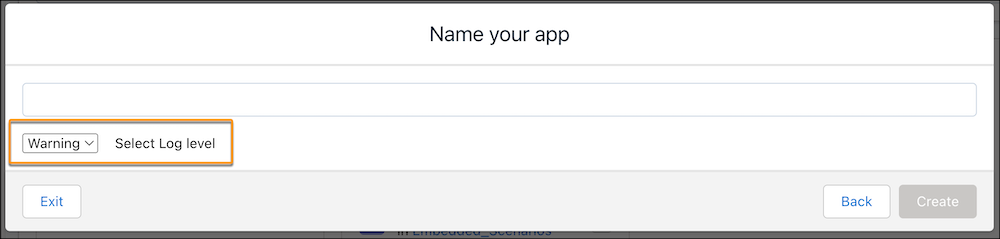
The creation process takes a few minutes. You can view the status on the next page. After it’s complete, refresh the page to see your app. To see the generated app log that describes which assets were created and any failure notifications, click the Details tab.
To troubleshoot any app creation issues, use the App Install History Page in Setup. This page details the app creation process, the assets built, and the app state during creation. For more information, see Monitor and Troubleshoot Templated App Installations.

Now that you’ve created the app, share it with users in your organization. You can only share it with users assigned the CRM Analytics Plus User permission set.
- Open your app if it’s not already open. If you’ve navigated away from CRM Analytics Studio, go back to it, select All Items, find your app, and click it.
- Click the Share icon
 at upper right.
 - In the next screen, use the search field under Invite others: to find other users in your org.
- Select whether you want to make the selected user a Viewer, Editor, or Manager of the
app.Important Users with the Use Analytics Templated Apps permission and Editor or Manager access to the app can create, edit, and delete assets in the app.
- Click Add, and then click Save.
