
You are here:
Schedule Data Refresh for a CRM Analytics Template
The app creation process includes data assets that import the latest data to CRM Analytics. Schedule the app to be refreshed every day to ensure that your app uses up-to-date data. An app refresh runs all the data assets associated with the app in the required order, including recipes, dataflows, connectors, Einstein Discovery models, and prediction definitions.
- From Setup, in the Quick Find box, enter App Install History, and then select App Install History.
- Find your app in the list of installed apps.
- Click the dropdown arrow
 to the far right of the app.
From the menu that appears, select Schedule.
to the far right of the app.
From the menu that appears, select Schedule.
- Pick the days you want and set a time for refreshing the app data. It’s best to select
a time outside normal working hours so the data refresh doesn’t interrupt business
activities. Then click Save.
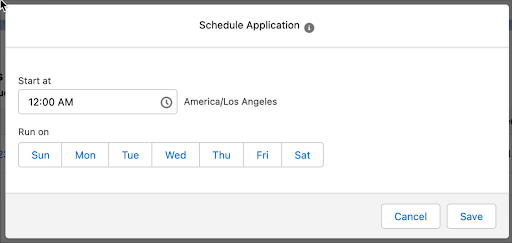
The data refresh for your app now runs every day at the time you set.
Did this article solve your issue?
Let us know so we can improve!
