
You are here:
Start Trending Salesforce Reports
To trend data in CRM Analytics, you trend a report that's collecting that data.
Required Editions
| Available in Salesforce Classic and Lightning Experience. |
| Available with CRM Analytics, which is available for an extra cost in Enterprise, Performance, and Unlimited Editions. Also available in Developer Edition. |
| User Permissions Needed | |
|---|---|
| To trend reports in CRM Analytics: | Use CRM Analytics OR Use CRM Analytics Templated Apps AND Trend Report Data in CRM Analytics |
Watch a Demo:  Trend in CRM Analytics
To enable this feature, contact Salesforce Customer Support.
-
Create a dataset.

- Choose A Salesforce Report from the available data sources.
-
Select a report.
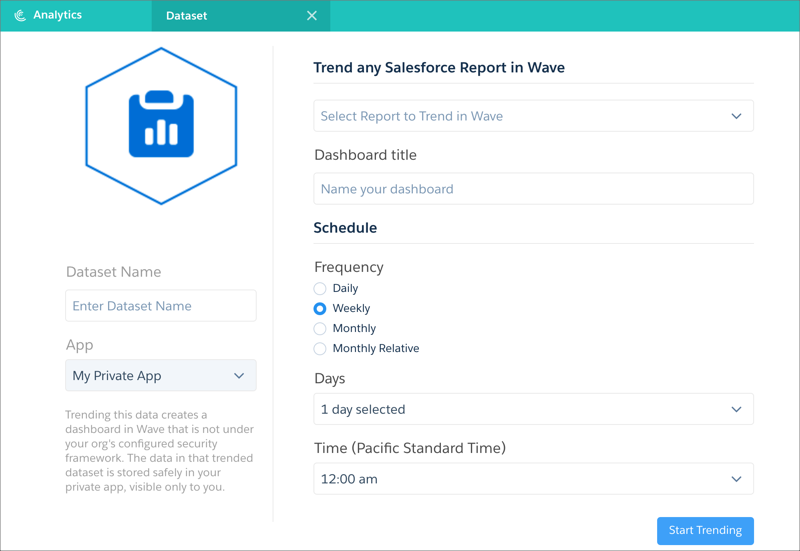
If the report you want to trend doesn’t exist, you must create it first.
 Note Only the saved version of a report is trended. If you've made unsaved changes to a report, then trend the report, the changes aren’t reflected in the trending dashboard.
 - Enter a title for the trending dashboard and the new trending dataset.
-
Set a schedule for updating the dashboard, which determines how often snapshots of report
data are taken.
Note
- After you set the schedule, it can't be changed.
- If you choose a schedule that updates on the 29th, 30th, or 31st of the month, no updates occur on months that have too few days to meet that schedule.
- To avoid unwanted behavior during changes to daylight savings, don't choose 2 A.M. as an update time.
-
Choose a different app if you don’t want to save the trending dataset in My
Private App.
If you save the dataset to a shared app, all users who can view that app can view the dataset.
-
Click Start Trending.
When the new trending dashboard is ready, you receive an email with a link. After the dashboard is ready, you can also begin to explore the associated dataset, which appears in the CRM Analytics datasets list.
-
Connect to the new trending dashboard using the link in the notification email, or by going
to the app in which you saved it (after receiving the notification email).
At first, the trending dashboard displays only 1 data point. As snapshots are taken and added to the new CRM Analytics trending dataset underlying the dashboard, more data points are added.
You can’t re-create a trended report. Therefore, it's recommended that you make a copy of the report to guard against data loss.
You can also trend any report directly by clicking Trend on that report.
In Lightning Experience:

In classic Salesforce:
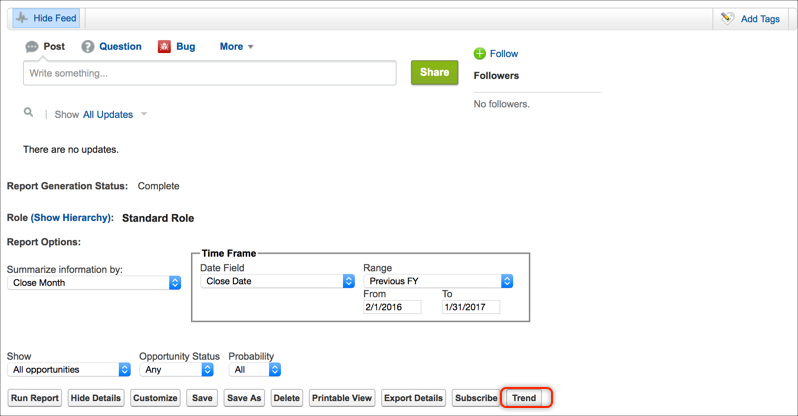
After you start trending, the Trend button on the report becomes View Trend. If you click that button in Lightning Experience, an embedded dashboard appears.
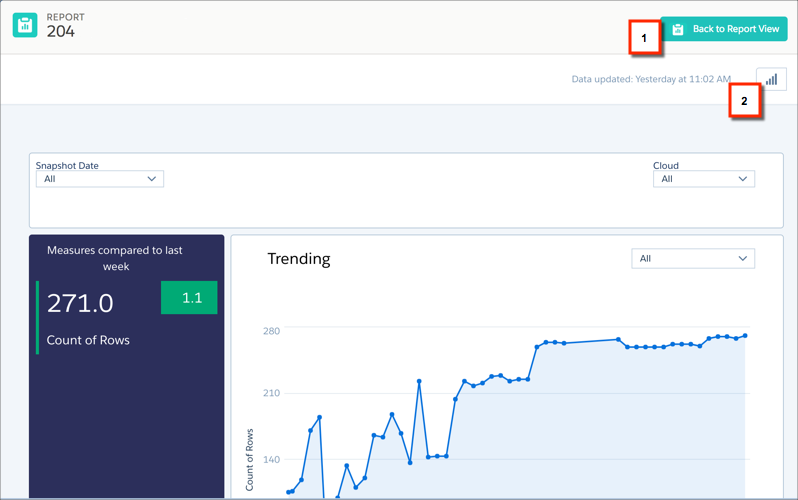
To return to the report, click Back to Report View (1). To view the report in CRM Analytics, click the Analytics button (2).
