
You are here:
Add a Dashboard Filter
To create a dashboard filter, select a field that contains the information that you want to filter, then specify the values that you want your filter to match.
Required Editions
| Available in: both Salesforce Classic and Lightning Experience |
| Available in: Essentials, Group (View Only), Professional, Enterprise, Performance, Unlimited, and Developer Editions |
| User Permissions Needed | |
|---|---|
| To add filters to dashboards that you created: | Run Reports AND Create and Customize Dashboards |
| To add filters to dashboards that you created in public folders: | Edit My Dashboards OR Manage Dashboards in Public Folders |
| To add filters to dashboards that you didn’t create: | Manage Dashboards in Public Folders |
| To add filters to dynamic dashboards: | Manage Dynamic Dashboards |
In Salesforce Classic, widgets are called components.
For flexibility in dashboard filtering, Salesforce uses equivalent fields, which are fields taken from the same underlying object. For example, Account Owner in the Accounts object and Case Last Modified By in the Cases object are equivalent because they both draw their values from the same field in the Users object. Equivalent fields allow you to filter on fields that are similar but not the same, and to change the equivalent field selection for individual widgets.
- Edit a dashboard, and then click + Filter in Lightning Experience or Add Filter in Salesforce Classic.
-
From the Field dropdown, select a field to filter on. The dropdown shows fields that can be
used to filter all the dashboard’s widgets. If there are equivalent fields for your selection,
hover over (
 ) to see them.
- Give the filter a display name or label to identify it. If the filter has many equivalent fields, consider using a name that works for all widgets.
-
Assign values to the filter.
In Lightning Experience, click Add Filter Value, choose an operator, and set a value. Optionally, modify the custom display text. Then click Apply.
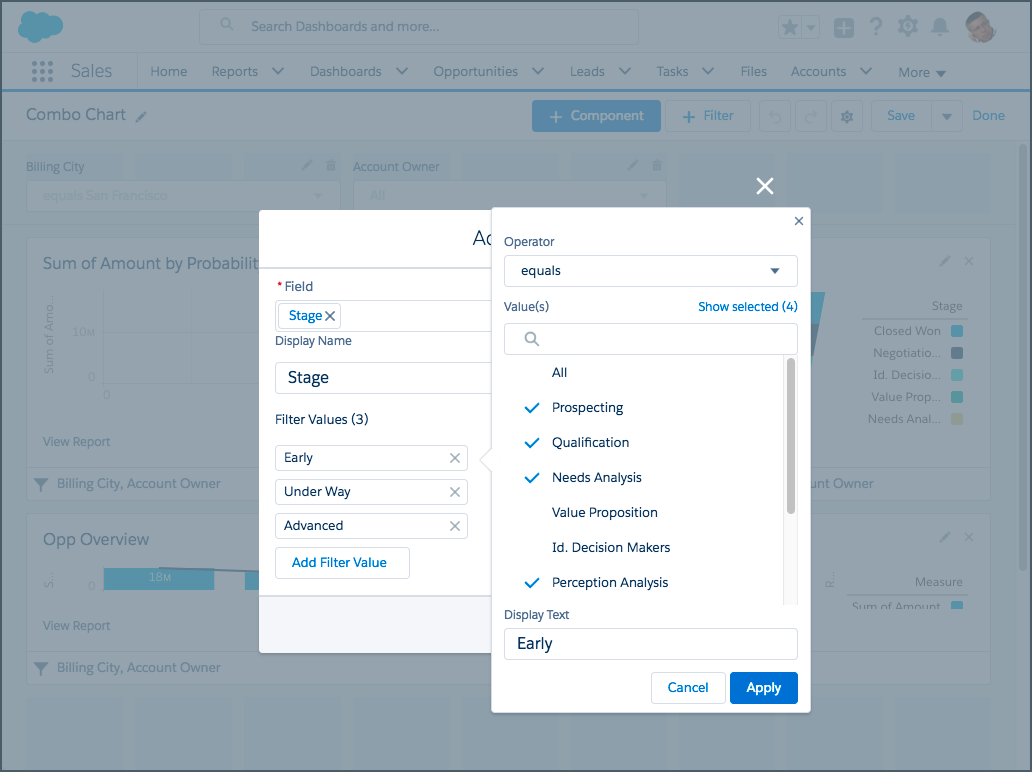
In Salesforce Classic, under Filter Options, select an operator and provide one or more values to filter by.
 Note If you create a filter on a text field using the equalsoperator, enclose any filter values that include a comma in double quotes. For example, to filter on the Account Name Acme, Inc, enter the filter value "Acme, Inc".
 - In Lightning Experience, click Add. In Salesforce Classic, click OK. If equivalent fields are available for a widget, you can select which one to use to filter the widget.
- Save the dashboard and close the dashboard builder.
To apply the filter while viewing the dashboard, select a value from the filter’s dropdown list.
In Lightning Experience, to modify an existing filter, click
 . To delete an
existing filter, click
. To delete an
existing filter, click  .
.
In Salesforce Classic, to modify or delete an existing filter, from the filter dropdown, select Edit Filter or Remove Filter.
- Equivalent Fields in Dashboard Filters
Fields that you select for a dashboard filter often have equivalent fields, which are derived from the same field on the underlying Salesforce object.
