
You are here:
Resize Columns in Lightning Tables
If a Lightning table column feels a bit cramped, you can resize it.
Required Editions
| Available in: Lightning Experience |
| Available in: Essentials, Professional, Enterprise, Performance, Unlimited, and Developer Editions |
| User Permissions Needed | |
|---|---|
| To create dashboards: | Run Reports AND Create and Customize Dashboards |
| To edit and delete dashboards that you created: | Run Reports AND Create and Customize Dashboards |
| To edit and delete dashboards that you created in public folders: | Edit My Dashboards |
| To edit and delete dashboards that you didn’t create in public folders: | Manage Dashboards in Public Folders |
| To create, edit, and delete dynamic dashboards: | Manage Dynamic Dashboards |
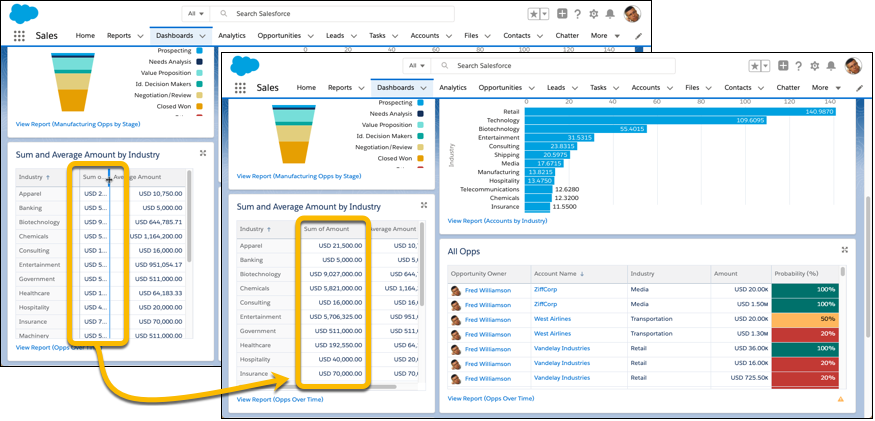
Resize a Lightning table column from the Edit Component preview or while reading a dashboard.
You can resize columns, but not rows.
When you resize a column, you don't resize it for other dashboard viewers.
Columns don't retain their sizes, so next time you open the dashboard you'll have to resize the column again.
- Open the table that you want to resize.
-
Drag the edge of the column that you want to resize.
Did this article solve your issue?
Let us know so we can improve!
