
You are here:
Improve Dashboard Performance: Best Practices
If a dashboard is running slowly, it likely because of inefficient source reports or because many people are refreshing it at once. By optimizing source reports and planning dashboard refreshes, a slow dashboard can be sped up. Follow the tips in this guide to speed up sluggish dashboards!
Required Editions
| Available in: Salesforce Classic and Lightning Experience |
| Available in: Essentials, Group (View Only), Professional, Enterprise, Performance, Unlimited, and Developer Editions |
In Salesforce Classic, widgets are called components.
Use Efficient Source Reports
When you refresh a dashboard, all the source reports run. If source reports take a long time to run, then dashboards based on them take a long time to refresh.
Here's how you can optimize source report performance to make dashboards refresh fast.
- Create source reports that run fast
-
The best way to speed up a slow dashboard is to speed up its source reports. The faster source reports run, the faster the dashboard refreshes!
There are lots of ways to speed up a slow source report.
- Filter report data efficiently
- Remove unnecessary columns
- Hide detail rows
- Write efficient formulas
For a complete guide to improving report performance, see Improve Report Performance.
- Base your dashboard on as few source reports as possible
-
Ideally, base your dashboard on a single source report.
Each dashboard widget gets data from one source report, but multiple dashboard widgets can get data from the same source report. Dashboards based on fewer source reports refresh faster than dashboards based on many. The fewer source reports, the fewer reports have to run for the dashboard to gather its data. The fastest refreshing dashboards are based on only one source report.
As a best practice, create one source report that returns lots of data, and then divvy up that data among the dashboard widgets.
For example, say you're creating a sales overview dashboard that shows details on open opportunities and closed opportunities. You could create two source reports, one that returns open opportunities and one that returns closed opportunities. But then your dashboard would have to run two source reports when refreshed. Instead, create a single source report that returns all opportunities and group by status. Now you can create the dashboard using a single source report, which refreshes more quickly than a dashboard with two source reports.
 Note Source reports refresh asynchronously. That means that when you refresh a dashboard, Salesforce queues each source report to run and then runs them alongside any number of other processes.
Depending on its place in the queue, sometimes a dashboard with only one source report loads a little slower than a dashboard with two source reports. Salesforce must sometimes update a case status, create an account, and send a batch of emails before it can run your dashboard's source report.
Some reports take longer to run than others. A slow source report sometimes takes longer to run than two similar fast source reports.
Sometimes refreshing a dashboard that has only one source report can result in multiple runs of the same source report. Including dashboard widgets with different groupings, applying dashboard filters, and changing a dashboard's running user can all cause the same source report to run multiple times. In these scenarios, having fewer source reports isn't necessarily faster.
In general, dashboards with fewer source reports refresh more quickly than dashboards with lots of source reports.
Refresh Dashboards Sparingly
Refreshing a dashboard queues several processes that Salesforce runs resulting in up-to-date data. Each source report runs, filters are applied, charts are drawn, and so forth. Salesforce limits the number of times each user can refresh a dashboard to one time per minute. This limit ensures that Salesforce doesn't queue the same report runs repeatedly, which also lets other important processes run, like updating cases or creating accounts.
But what happens if many different people refresh the same dashboard all at the same time?
Salesforce limits the number of dashboard refreshes to 200 per hour per org. This limit applies only to dashboard refreshes performed via the REST API or Apex, and it doesn't affect manual dashboard refreshes performed through the user interface. Even with this limit slow-running dashboards can cause busier-than-necessary background process queues, forcing other people to wait. What if 200 people refresh a dashboard and the org limit is reached? Because 200 people refreshed the same dashboard, the other team now must wait up to an hour to refresh theirs.
Salesforce remembers dashboard filter settings for each user. To apply user-specific filter settings, if someone refreshes a filtered dashboard then the dashboard refreshes anew when anyone who has applied a dashboard filter opens it. Filtered dashboards are therefore especially susceptible to reaching the 200 dashboard refresh per hour org limit.
Imagine a scenario in which 10,000 people refresh a dashboard that queues 10 source report runs. Theoretically, 10,000 x 10 = 1,000,000 reports run in the background, but because of the 200 refresh per hour per org limit, 200 x 10 = 2,000 background report runs. Even with quick-running reports, that could take a while!
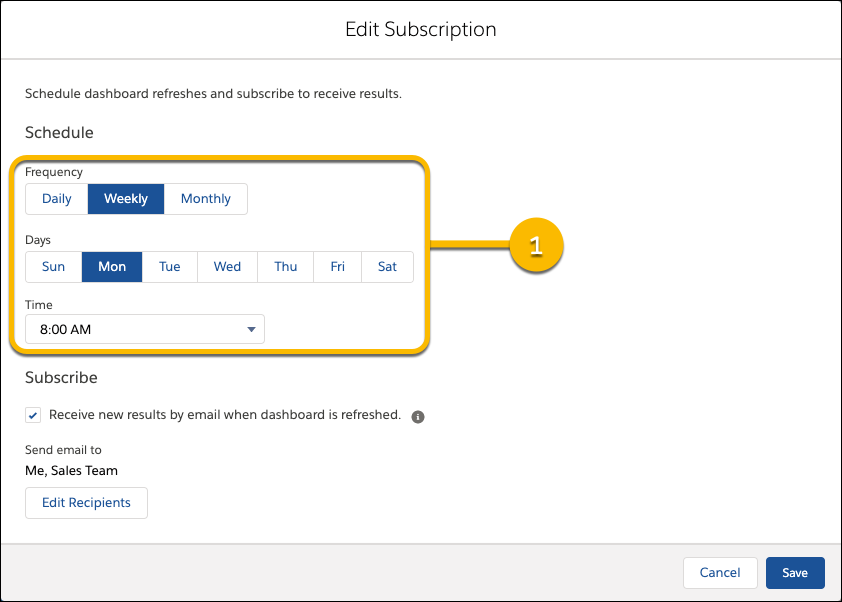
Instead of having lots of people refresh dashboards at the same time, subscribe to a dashboard. When you subscribe to a dashboard, you set a schedule and set recipients. Salesforce refreshes the dashboard when you schedule it to and then sends the results to the recipients by email. Salesforce caches the data. When people open the dashboard, they see up-to-date data as of the last scheduled refresh and don't need to refresh it again.
- From the Dashboards tab, click
 | Subscribe.
 - From the Edit Subscription menu, set a refresh schedule.
- Under Send To, you’re automatically selected as a recipient. To add others or to remove yourself, click Edit Recipients. Only people who have permission to access the dashboard are shown.
- Select recipients and click Add.
- Click Save.
The dashboard subscription starts and the dashboard refreshes according to the schedule you set.
For example, suppose that you refresh your opportunity overview dashboard each Monday morning. Instead of manually refreshing the dashboard, subscribe to it and have it emailed to you and the entire sales team each Monday at 8:00 AM (1). By the time you sit down at your desk at 9:00 AM, a recently refreshed dashboard is waiting for you.
SEE ALSO
Remove Unnecessary Dashboard Widgets
Just as efficient source reports run faster than inefficient ones, dashboards with fewer widgets tend to run faster than dashboards with lots.
- Combine multiple widgets into one
-
Sometimes you can show the data in two or more widgets in one widget. Merging multiple widgets into one means fewer source reports run, which means the dashboard refreshes more quickly.
For example, say that you have a dashboard that has two bar charts. One shows sum of opportunity amount by type, the other shows average opportunity amount by type. Instead of separating these related metrics in two bar charts, consolidate them on a single chart. The dashboard still graphs both sum and average opportunity amount by type, but because it has to render only one widget, it loads faster.
- Split a dashboard in two
-
If you have a dashboard with many widgets that takes a long time to refresh, consider splitting the dashboard in two.
Say that you have one dashboard summarizing both opportunities and cases. Splitting the dashboard in to, one for opportunities and one for cases means faster refreshing dashboards. Using a custom link, you can even link back and forth between dashboards for easy navigation.
Here's how to link from one dashboard to another.
- From the dashboard builder, edit a widget by clicking
 .
. - From the
Edit
Component menu, enter
/lightning/r/Dashboard/dashboard_id/view,
where dashboard_id is the id of the destination dashboard.
To get the destination dashboard id, open the dashboard and copy the id from the URL. The entry for a destination dashboard with the id 01ZRM0000005KO62AM is /lightning/r/Dashboard/01ZRM0000005KO62AM/view.
- Click Update.
- Click Save.
Now dashboard viewers can navigate from one dashboard to another with direct links.
- From the dashboard builder, edit a widget by clicking
