
You are here:
Improve Report Performance
If your report is running slowly, it’s generally because it’s processing a lot of data, which can be reduced with filters and other methods. Review these best practices and recommendations to optimize your report and help it run faster.
Required Editions
| Available in: Salesforce Classic and Lightning Experience |
| Available in: Essentials, Group, Professional, Enterprise, Performance, Unlimited, and Developer Editions |
- Use Filters Efficiently
Adding filters to remove unnecessary data and limit the number of records returned, can speed up generating a report. However, filters with complex logic can also slow down report generation because each record must be evaluated against the defined criteria. To optimize report performance, filter records by a specific value, field, or date range. You can also improve speed by using exact value operators. - Remove Columns and Hide Row Details
Many report templates include a dozen or more columns. When creating a report, remove the columns that you don’t need. You can also remove unneeded default columns from commonly used report types. If your report has grouped data, you can hide the detail rows. The individual records aren’t displayed in the report, but you still see details like groupings, totals, subtotals, and record counts. - Write Efficient Formulas
Formulas are powerful tools for evaluating report data, but if a formula is written inefficiently, it can slow down report runs. Here are a few tips for optimizing report formula performance. - Bucket Data Sparingly
A bucket evaluates every record returned by a report to determine whether the record belongs in the bucket. If your report is running slowly, redesign it to use fewer buckets. - Simplify Sharing Rules Throughout Salesforce
Sharing rules govern access to objects that reports use. A complex sharing rule can slow down a report because sharing rule has to be evaluated each time the report gets data from an object. - Hard Delete Records
After you delete a record in Salesforce, it remains in the recycle bin for up to 1 month in case you want to restore it. If the recycle bin contains many deleted records, report query performance can be slow. Improve report performance by emptying the recycle bin. - Run Slow Reports During Off-Peak Hours
If a report is still taking a long time to run, schedule it to run during less busy times. If you subscribe to the report, Salesforce emails it to you and your team when it’s ready. Salesforce caches recently run report data, so you can view the report data without rerunning the report.
Use Filters Efficiently
Adding filters to remove unnecessary data and limit the number of records returned, can speed up generating a report. However, filters with complex logic can also slow down report generation because each record must be evaluated against the defined criteria. To optimize report performance, filter records by a specific value, field, or date range. You can also improve speed by using exact value operators.
- Narrow standard filters—Most report templates include a Show Me filter and a Date filter. Reduce the number of records the report evaluates by refining the scope of these filters.
- Filter with exact values—When filtering for specific values, using an operator that compares exact values, such as equals or does not equal, instead of contains or does not contain, improves performance. When you use contains or does not contain, the report has to execute more steps to return the data.
- Define date ranges—An open-ended date filter, such as Close date greater than 7 days ago, can also slow down a report. Instead, use a defined date range, such as Close date equals this week.
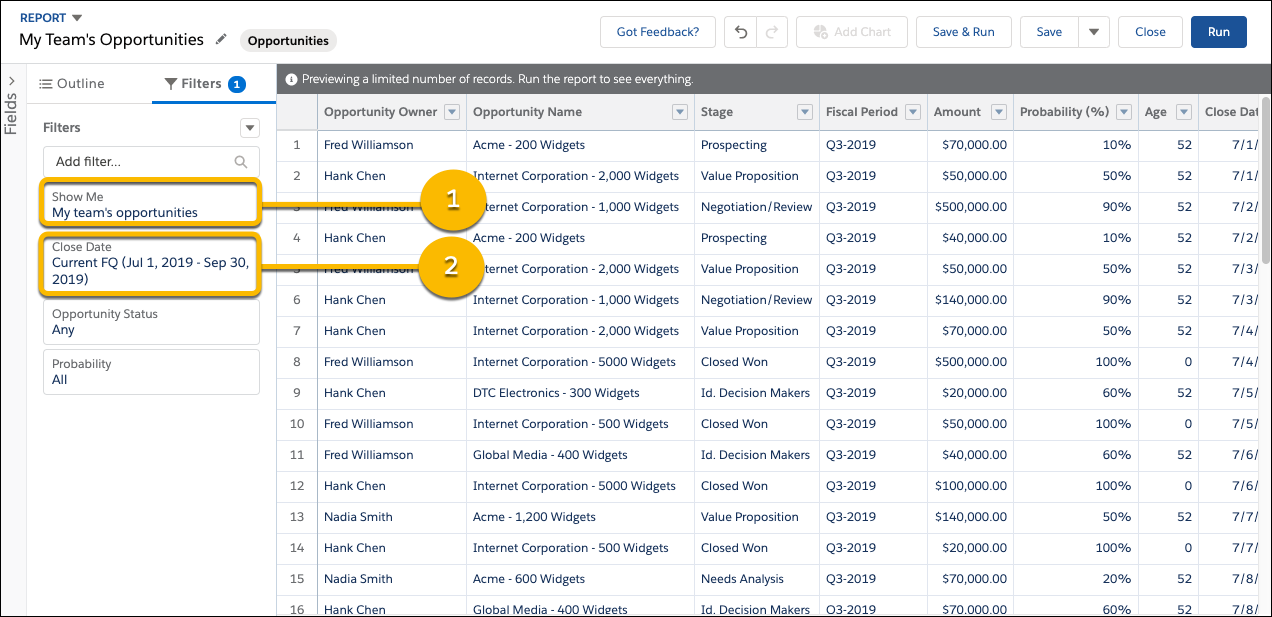
For example, your sales team wants to see how many opportunities each person has. You build a report that returns all opportunities in your company. Now you have all the data that you need, but also some that you don’t, and your report takes a long time to run. To run your report faster, filter it so that it returns only opportunities assigned to your team (1). If you want your report to run even faster, filter by time, such as for a particular quarter (2).
Remove Columns and Hide Row Details
Many report templates include a dozen or more columns. When creating a report, remove the columns that you don’t need. You can also remove unneeded default columns from commonly used report types. If your report has grouped data, you can hide the detail rows. The individual records aren’t displayed in the report, but you still see details like groupings, totals, subtotals, and record counts.
To hide report details, at the bottom of the report, switch off Detail Rows.
Write Efficient Formulas
Formulas are powerful tools for evaluating report data, but if a formula is written inefficiently, it can slow down report runs. Here are a few tips for optimizing report formula performance.
- Add formula fields to the report type—When you run a report, summary and row-level formulas are evaluated, which extends the run time. However, a formula field runs with a workflow and doesn’t slow down a report at run time. If a report with formulas is taking a long time to run, move the formula from the report builder into the report type using a formula field.
- Don’t reference objects that aren’t included in the report type—When a formula field
reference an object outside of a report’s type, it can slow down a well-structured report.
Rather than reference an outside object in a formula field, create a report type that joins the
objects together, and add your formula field.
For example, you have a report that lists accounts and you want to add a formula field that calculates the average number of cases per account. Before adding the formula field, check whether the report type includes the Cases object. If it doesn’t, add the formula field to a report type that has both Accounts and Cases. Then create a report using that report type.
- Use row-level formulas sparingly—A row-level formula is a good tool for evaluating each
record in a report, but it can slow down processing. If you have a slow-running report that has
a row-level formula, redesigning the report without a row-level formula can improve
performances.
If you have a slow-running report that groups by row-level formulas, speed it up by removing the row-level formula groups.
Filtering by a row-level formula also slows down reports. You can improve performance by removing row-level formula filters.
In addition, some common equations are built into the report builder and don’t require row-level formulas. For instance, finding the sum, min, max, or average value doesn’t require a row-level formula. You can add a summary function from the column heading dropdown. Or, if a more sophisticated formula is needed, consider adding a formula field to the report type.
Bucket Data Sparingly
A bucket evaluates every record returned by a report to determine whether the record belongs in the bucket. If your report is running slowly, redesign it to use fewer buckets.
Simplify Sharing Rules Throughout Salesforce
Sharing rules govern access to objects that reports use. A complex sharing rule can slow down a report because sharing rule has to be evaluated each time the report gets data from an object.
Common ways that a sharing rule becomes complicated include:
- Giving each user permission its own permission set and then assigning each user multiple permission sets. Instead, combine as many user permissions as possible in a permission set, and assign fewer permission sets to users.
- Adding complex sharing and access rules on objects. Instead, keep rules simple for performance and ease of maintenance.
See Also
Hard Delete Records
After you delete a record in Salesforce, it remains in the recycle bin for up to 1 month in case you want to restore it. If the recycle bin contains many deleted records, report query performance can be slow. Improve report performance by emptying the recycle bin.
In some cases, even if records have been emptied from the recycle bin, a log of the deleted records still exists, and reports can query it. If many records have been recently deleted, querying this log could slow report performance.
Run Slow Reports During Off-Peak Hours
If a report is still taking a long time to run, schedule it to run during less busy times. If you subscribe to the report, Salesforce emails it to you and your team when it’s ready. Salesforce caches recently run report data, so you can view the report data without rerunning the report.
