
You are here:
Share a Lightning Report or Dashboard Folder
Use enhanced folder sharing to share a report or dashboard folder with users, groups, roles, or territories. Enhanced folder sharing is the default option for all orgs created after 2013.
Required Editions
| Available in: Lightning Experience |
| Available in: Professional, Enterprise, Performance, Unlimited, and Developer Editions |
| Available in: Enhanced Folder Sharing |
| User Permissions Needed | |
|---|---|
| To share report folders: | Manage Reports in Public Folders |
| To share dashboard folders: | Manage Dashboards in Public Folders |
You can share a report or dashboard folder with up to 25 users, groups, roles, or territories from the UI. To share a folder with up to 500 users, groups, roles, or territories, use the folder sharing REST API.
- Open the folders list on the Analytics, Reports, or Dashboards tab.
-
Find the folder in the list, click
 , and
select Share.
, and
select Share.
-
From the Share With dropdown, select who you want to share
with.
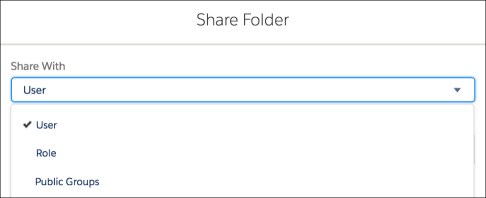
- For Name, enter the name you want to match. The name must match the category (such as user, group, or role). For example, if you select User as the category, specify the name of a user.
-
Select the folder access level for the user, role, group, or territory.
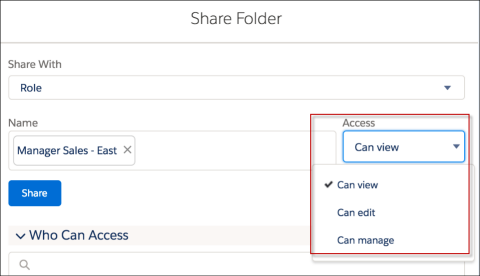
 Note The Analytics tab doesn’t support sharing with partner roles. To share with a partner role, access the Share Folder window from the Reports or Dashboards tab.
 -
Click Share. The sharing setting is applied to the Who Can
Access list. Continue to add entries as needed. You can share with users, groups, roles,
territories, or a combination. If a user is identified in more than one entity, the
greatest permission is granted. For example, a group is added with view only, but a user
in the group is also added with edit or manage permissions. In this case, the edit or
manage permissions apply to that user. To delete a Who Can Access entry, click
X to the right of the entry. To modify the access level for an
entry, select a new access level.
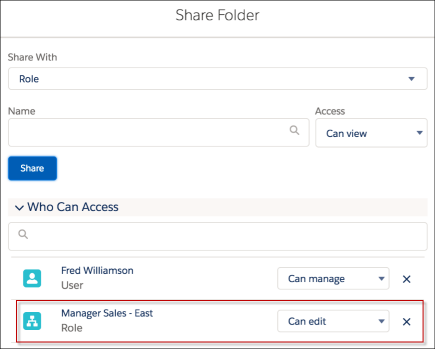
- When you’re done, click X in the upper corner of the dialog box to close it and return to the page you were on.
The folder is now available on the Folders list for organizing your Lightning reports or dashboards.
Did this article solve your issue?
Let us know so we can improve!
