Group data in columns or rows in
summary, matrix, and joined reports to display meaningful information.
For example, group opportunities by Close Date to see closed opportunities
or group cases by product to see the number of cases for each product.
You can have groupings inside groupings.
Required Editions
Available in: Salesforce Classic
Available in: Essentials, Group (View Only), Professional,
Enterprise, Performance, Unlimited, and Developer
Editions
Available in: Enhanced Folder Sharing
User Permissions Needed
To create, edit, and delete reports:
Enhanced Folder Sharing
Create and Customize Reports
AND
Report Builder
The Fields pane displays fields from the selected report
type, organized by folder. Before you group data in a summary report, drag at least a few
fields into the preview pane.
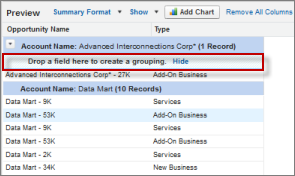
To add a group, drop a field onto a drop zone.
Add a group by dropping a field onto a drop zone.
Click Show | Drop Zones to make them visible. You can also click a column menu for a field in the
report and choose Group by this Field.
If you group your
report by a date field, you can click the group menu, select Group Dates
By, and specify the grouping time frame: day, week, month, quarter, year,
and so forth.
To group data in different report formats: Summary and joined
reports can have up to three grouping levels. Matrix reports can have two row and two
column groupings. For matrix reports, you can't use the same field for both row and
column groupings. For joined reports, you can use the fields from the Common Fields
category in the Fields pane to group across all report blocks.
To remove a group, click the group menu and choose Remove Group.
You can also grab the group and:
Drag it to the column bar to remove the group, but keep the field as a column in the
report.
To remove the group and the field from the report, drag it back to the Fields
pane.
To change the order of groups, drag the group. You can also click the group menu and
choose Move Group Up, Move Group Down for
column groupings, or Move Group Left or Move Group
Right for row groupings.
We use three kinds of cookies on our websites: required, functional, and advertising. You can choose whether functional and advertising cookies apply. Click on the different cookie categories to find out more about each category and to change the default settings.
Privacy Statement
Required Cookies
Always Active
Required cookies are necessary for basic website functionality. Some examples include: session cookies needed to transmit the website, authentication cookies, and security cookies.
Functional Cookies
Functional cookies enhance functions, performance, and services on the website. Some examples include: cookies used to analyze site traffic, cookies used for market research, and cookies used to display advertising that is not directed to a particular individual.
Advertising Cookies
Advertising cookies track activity across websites in order to understand a viewer’s interests, and direct them specific marketing. Some examples include: cookies used for remarketing, or interest-based advertising.