
You are here:
Filter Reports Using Field Comparisons with Field-To-Field Filters
Field-to-field filters let you filter a report by comparing the values of two different report fields. For example, see cases modified after closing date by filtering on cases with a last modified date after the closed date.
Required Editions
| Available in: Lightning Experience |
| Available in: Essentials, Group, Professional, Enterprise, Performance, Unlimited, and Developer Editions |
| Available in: Enhanced Folder Sharing |
| User Permissions Needed | |
|---|---|
| To add or edit a filter: |
|
| To lock or unlock filters so that users can’t edit them while viewing a report in Lightning Experience: |
|
| To edit a filter while viewing a report in Lightning Experience: | Run Reports |
Add a field-to-field filter while editing a report.
- From the Lightning Experience report builder, click
 Filters. Then, choose a
field from the Add filter... picklist.
Filters. Then, choose a
field from the Add filter... picklist. - If the field you chose to filter on supports field-to-field filters, then set the Type dropdown to Field. If the field doesn’t support field-to-field filtering, then the Type dropdown doesn’t appear.
- Enter filter criteria.
For help with entering filter criteria, see Filter Operators and Filter Logic.
- Optionally, to prevent people from editing a field filter while reading your report in Lightning Experience, check Locked.
- Click Save.
- To read your filtered report, click Run Report.
Report data filters based on the criteria you set.

Example Say that you want opportunities worth less than projected. You have an opportunity
report with fields like Amount and Projected Amount,
and State. Apply a field-to-field filter to your report that compares
values between Amount and Projected Amount.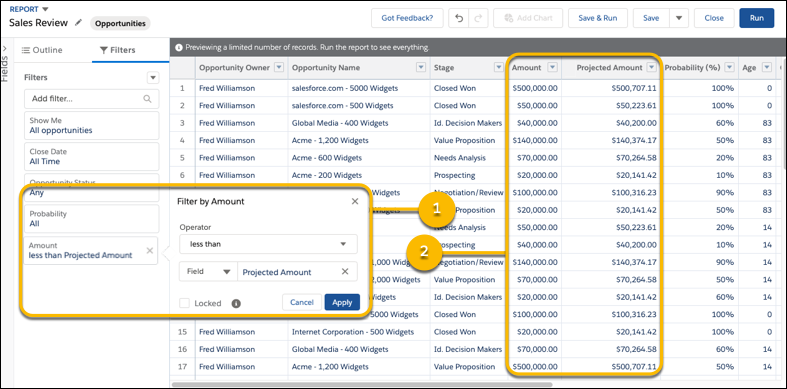
- Click Add filter....
- Select Amount.
- Set Operator to less than, Type to Field, and Value to Projected Amount. If necessary, clear the default Value by clicking X.
- Click Apply.
- Click Save.
Now your report has a field-to-field filter (1) that returns opportunities worth less than projected (2).
Get the Most out of Field-To-Field Filters Tips, Limits, and Limitations
As you get ready to add field-to-field filters, review these tips, limits, and limitations.
- Each report supports up to 4 field-to-field filters.
- Field-to-field filters only support these field types:
- Date
- Datetime
- Numeric
 Note Currency fields are numeric, but if your org has enabled multiple currencies, then you can’t use currency fields (such as Amount) in field-to-field filters.
- Field-to-field filters are unavailable in report types that:
- Reference an external object
- Have a "with or without" (outer join) relationship between objects
- Field-to-field filters only compare fields of the same data type. For example, a datetime field can only be compared with another datetime.
- Don’t use the Equals or Not Equals to filter standard date fields such as Closed Date. The field values are stored with precise date and timestamps, and comparisons of the values often yield unexpected results.
- Joined reports don’t support field-to-field filters. To convert a report with field-to-field filters into a joined report, first remove the field-to-field filter.
- Historical tracking reports support field-to-field filters, but the filter must be based on a history field.
- Field-to-field filters must compare two different fields.
- When a field-to-field filter compares a null value with a non-null value, it returns false or 0. If two null values are compared, then the filter returns true or 1.
- Field-to-field filters aren't available in Salesforce Classic. You can't run or edit reports with field-to-field filters in Salesforce Classic.
Did this article solve your issue?
Let us know so we can improve!
