
You are here:
Filter Reports with URL Parameters in Lightning Experience
When linking to or bookmarking a report, add filter value parameters to the URL to customize how the report appears when opened. For example, bookmark your opportunities report and add a filter to specify whether you see New Business or Existing Business.
Required Editions
| Available in: Lightning Experience |
| Available in: Essentials, Group, Professional, Enterprise, Performance, Unlimited, and Developer Editions |
| User Permissions Needed | |
|---|---|
| To filter a report in Lightning Experience: | Run Reports |
- Start with a report that includes the filters and values that you want to make available using the custom URL.
- Obtain the base URL for the filtered report in either of the following ways:
Starting from What to do Analytics tab Open the report from the Analytics tab. Click Share  . A window opens
to show the URL. Select the URL text and copy it to a text file.
. A window opens
to show the URL. Select the URL text and copy it to a text file.Reports tab Open the report. Copy the URL from your browser’s address bar and paste it into a text file. - Append
&fv0=Filter Valueto the end of the report’s URL, substituting your parameters.- The
&indicates a new parameter in the URL. If the base URL doesn’t already include a ? to indicate other parameters, use ? instead of&. - For
fv0, substitute 0 for the numerical order in which the filter appears in the report.The first filter is 0, the second filter is 1, and so on. For example, to set the value of the fifth filter in the report, specify fv4. For all reports, the first three filters are standard filters. However, you can’t filter standard filters with URL parameters, so they don’t count in this order.The order in which filters appear in Lightning Experience on the report run page isn’t necessarily the order that filters appear in the report. Locked filters are listed beneath unlocked filters on the run page, but aren't necessarily ordered after all the unlocked filters. To see the order of filters in your report, check their order in the report builder. Alternatively, make a GET call to
/services/data/v39.0/analytics/reports/<report
                    ID>/describe
and note their order in the JSON response. - For Filter Value, enter the criteria that the filter operates
on.The filter value must be URI encoded, so certain characters (such as spaces) must be written in a format that URLs can understand. For example, a space is
%20when URI encoded.
- The
- Navigate to the report’s URL with the parameter appended.
When the report opens, the filters are applied as specified in the URL.

To stay on top of your opportunities, you check your report periodically throughout the day. You always open the report and edit a filter to show either Existing Business or New Business. (The Type filter includes these filters by default.)
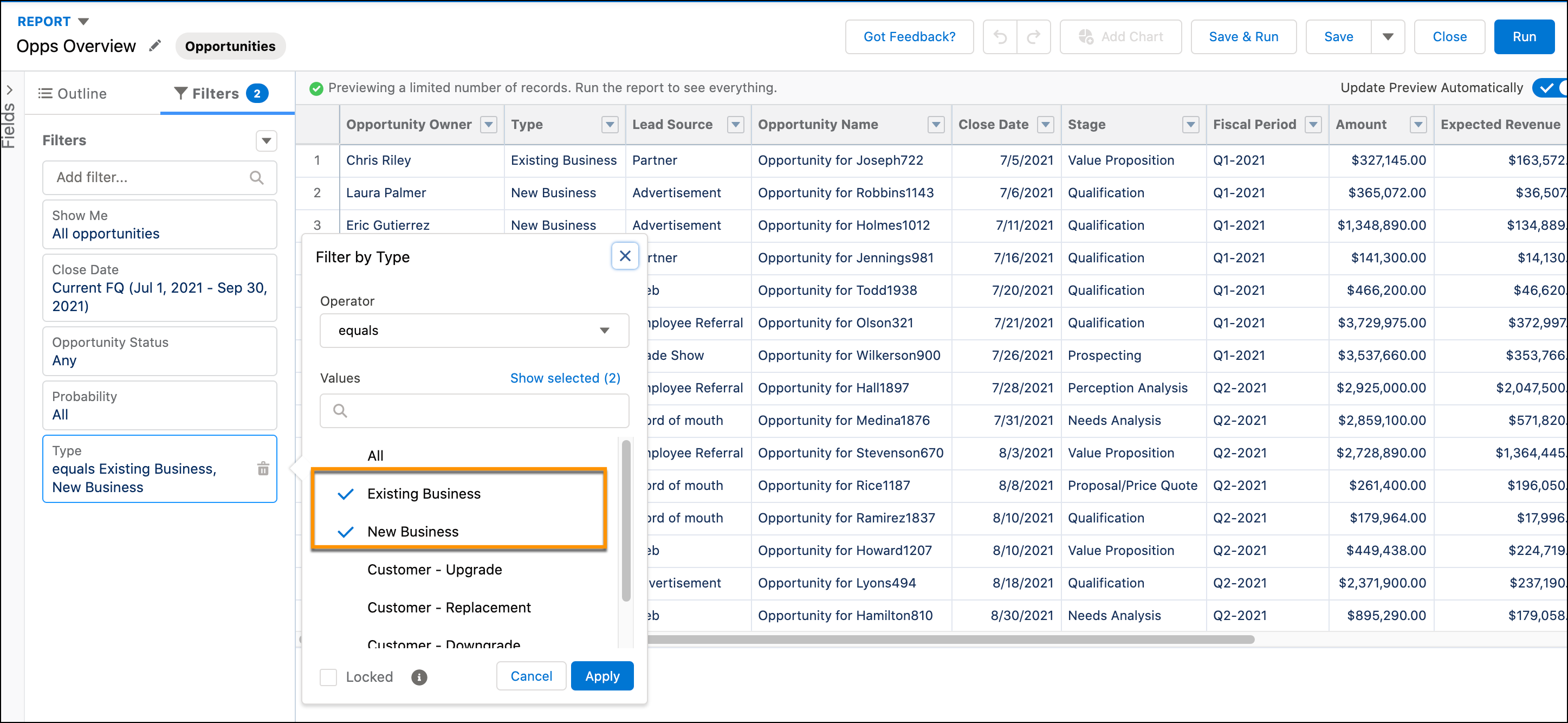
Each time that you check you have to load the report, edit the filter, and reload the report. Instead, to save time, create two URLs that you can bookmark: one with the filter value parameter set to New Business, and another with the filter value parameter set to Existing Business.
To set up the filter URL, identify the URL for the report. This example URL is from a report that’s opened from the Reports tab.
https://MyDomainName.my.salesforce.com/lightning/r/Report/00OB0000003TFr2MAG/view?queryScope=userFoldersEdit the URL to set the Type filter value to New Business by
appending the parameter &fv0=New%20Business. Use
URI encoding for the parameter value. For example, here the space between "New" and
"Business" is written as %20. The complete bookmarked
URL reads:
https://MyDomainName.my.salesforce.com/lightning/r/Report/00OB0000003TFr2MAG/view?queryScope=userFolders&fv0=New%20BusinessWhen you navigate to your opportunity report using the URL, the report opens filtered and ready to read.
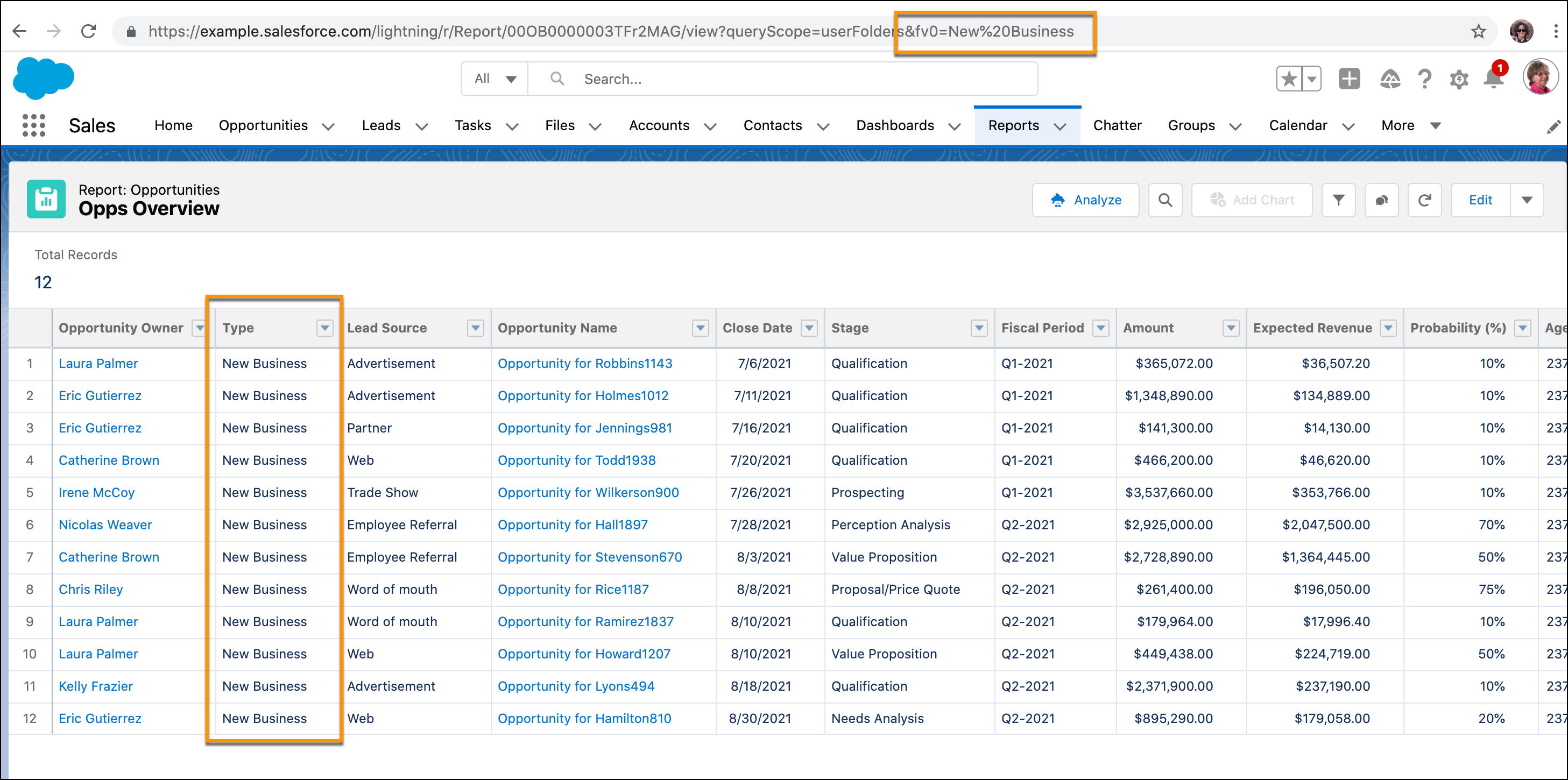
These limitations apply to report filter URLs:
- Only field filters can have parameters included in a URL. The first field filter is
fv0, the second is fv1, and so on. The following filter
types aren’t supported in URLs and aren’t assigned an fv number:
- Standard filters (role hierarchy filters, scope filters, date filters)
- Cross filters
- Row-limit filters
- Chart filters
- Locked filters
- Only the equals operator is supported. You can't create filter URLs with operators
such as
less than,starts with, orcontains. - You can’t change the field being filtered using URL parameters.
- You can assign at most one value per filter. For example, you can include fv0=Acme in a filter URL but not fv0=Acme&fv0=Universal.
- You can't add new filters to reports using filter value URL parameters. You can only modify existing filters.
- You can’t delete filters from reports using filter value URL parameters. Setting a blank value removes the filtering from the URL, but doesn’t delete the filter.
- You can’t use filter value URL parameters with historical tracking reports.
- Report filter URLs aren't supported in Salesforce Classic.
