You are here:
Updating Multiple Report Fields Inline
Keep records up to date by editing field values directly on tabular, summary, and matrix reports.
Required Editions
| Available in: Lightning Experience |
| Available in: Essentials, Group, Essentials, Professional, Enterprise, Performance, Unlimited, and Developer Editions |
| Available in: Enhanced Folder Sharing |
| User Permissions Needed | |
|---|---|
| To create, edit, and delete reports in private folders: | Create and Customize Reports |
| To create, edit, and delete reports in public and private folders: | Report Builder OR Report Builder (Lightning Experience) |
A column is editable when these conditions are met for Object Permissions, Field Level Security, and Page Layout.
- You have edit access to the associated object.
- You have edit access to the associated field.
- The associated field is included and editable in the page layout assigned to your profile.
- The record's Name field is included in the report.
Inline editing isn’t supported for these columns.
- Opportunity Amount
- Polymorphic fields, such as an Owner field or an activity’s Related To field
- Columns associated with objects that Record Types aren’t available for, such as User
- Lookup fields that are entirely null (have no values) in the report results
- Columns that are directly associated with junction objects
- Task and event object fields
These data types are supported.
- Text
- Text Area
- Phone
- URL
- Checkbox
- Number
- Percent
- Currency
- Date
- Picklist
- Picklist (Multi-select)
These guidelines apply when editing field values inline.
- To enable inline editing on the report run page, select Enable Field Editing.
- When you apply an edit to a cell, the background color changes to indicate that a new value is stored locally. Change one or more values, and then save your changes.
- You can edit a maximum of 100 values at one time across multiple rows and columns.
- In each row, you can edit a maximum of 12 report columns at one time.
- There can be additional restrictions on inline editing of multiple fields based on the underlying Salesforce objects, custom settings, and dependencies among the fields that you’re modifying.
- If a field is configured with a matching rule and 'Allow with Alert' is selected, you can't save the record during inline editing if you change the field value to one that duplicates another record. To save the duplicate record, use the Record view.
- Lookup filters aren’t applied to picklist field values. Be sure to select values that are valid for the record that you’re editing.
- You can edit state and country/territory fields if state and country/territory picklists are enabled. See Enable and Disable State and Country/Territory Picklists.
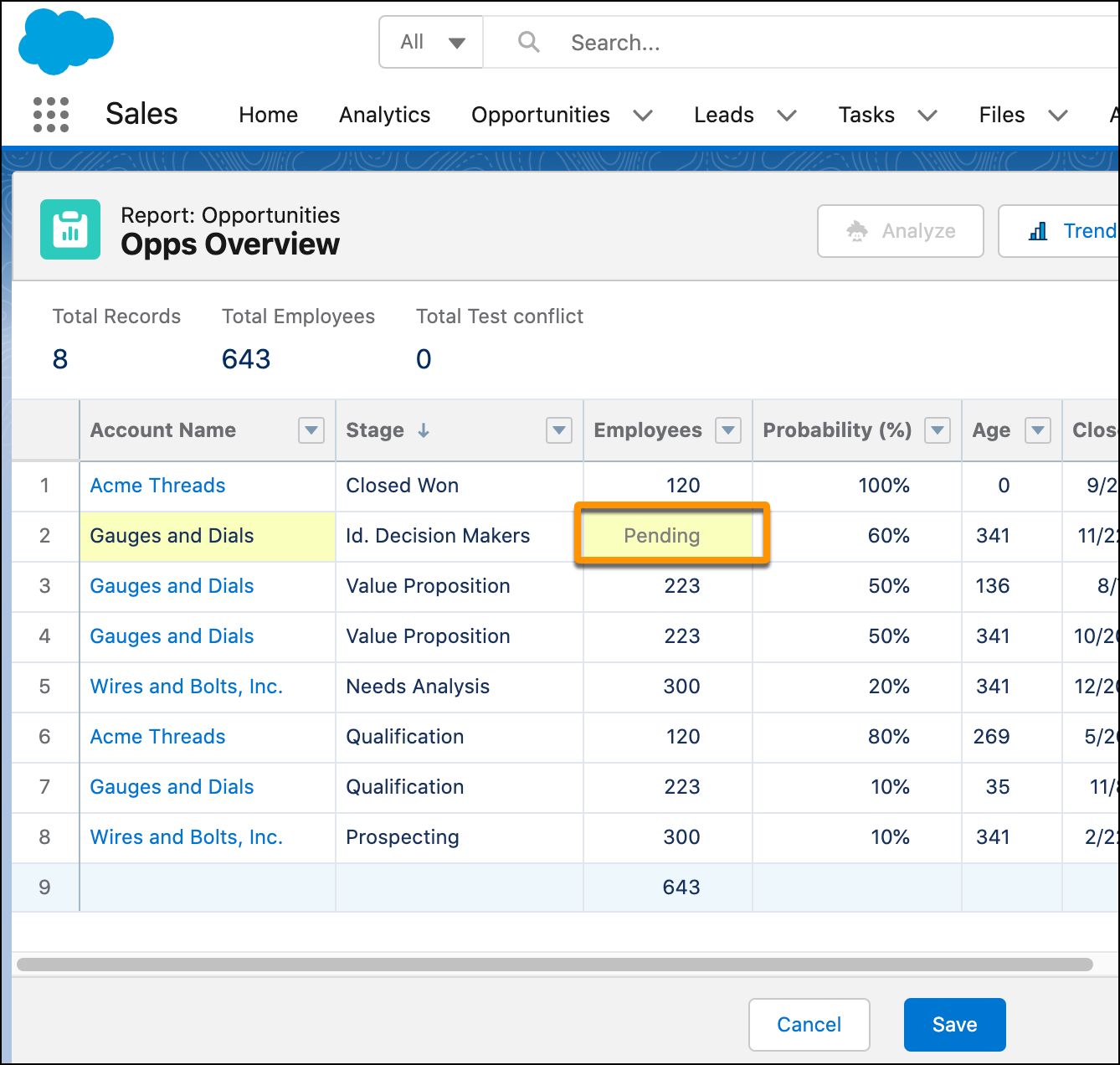
- If you edit a cell that has related cells and the report requires a refresh to obtain
up-to-date values, the related cells are marked Pending. When you save your changes, the
cells update with the new values.
- If you change a field value and then change another value that’s related to the first
value through a lookup, a warning message appears. It indicates that if you continue, you
overwrite your first change.
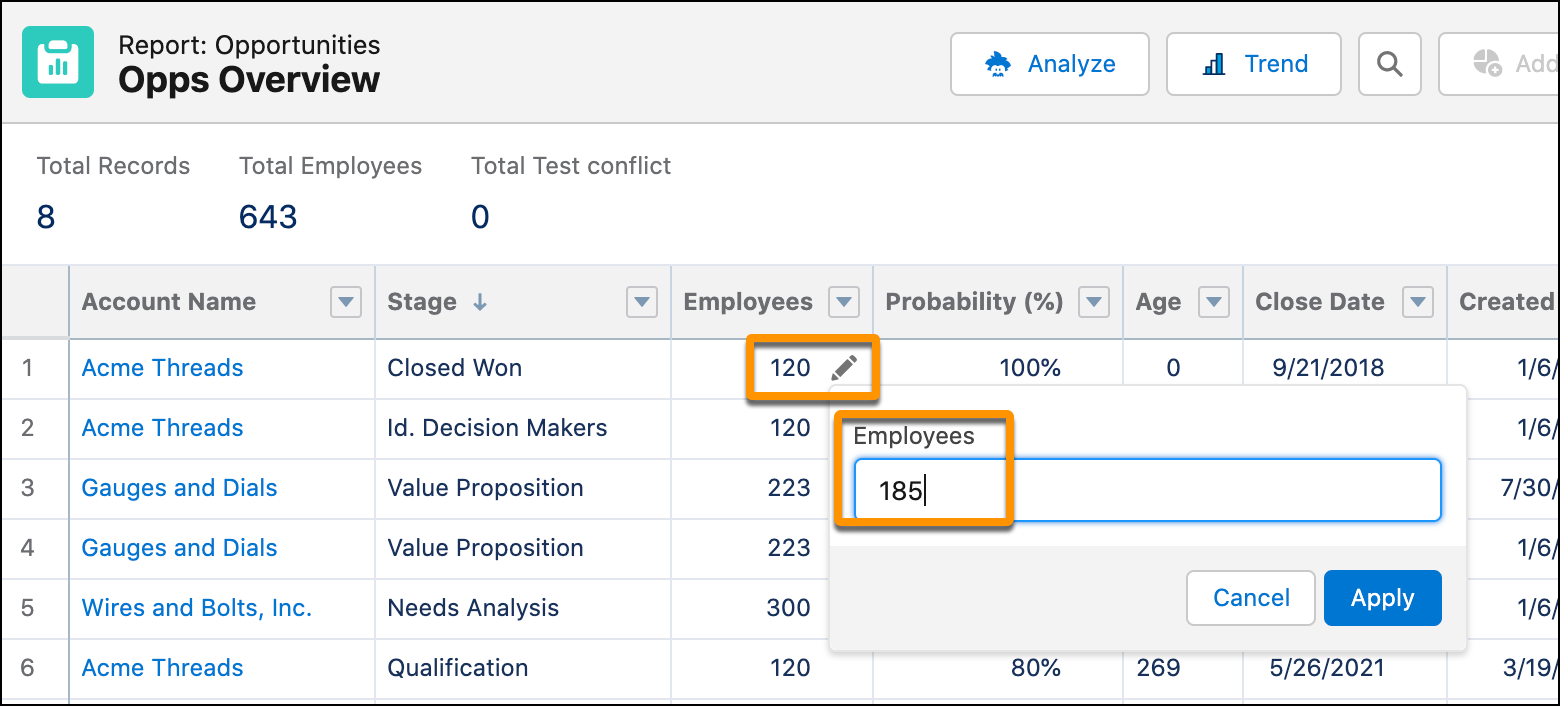
For example in this Opportunities report, the number of employees changed for the Acme Threads account.
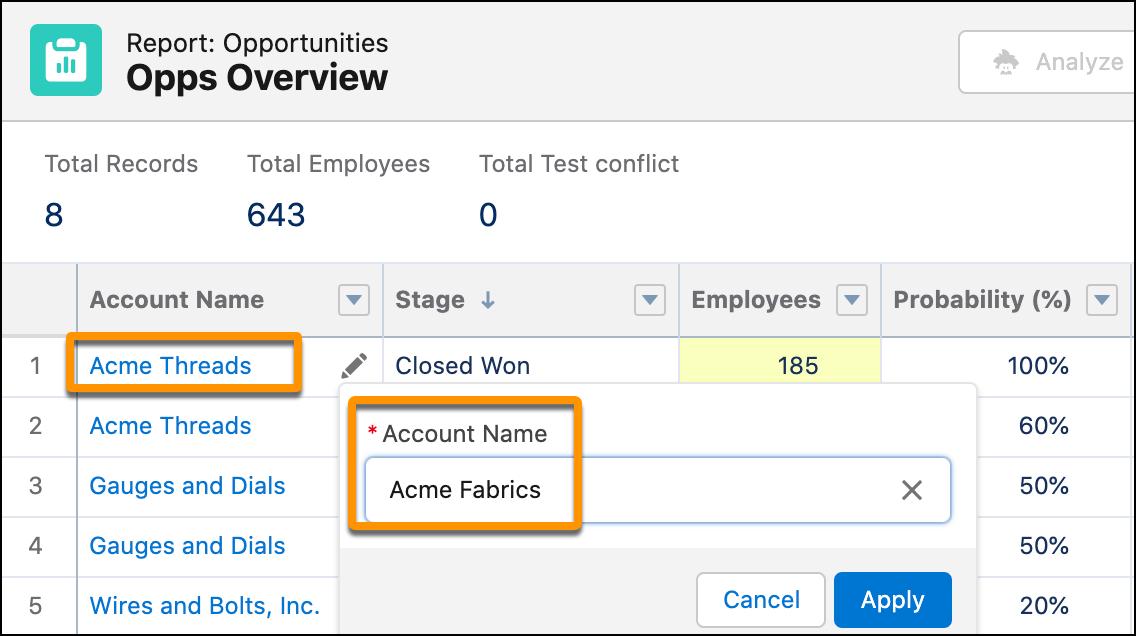
You realize that the account name isn’t correct, and enter an inline edit to change it.
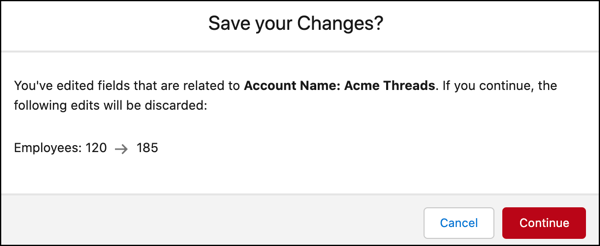
With this change, there’s a conflict between the modified number of employees and the number of employees associated with the new account name. A message window shows you that if the edits are saved, the original change in the number of employees is discarded.