
You are here:
Combine Subscriptions, Actions, and Conditions in One Report
To view the details of analytic subscriptions, create a joined report that shows the subscription owners, schedules, recipients, and triggering conditions. The joined report is based on two custom report types. You can filter the report by subscription and notification source.
Required Editions
| Available in: Salesforce Classic and Lightning Experience |
| Available in: Essentials, Group, Professional, Enterprise, Performance, Unlimited, and Developer Editions |
| CRM Analytics lens, dashboard widget, and collections are available with CRM Analytics, which is available for an extra cost in Enterprise, Performance, and Unlimited Editions. Also available in Developer Edition. |
| Einstein Discovery model quality notifications are available with CRM Analytics Plus or Einstein Predictions, which are available for an extra cost in Enterprise, Performance, and Unlimited Editions. Also available in Developer Edition. |
| User Permissions Needed | |
|---|---|
| To create, update, and delete custom report types: | Manage Custom Report Types |
| To view Lightning Report subscriptions: | Subscribe to Reports |
| To view Lightning Dashboard subscriptions: | Subscribe to Dashboards |
| To view CRM Analytics lens, dashboard widget, and collection subscriptions: | Subscribe to CRM Analytics Assets |
| To view Einstein Discovery model quality notifications: | Manage Einstein Discovery |
Several objects are involved when reporting on subscriptions.
- The Analytic Notification object contains information about subscriptions and their owner, source, schedule, and the user they’re running as.
- The Analytic Notification Action Configurations object includes details about subscription recipients, attachments, and actions.
- The Analytic Notification Conditions object stores the trigger conditions for subscriptions and notifications.
To include all the details, two custom report types are needed. Combine these custom report types in a joined report to create a resource for subscription management.
Create a Subscription Actions Report Type
Find which users, groups, and roles are subscribed to a report or dashboard by creating a subscription actions report type. Use this report type to review details about subscription attachments and the types of actions that a subscription triggers.
- From Setup, in the Quick Find box, enter
Report Types, and then select Report Types. - Click New Custom Report Type.
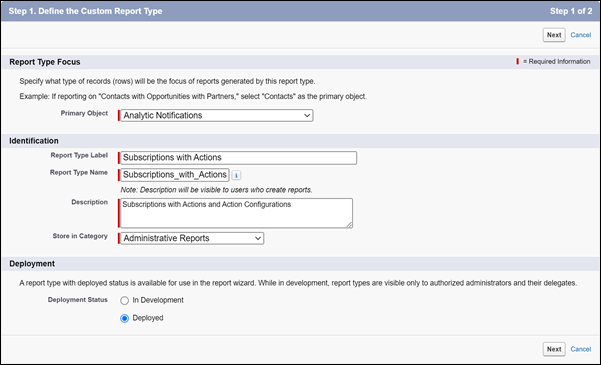
- For Primary Object, select Analytic Notifications, enter the
information, and click Next.
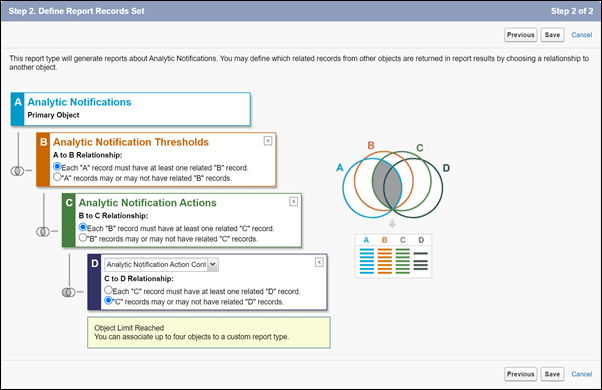
- For Object B, select Analytic Notification Thresholds and select Each “A” record must have at least one related “B” record.
- For Object C, select Analytic Notification Actions and select Each “B” record must have at least one related “C” record.
- For Object D, select Analytic Notification Action Configurations
and select “C” records may or may not have related “D” records.
- Save your changes.
- For Primary Object, select Analytic Notifications, enter the
information, and click Next.
- Add the analytic subscription’s owner’s ID to the layout.
- Click Edit Layout.
- With View set to Analytic Notifications Fields, click Add fields related via lookup.
- Select Owner » User ID and click OK.
- Save your work.
Create a Subscription Conditions Report Type
Review the conditions that trigger subscriptions and notifications. Combine this with the subscription actions report type for a complete view of your subscriptions.
- From Setup, in the Quick Find box, enter
Report Types, and then select Report Types. - Click New Custom Report Type.
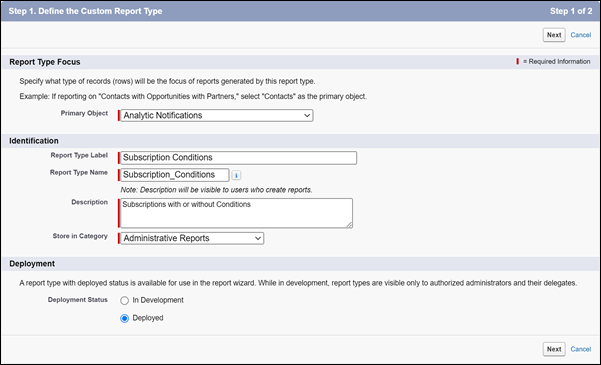
- For Primary Object, select Analytic Notifications, enter the
information, and click Next.
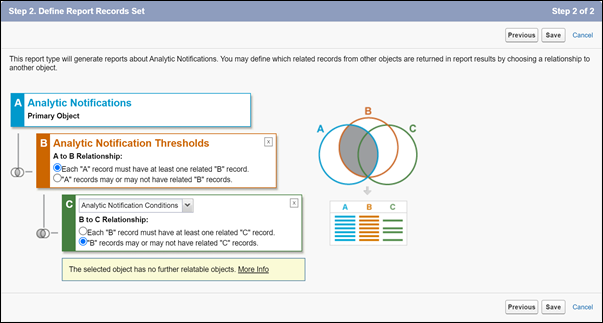
- For Object B, select Analytic Notification Thresholds and select Each “A” record must have at least one related “B” record.
- For Object C, select Analytic Notification Conditions and select
“B” records may or may not have related “C” records.
- Save your changes.
- For Primary Object, select Analytic Notifications, enter the
information, and click Next.
- Add the analytic subscription’s owner’s id to the layout.
- Click Edit Layout.
- With View set to Analytic Notifications Fields, click Add fields related via lookup.
- Select Owner » User ID, and click OK.
- Save your work.
Create a Joined Subscriptions Report
Join the subscription actions and the subscription conditions report types to see all the subscription details in one place.
- Join the reports.
- Create a report.
- Select the subscription actions report type that you previously created, and click Start Report.
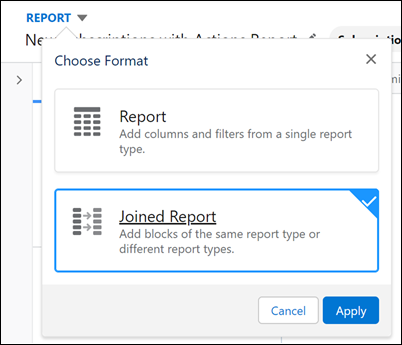
- Click Report, select Joined Report, and
click Apply.
- Click Add Block, and select the subscription conditions report type that you previously created.
- Click Add Block.
- Configure the report structure.
- For the Show Me filter, select
All analytic
        notifications
. - For the Created Date filter, select
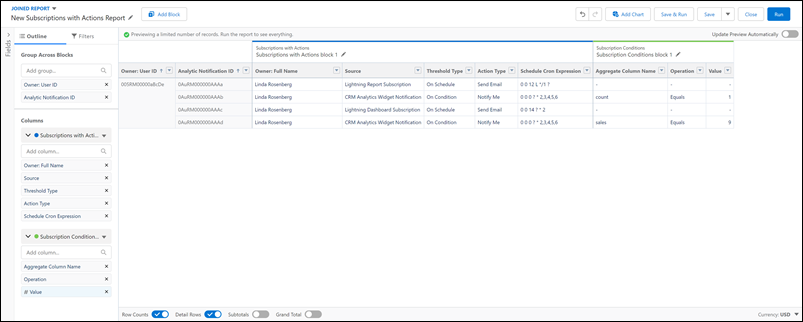
All Time. - Add the Owner: User Id and Analytic Notification Id columns to group across blocks.
- Add the Owner: Full Name, Source, Threshold Type, Action Type, and Schedule Cron Expression columns to the Actions block.
- Add the Aggregate Column Name, Operation, and Value columns to the Conditions block.
- Deselect Subtotals and Grand Total.
- For the Show Me filter, select
- Click Save.
- Enter a name, description, and folder
- Click Save.
- To run the report, click Run.
Use the Subscription Report
Customize the joined report to address your subscription management needs.
Find report or dashboard details
Add fields from the report or dashboard object via lookup to find details about the Lightning reports and dashboards your subscriptions are tied to.
Monitor subscription limits
Filter Source by Lightning Report Subscription or Lightning Dashboard Subscription.
- There’s a limit on how many subscriptions a user can set up for Lightning reports and Lightning dashboards. To find which subscriptions are consuming that limit for a particular user filter Owner User Id by their User Id.
- There’s a limit to how many subscriptions can be set for per hour. Find subscriptions that start at the same hour by sorting the results by Schedule Cron Expression.
Review recipients
Add the Recipient User, Recipient Group, Recipient User Role, and Recipient Collaboration Room columns to the Action block. To find subscriptions for a particular recipient, filter those fields.
Maintain data security
Add the Type column to the Action block to find subscriptions that send an attachment.
Troubleshoot missing subscriptions
Add the Deactivate When Triggered, Error Email Count, and Is Inactive fields to investigate subscriptions that may be disabled or encountering errors.
