
You are here:
Combine Different Types of Information in a Joined Report
The joined report format lets you view different types of information in a single report. A joined report can contain data from multiple standard or custom report types. You can turn any existing report into a joined report using the report builder.
Required Editions
| Available in: both Lightning Experience and Salesforce Classic |
| Available in: Enterprise, Performance, Unlimited, and Developer Editions |
| User Permissions Needed | |
|---|---|
| To create, edit, and delete joined reports: | Create and Customize Reports AND Report Builder |
Joined reports are made up of up to 5 blocks. Each block shows data from one standard or custom report type, so a joined report can include data from up to 5 different report types. Report types can only be joined if they share some common fields with each other. For example, Opportunities and Accounts can be joined because they share the common fields Account Name and Account ID. Each block returns up to 2,000 records, which means that a joined report with 5 blocks can return up to 10,000 records. When you group data, you group data across blocks, which means you can only group data by common fields.
When you filter joined reports, you add filters to each block independent of one another.
You can create the ultimate sales report by building a joined report. Add three blocks to the joined report for a complete view of your operation: Accounts, Opportunities, and Cases.
Or, build a joined report to get the birds-eye-view of your customer service operation. Add three blocks with the Cases report type. Filter block 1 by Status equals Open, block 2 by Status equals In Progress, and block 3 by Status equals Closed.
Joined reports are based on SQL outer join. Each row in the source blocks has a corresponding row in the joined report, regardless of whether all the blocks that make up the joined report have matching data.
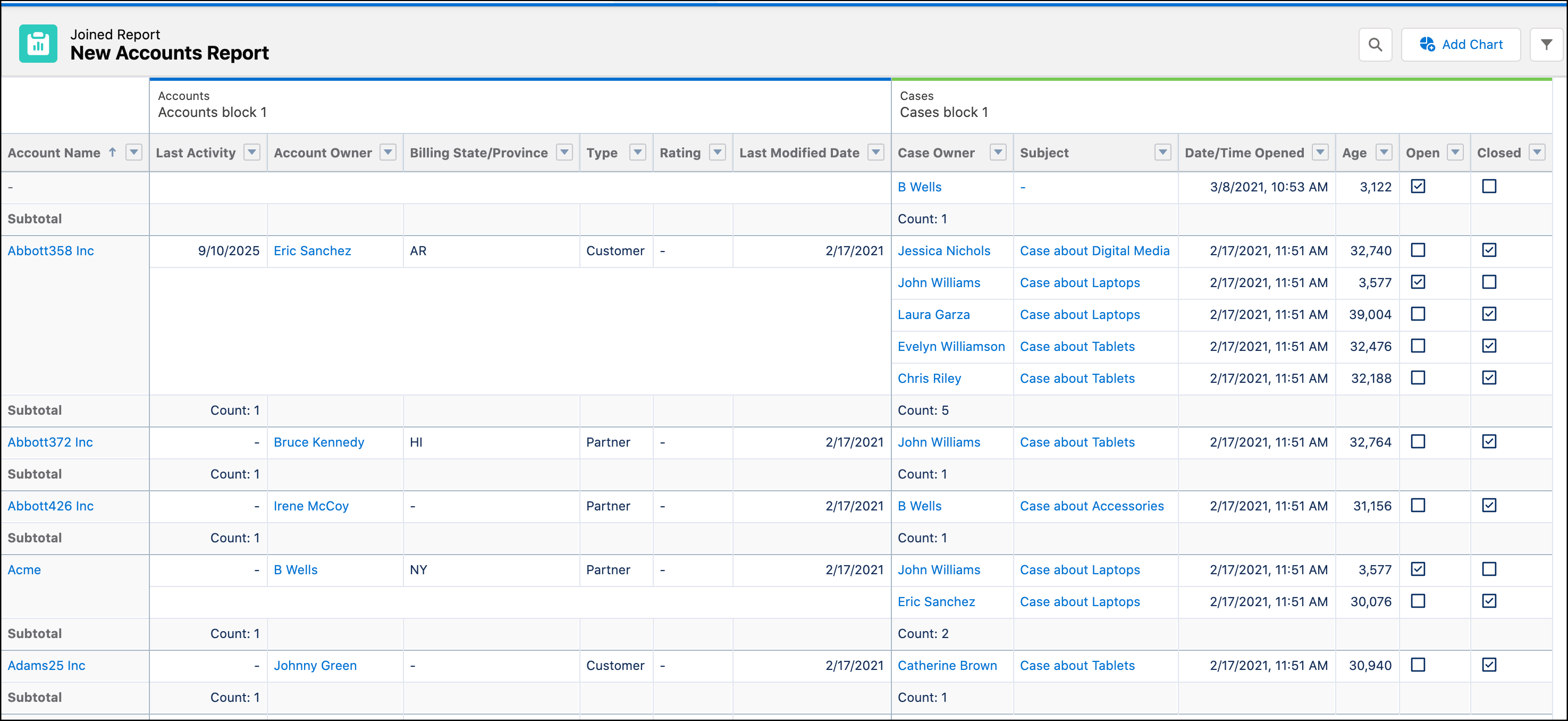
For example, here’s a simple joined report that shows Accounts and Cases grouped by Account Name. Each row represents an account. The Accounts data is shown in the left block, and the associated Cases data is shown in the right block. You can see that the first Abbott account has 5 associated cases.

- How Joined Reports Work
A joined report can contain data from multiple standard or custom report types. You can add report types to a joined report if they have relationships with the same object or objects. For example, if you have a joined report that contains the Opportunities report type, you can add the Cases report type as well because both have a relationship with the Accounts object. - Create a Joined Report
With up to five blocks, joined reports let you view different types of information in a single report. Each block shows data from one standard or custom report type. - Add a Report Type to a Joined Report
Adding a report type lets you expand the set of data available for analysis in a joined report. - Change the Principal Report Type
The principal report type controls how common fields are named. A joined report must have a principal report type. You can change the principal report type at any time. - Summary Formulas with Joined Reports
Two types of custom summary formulas are available with joined reports: standard and cross-block. - Work with Blocks
Blocks let you create different views of the information contained in a joined report. - Joined Report Examples
Creating a sales rep performance scorecard, reviewing support cases by status, and predicting your opportunity pipeline are some examples of what you can do with joined reports. Here’s how. - Joined Report Limits, Limitations, and Allocations
Most of the things you can do with reports you can also do with joined reports, such as find, add, and remove fields; summarize fields; and run and save reports. However, there are some things you can’t do. When working with Lightning Experience joined reports, there are some Lightning Experience-specific limits and limitations to consider.
