
You are here:
Set Up Agentforce for Analytics
Configure users, turn on organization features, and create and activate an agent for analytics and visualizations in Tableau Next.
Required Editions
| View supported editions. |
| User Permissions Needed | |
|---|---|
| To assign permission sets, configure organization settings, and enable Einstein, Agentforce, Tableau Next, and Agentforce for Analytics: | System Administrator |
Assign User Permission Sets
Users need the following permission sets to use the Analytics and Visualization template in Agentforce.
- One of Tableau Unmetered Admin or Tableau Next Admin, Tableau Unmetered Platform Analyst or Tableau Next Platform Analyst, Tableau Unmetered Self-Service Analyst or Tableau Next Self-Service Analyst, Tableau Unmetered Self-Service Consumer or Tableau Next Self-Service Consumer, or Tableau Next Consumer (Unmetered) or Tableau Next Consumer
- Data Cloud User
- From Setup, in the Quick Find box, enter Permission, and select Permission Sets.
- Select a permission set: Tableau Unmetered Admin or Tableau Next Admin, Tableau Unmetered Platform Analyst or Tableau Next Platform Analyst, Tableau Unmetered Self-Service Analyst or Tableau Next Self-Service Analyst, Tableau Unmetered Self-Service Consumer or Tableau Next Self-Service Consumer, or Tableau Next Consumer (Unmetered) or Tableau Next Consumer.
- Click Manage Assignments.
- Click Add Assignments.
- Select one or more users by checking the box next to their name.
- Click Assign.
- Perform these steps again for the same users, selecting the Data Cloud User permission set.
Repeat this process for users in other roles that need access to the Analytics and Visualization template in Agentforce.
Enable Tableau Next, Einstein, and Agentforce
Agentforce for Analytics requires that Tableau Next, Einstein, and Agentforce are set up and configured in your organization. Perform these steps if you haven't yet.
Activate Agentforce for Analytics
Agentforce for Analytics is a collection of pre-built agentic capabilities made available through the Analytics and Visualization agent template. Turning these settings on in Tableau Next makes the Analytics and Visualization agent template and its topics and actions available to you in Agentforce Studio.
- In Tableau Next, click Administration, and select Settings.
- Turn on Agentforce for Analytics.
-
Turn on agent capabilities.
Concierge: Analytics Q&A Includes the Data Analysis subagent. Data Pro - Semantic Model Creation Includes the Data Pro - Preparation and Modeling subagent. Inspector: Proactive Alerts Includes the Data Alert Management subagent. -
Optional: Turn on semantic layer AI-readiness features. These settings aren't required for
Agentforce for Analytics, but they enable useful tools for improving AI readiness in semantic
models used by analytics agents.
Semantic Built-In AI This accelerates and streamlines semantic model creation and maintenance. Semantic Model AI Optimization (Beta) This enables automated checks on semantic data models to detect optimization opportunities. This tool surfaces issues with guided resolutions to improve model quality and reliability for AI-powered agents and analytics. Semantic Description Generator (Beta) This drafts descriptions for your semantic model entities with AI. Accurate descriptions boost agent response accuracy. Be sure to review and edit suggestions before saving. Q&A Calibration (Beta) You can access this tool in the Tableau Next menu to test questions in Concierge, and then verify and calibrate results.

Analytics agents require a well-designed semantic model to understand data and confidently answer questions. AI-readiness features add context, enrich, and calibrate semantic models so you can actively test, refine, and deepen an agent's understanding of your business.
Create an Agent with the Analytics and Visualization Template
Use the Analytics and Visualization template to create a new agent and assign it to users.
-
Create an Agent from an Agentforce Employee Agent
Template using these settings:
- Select the Analytics and Visualization template.
- Add subagents.
Data Analysis Includes the Analyze Data action. Data Pro - Preparation and Modeling Includes the Create Calculated Field and Create Semantic Data Model actions. Data Alert Management Includes the Create Data Alert action. - To use an agent, users need a permission set that grants them access. Manage Employee Agent Access for the users who need access to the new agent.
Verify the New Agent in Tableau Next
Users can Select Agent and choose the new agent from Agentforce in Tableau Next.
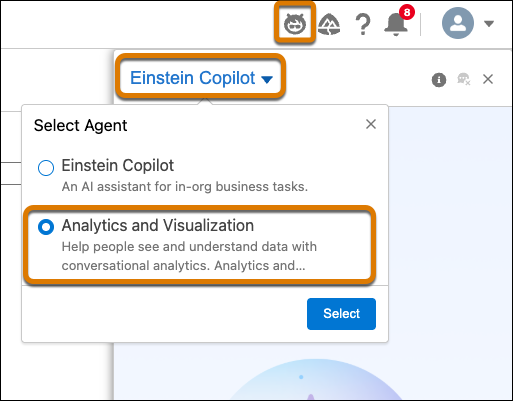
- Open a metric or dashboard in Tableau Next.
- Open Agentforce.
- In the Select Agent list, choose the new agent.
- Ask a question about the asset and verify a response is generated.
If a semantic model isn’t configured for use with Agentforce for Analytics, it’ll let you know.
