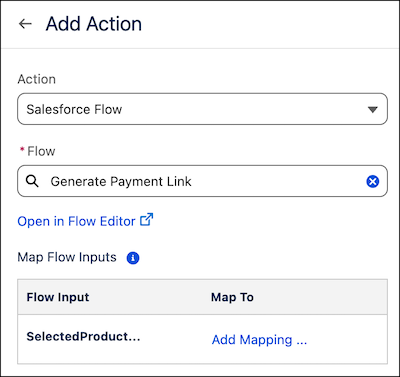
Add a Salesforce Flow action to a widget to execute flows using the Tableau Next
dashboard context. Flows empower your users to seamlessly create follow-up tasks, dispatch
reminder emails, or refresh records directly from their dashboard insights. For example, add a
flow action that lets sales reps create a follow-up task directly from a dashboard widget showing
at-risk opportunities.
To edit Tableau Next dashboards and run and manage flows:
Tableau Unmetered Platform Analyst or Tableau Next Platform Analyst permission set
Note Only standard screen and autolaunched flows are supported. For more information,
see Automate Tasks with Flows.
Select Salesforce Flow as the action type.
Select a flow.
If no flows are listed, verify that the flow you want is active and a supported flow
type.
To view the flow, click Open in Flow Editor.
Map the required flow inputs to values in the dashboard. For each flow input, click
Add Mapping.
Each input mapping describes the input type. Select whether to pass the input as a static
string or a dynamic data field.
Select Static String to pass a static string value as the input.
Enter a custom input string in the text box.
Select Dynamic Widget Field to pass a dynamic value as input.
Select a widget on the dashboard, a field from the widget, and the interaction type.
For interaction type, a selection interaction passes an input value based on a user
selection in the widget. A result interaction passes an input value based on the results of a
query.
Click Done.
Test your flow action to ensure the input values are passed in as expected. When a
flow action is triggered, a confirmation message displays the input values and allows user
confirmation before starting the flow.
After a flow starts, a confirmation or error
message displays to let the user know the status of the flow.
We use three kinds of cookies on our websites: required, functional, and advertising. You can choose whether functional and advertising cookies apply. Click on the different cookie categories to find out more about each category and to change the default settings.
Privacy Statement
Required Cookies
Always Active
Required cookies are necessary for basic website functionality. Some examples include: session cookies needed to transmit the website, authentication cookies, and security cookies.
Functional Cookies
Functional cookies enhance functions, performance, and services on the website. Some examples include: cookies used to analyze site traffic, cookies used for market research, and cookies used to display advertising that is not directed to a particular individual.
Advertising Cookies
Advertising cookies track activity across websites in order to understand a viewer’s interests, and direct them specific marketing. Some examples include: cookies used for remarketing, or interest-based advertising.